Give every subtask its own dates with parent-child cards
A website rebuild or an office move doesn't fit in one task, and a flat checklist makes every line a tick box: no owner, no due date, nowhere to hold a brief. Parent-child cards in Placker make each subtask a full card, visible inside its parent, that rolls effort and dates up.
Quick facts
Parent-Child Cards in Placker
Subtasks that are full cards and still roll up to their parent. Here is what that gives you:
- One item, two places. Each subtask is both a checklist line inside its parent and a standalone card with its own dates, members, and description.
- Effort rolls up on its own. Effort, dates, and actual effort flow from child to parent automatically, so you never re-enter the numbers.
- Go deeper than one level. The hierarchy runs from subtask to task to program card, matching how the work actually nests.
- Switch on roll-up before you plan. Turn on Aggregate checklist items on card level first, since roll-up counts only the efforts entered after you enable it.
Real subtasks
Subtasks with the depth of a real card
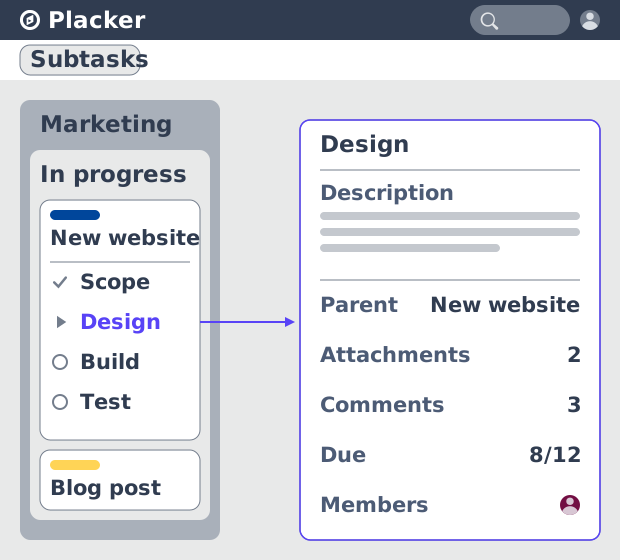
A checklist item holds a label and a checkbox, nothing more. In Placker a child is a full card, so each subtask carries its own description, attachments, comments, dates and members while still showing as a line on the parent. The detail that used to live in a doc or a chat thread now sits on the subtask it belongs to, and the person doing the work has it all in one place.
Rollup totals
A parent total you never recalculate
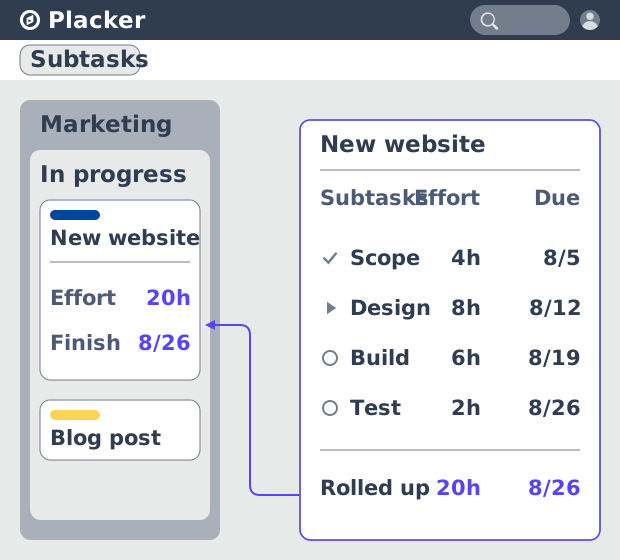
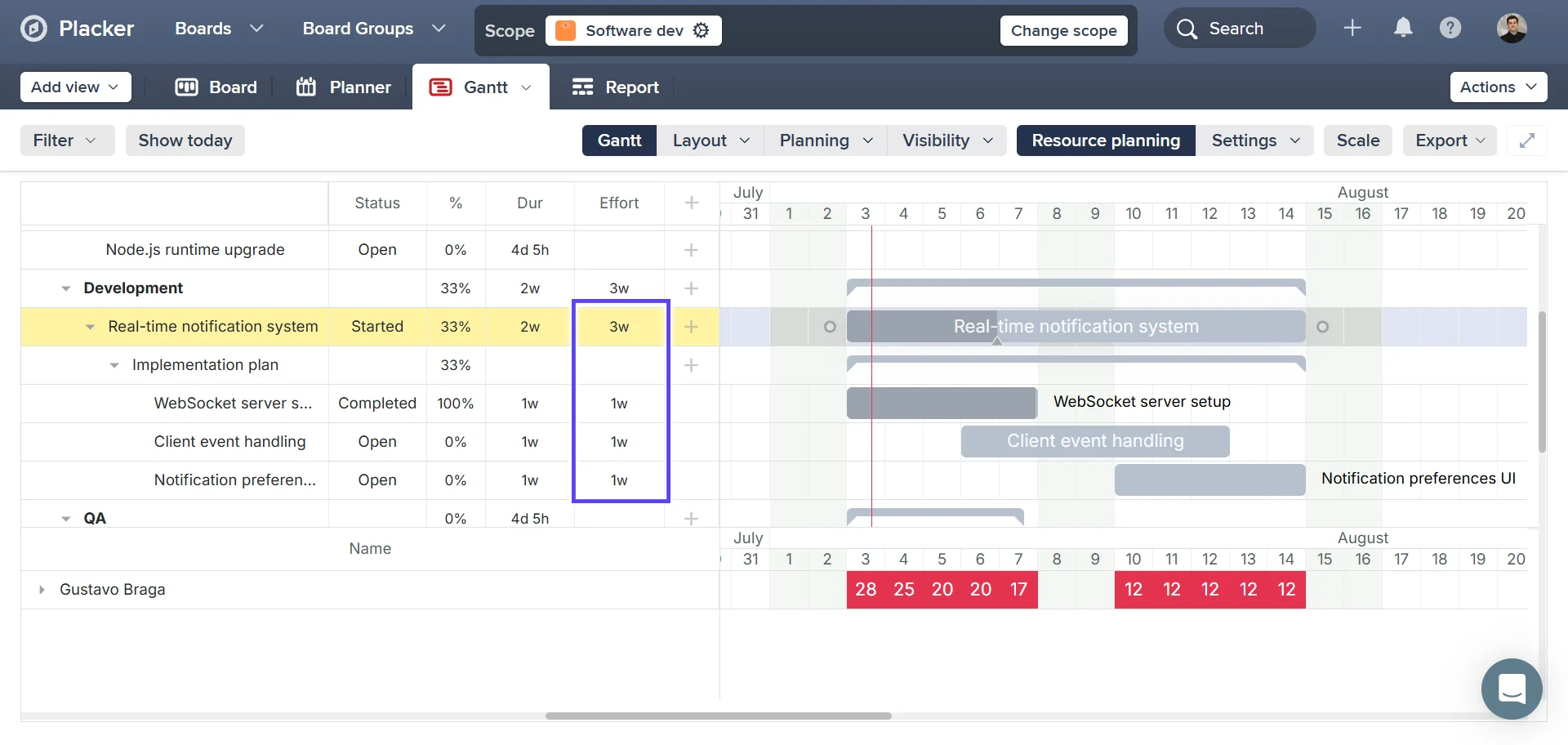
With dates and members now living on each subtask, you plan effort and dates where the work happens, and they roll up onto the parent automatically. When a subtask slips or its estimate changes, the parent updates on its own, so the rolled-up effort and the latest finish date stay current. You estimate at the bottom, where the work happens, and still read a reliable total at the top.
Subtask reporting
Subtasks that show up in your reports
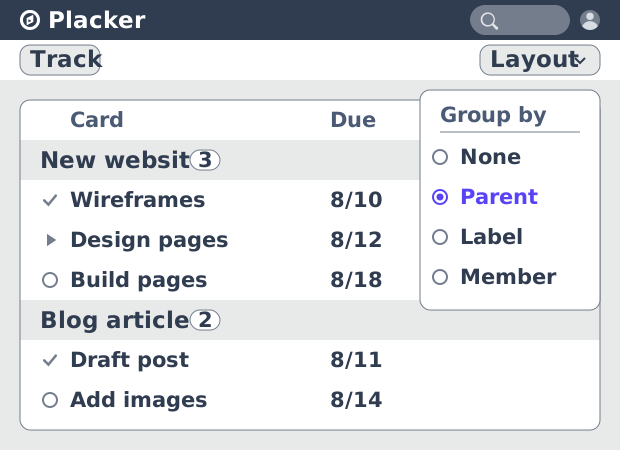
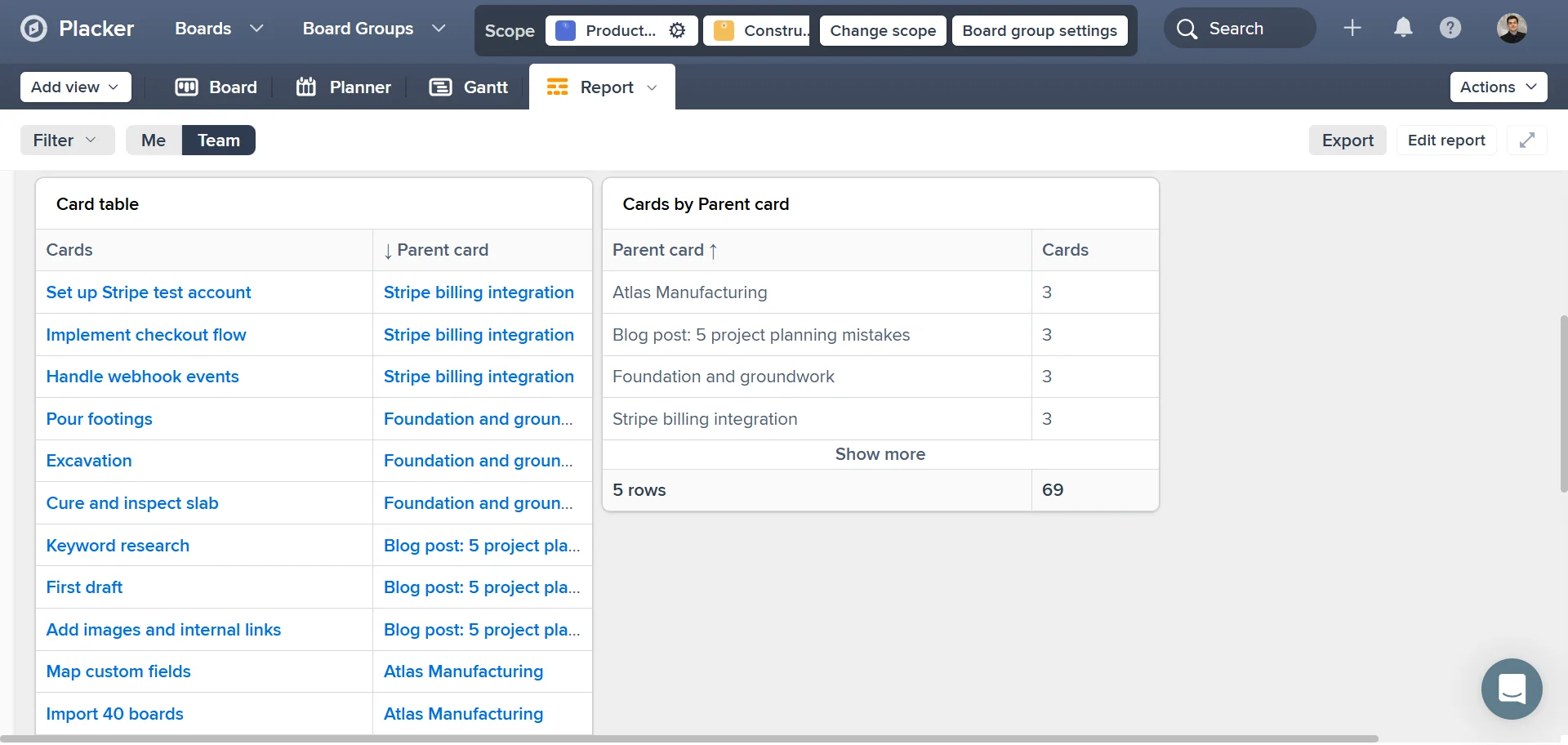
Those same cards feed more than the parent total: track views and reports in Placker read cards, not checklist lines. Because each subtask is also a card, it appears in the timeline, the workload view and your reports like any other work. Group a track view by parent to count cards per parent or zoom into one, and a breakdown that started as a checklist becomes something you can measure.
How It Works
You build a hierarchy from the back of a card or by dragging work into place, then switch on roll-up. Four steps take you from one large card to a tracked breakdown.
- 1
Create a parent and its children
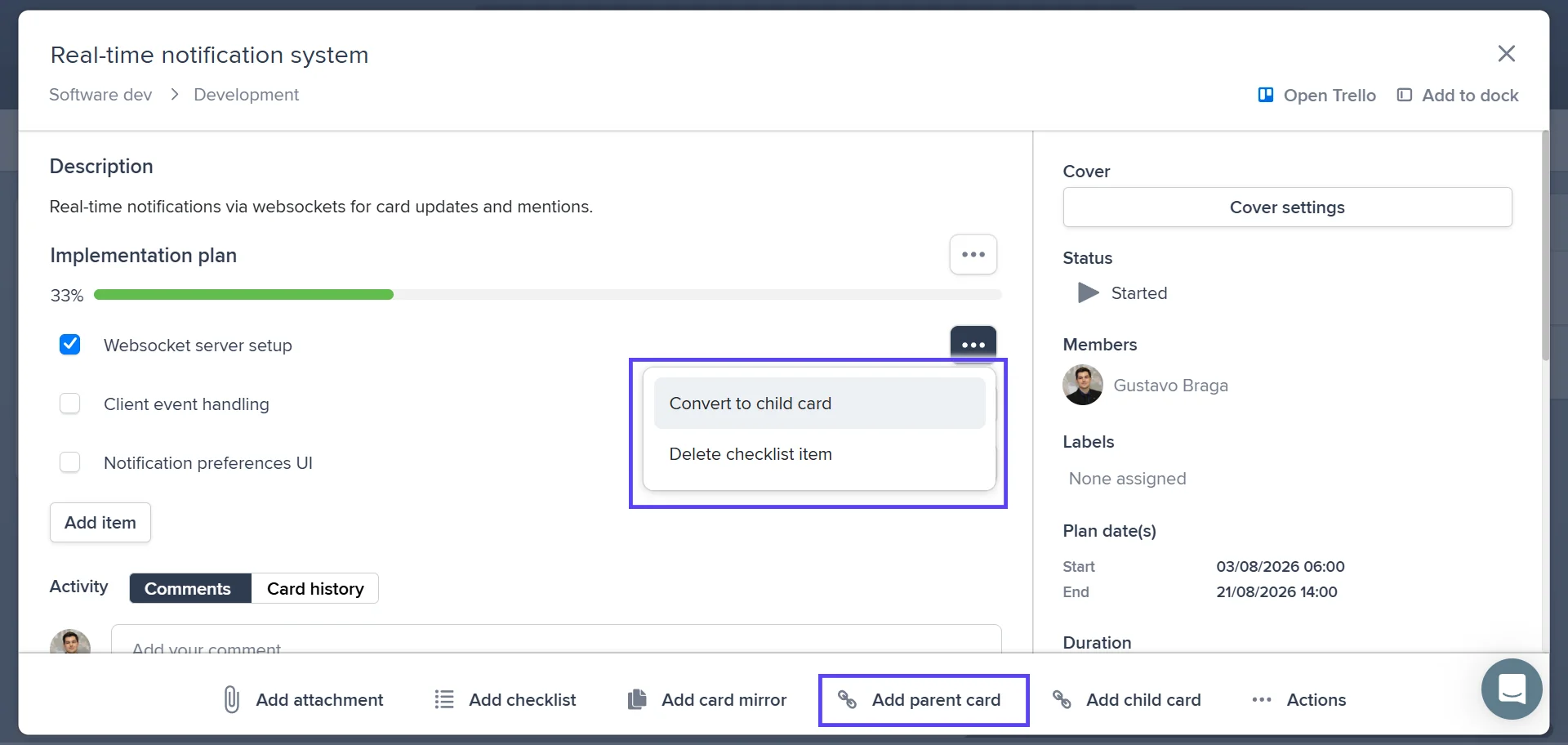
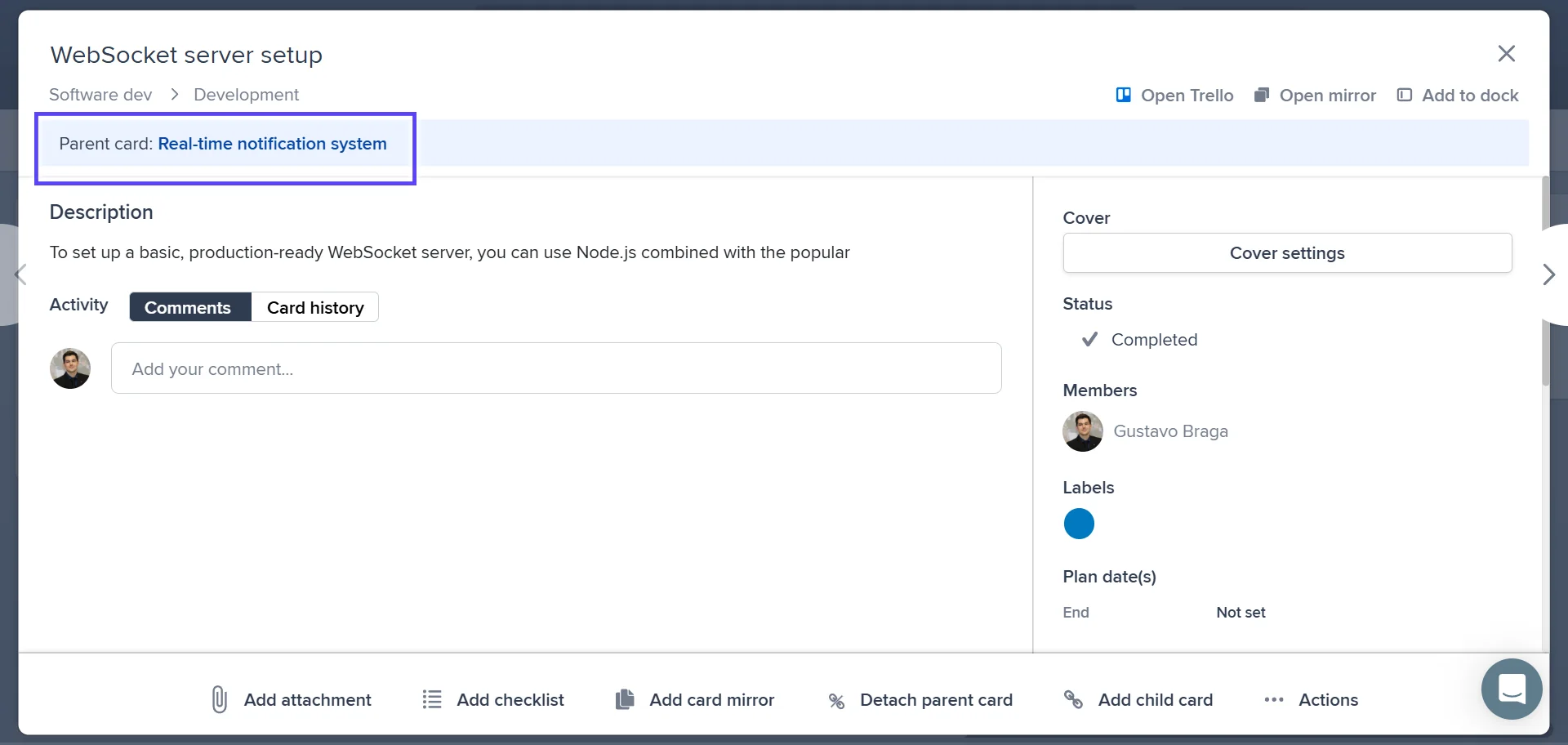
Open a card and use the Add parent card and Add child card buttons on the card overview to build the hierarchy, or drag an existing card or checklist item into a parent's checklist. You can also set the board layout to group by parent and drag child cards into place.
- 2
Give each subtask its own detail
Open a child card and add the description, attachments, dates and members the subtask needs. Mark a child complete and the checklist item on the parent ticks itself, so the summary stays in step with the work.
- 3
Turn on effort aggregation
In Board settings, open the Planning tab and enable Aggregate checklist items on card level. Do this before you plan the subtask efforts, because the setting only adds up efforts entered after it is on.
- 4
Track the whole hierarchy
Open a track view or report and group by parent card. Effort, dates and progress roll up from the subtasks, so you can read a parent's status, compare parents, or open one to see the work inside it.
Use cases
Parent-child cards fit teams that run sizeable, multi-part work in Placker as their main tool. Three setups where the breakdown earns its place:
An agency running client projects
A project lead at a creative agency runs each client engagement as a parent card, with deliverables like brand guidelines, a website and a launch plan as child cards. Each deliverable carries its own brief and deadline, and the engagement card shows the combined effort and the latest delivery date for the client review.
A professional services team scoping by work package
A consultant breaks a delivery into work packages following a work breakdown structure. Each package is a subtask with its own estimate and owner, and the roll-up gives a project total that updates as estimates firm up, so the next status call uses current numbers instead of a spreadsheet redone by hand.
Internal operations managing a program
An operations manager keeps a program card per initiative and child cards for each team's contribution. Effort and dates roll up across two levels, so leadership reads one program view while each team works in the detail of its own cards.
Tips & Best Practices
Practical advice to get the most out of your workflow
Break large tasks into child cards to make progress visible
When a task is too big to track as one card, create child cards to represent its individual steps. Placker shows parent card progress based on how many child cards are completed, so you can see where things stand at a glance.
Use parent cards to group related tasks under one deliverable
Create a parent card for each major deliverable, then add child cards for the specific actions needed to complete it. This hierarchy keeps your board organized without hiding the detail your team needs.
Filter by parent card to focus on one workstream at a time
Use Placker’s filter to show only the child cards belonging to a specific parent. When your board has many workstreams, this is the fastest way to focus a team member on just the tasks that matter to them.
Track dependencies between child cards to plan the order of work
Add dependency arrows between child cards on the Gantt Chart to map out the sequence of work within a deliverable, so it is clear which sub-tasks must finish before others can begin.
Related pages
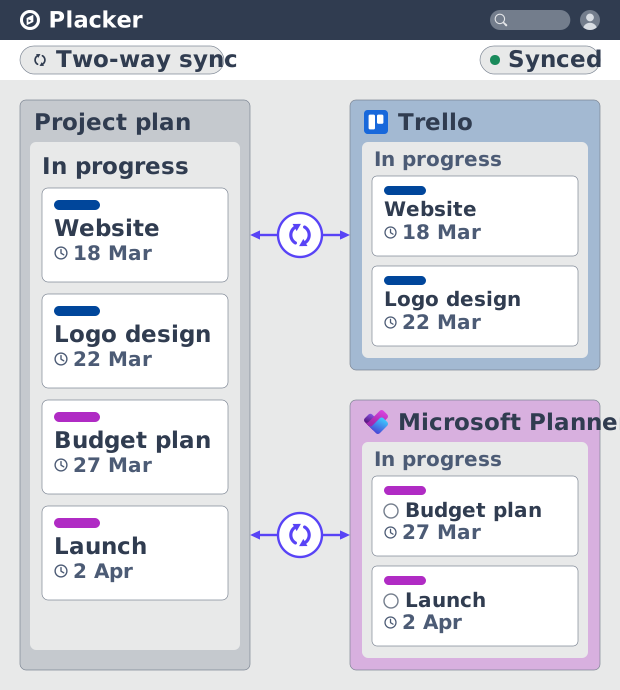
Placker integrations: sync your project tools
Placker integrations sync Trello, Microsoft Planner, Google Calendar, Clockify, and Zapier two ways, keeping one plan across every tool. See how it works.
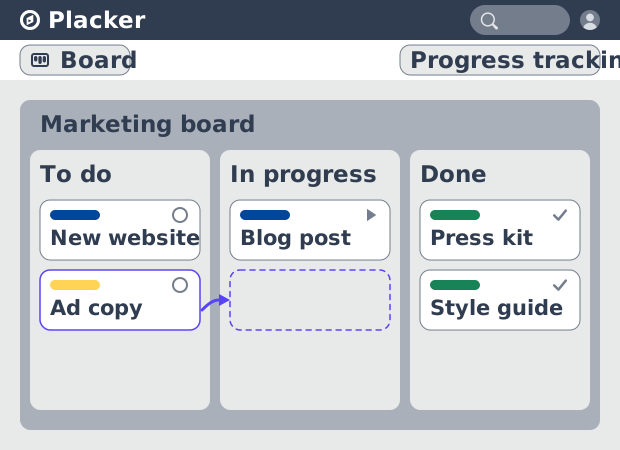
Board views: one board, any view
See all your work as cards moving across lists in Placker. Group by member, swimlane, or due date, and track flow with Kanban reports. See how it works.
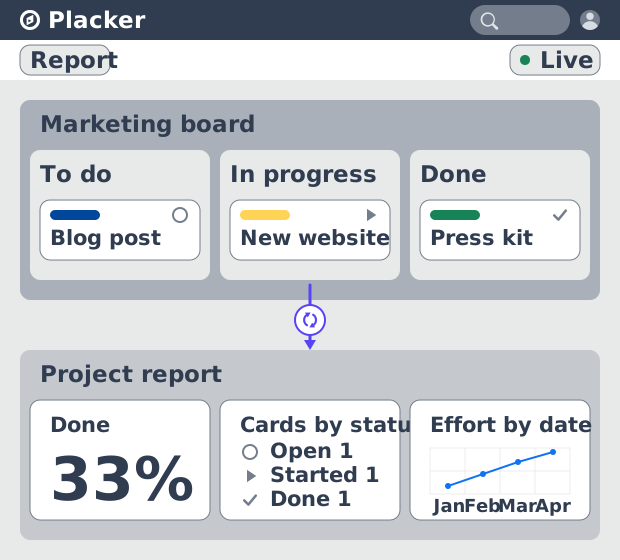
Project dashboards and reports
Build live project dashboards from your tasks. KPI widgets, pivot tables, portfolio roll-ups, and scheduled PDF reports. Start a free Placker trial.
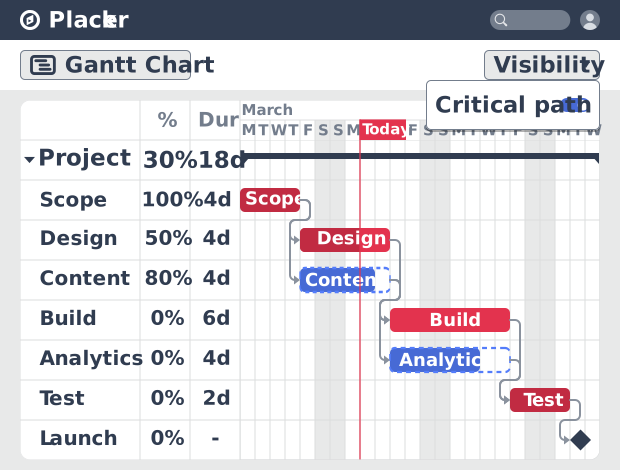
Gantt chart software with auto-scheduling
Plan projects on a visual timeline with Placker's Gantt chart software. Set dependencies, auto-schedule dates, and track the critical path.
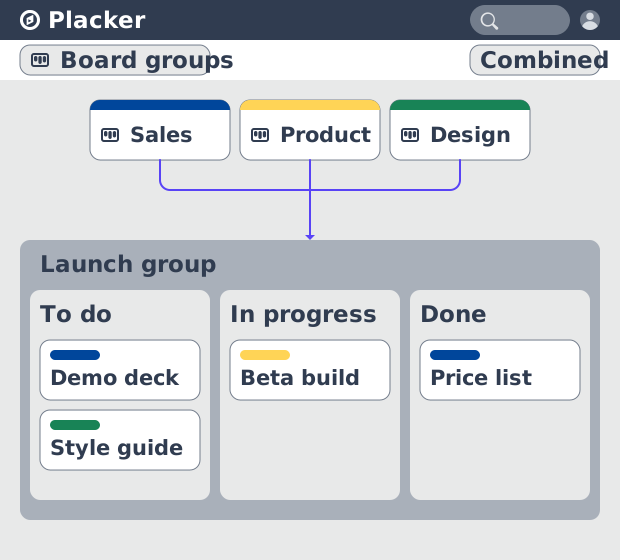
Board Groups: many boards, managed as one
Board Groups let you manage many boards as one workspace: plan, filter, and report across all of them, and save reusable groups. Start a free trial.
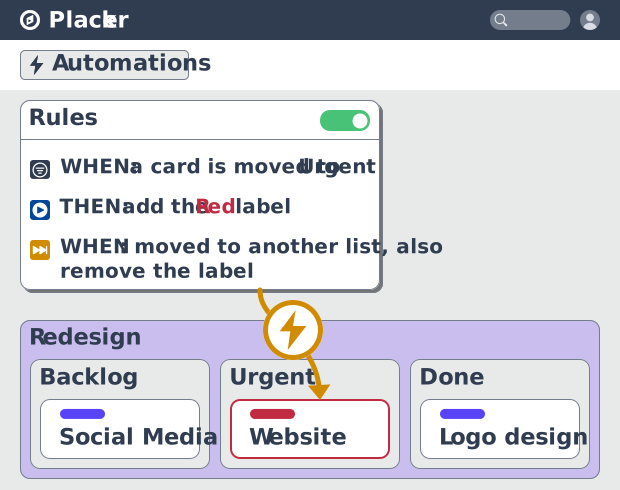
Project board automation rules, no-code
Automate project boards with condition-based rules. Placker mirrors, moves, assigns, and updates cards when work changes. See how it works.
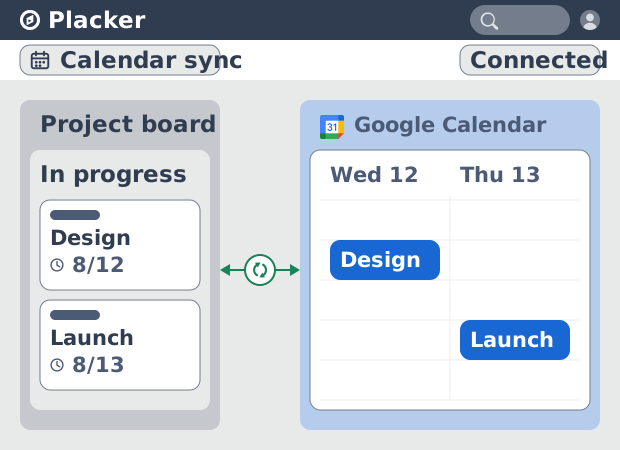
Placker Google Calendar sync: two-way, real-time
Placker syncs every dated card on your boards to Google Calendar, two-way, in under a minute. Edit either tool; both stay aligned. Start free.
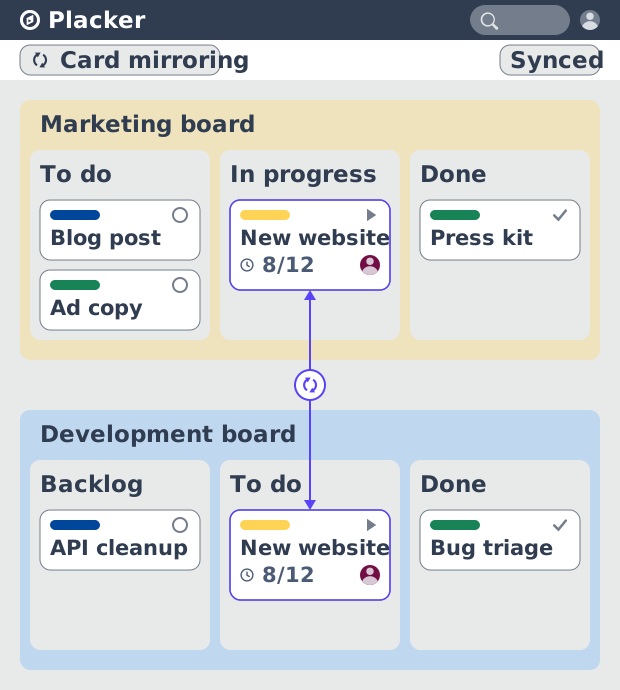
Card Mirror & sync in Placker: 2-way card sync
Card Mirror and sync keeps one task live across every Placker board. Edit a card once and status, dates and members update in seconds. Start a free trial.
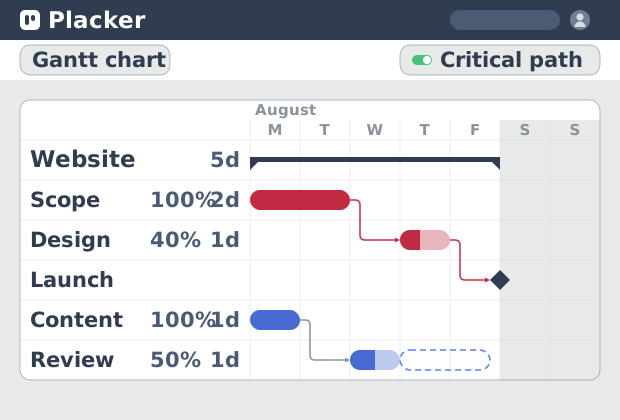
Critical path Placker: Gantt chart CPM analysis
Critical path in Placker finds the tasks that control your deadline and flags them on the Gantt, updating live as dependencies shift. Start a free trial.
Ready to get started?
Easy to setup, no credit card required, start your trial today!