Auto-scheduling keeps one slipped task from breaking the plan
Set dependencies once. When a predecessor slips, every downstream task date updates automatically.
Quick facts
Advanced planning for teams
Set your dependencies once and let Placker keep every date in line:
- Dates cascade on their own. Set a predecessor-successor dependency and Placker recalculates every dependent start and end date whenever something shifts.
- Four dependency types, not one. Finish-to-start, start-to-start, finish-to-finish, and start-to-finish links with optional lag model the real constraints between tasks.
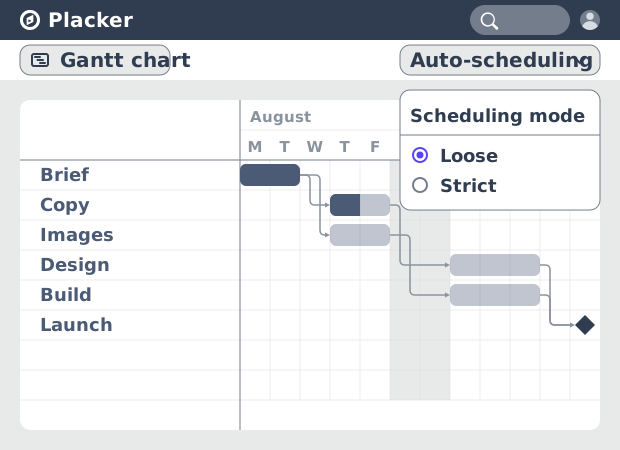
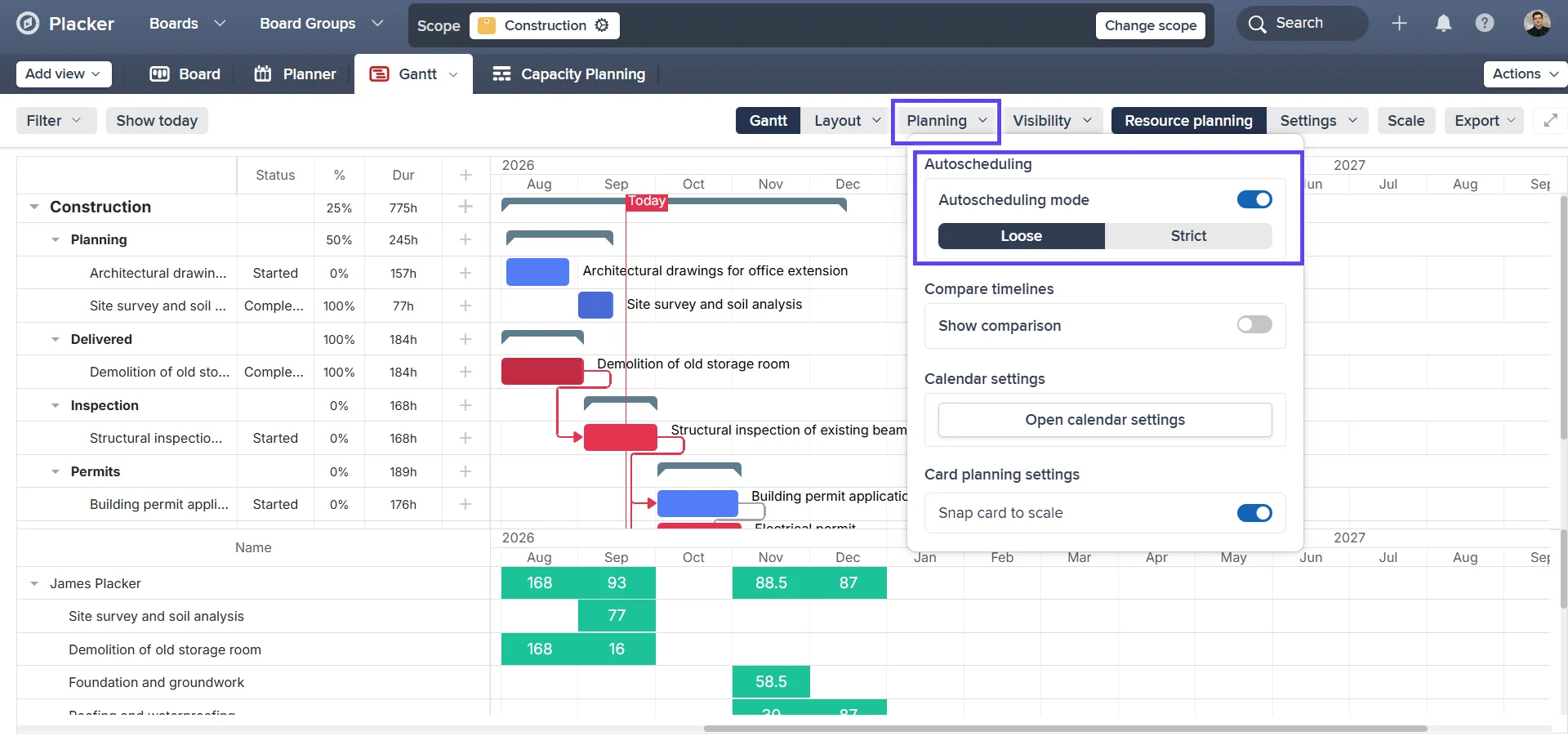
- Loose or Strict, your call. Loose mode only pushes tasks later when a predecessor is delayed, while Strict mode also pulls them earlier when one finishes ahead.
- Works across boards and portfolios. Link a task on one board to a task on another and the cascade respects the dependency no matter where each task lives.
Dependency propagation
No manual date updates when plans slip
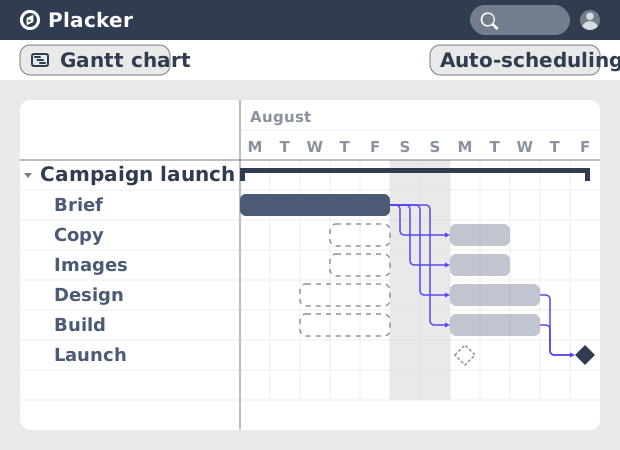
Date changes propagate through the full dependency chain automatically. When Task A's end date moves, every task that depends on it recalculates in one operation. The propagation runs through the entire chain. A single upstream slip updates every downstream task without you touching them individually.
A 40-task schedule does not require 40 manual date edits when one task runs late. You stay current without the administrative overhead.
Scheduling modes
Dependencies that enforce themselves
Placker's scheduling engine applies your dependency rules in real time, not just during export or reporting. Loose mode prevents unnecessary movement. Strict mode recovers float as soon as predecessors complete. Both modes enforce your dependency relationships rather than just recording them.
A dependency that does not update dates is documentation, not scheduling.
Real-time recalculation
See the end-date impact the moment it happens
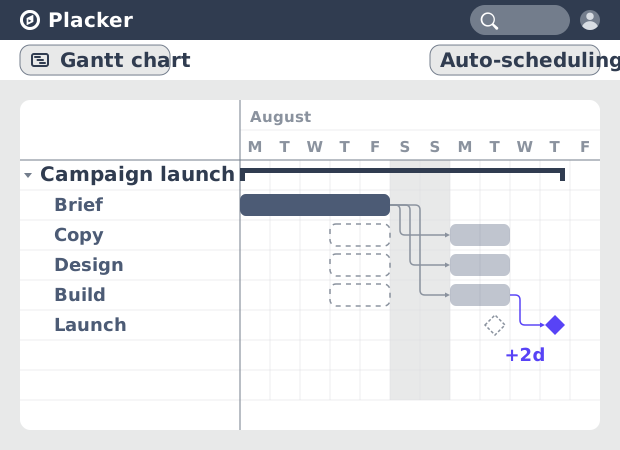
When any predecessor slips, the full chain recalculates and the new project end date shows immediately. You do not trace the impact manually through the Gantt. Date changes surface the moment they occur. The schedule reflects reality without a manual audit pass.
Stakeholder conversations about timeline happen before the deadline moves, not after it has already shifted.
How It Works
Set your dependencies once and let Placker keep every date in line, in four steps.
- 1
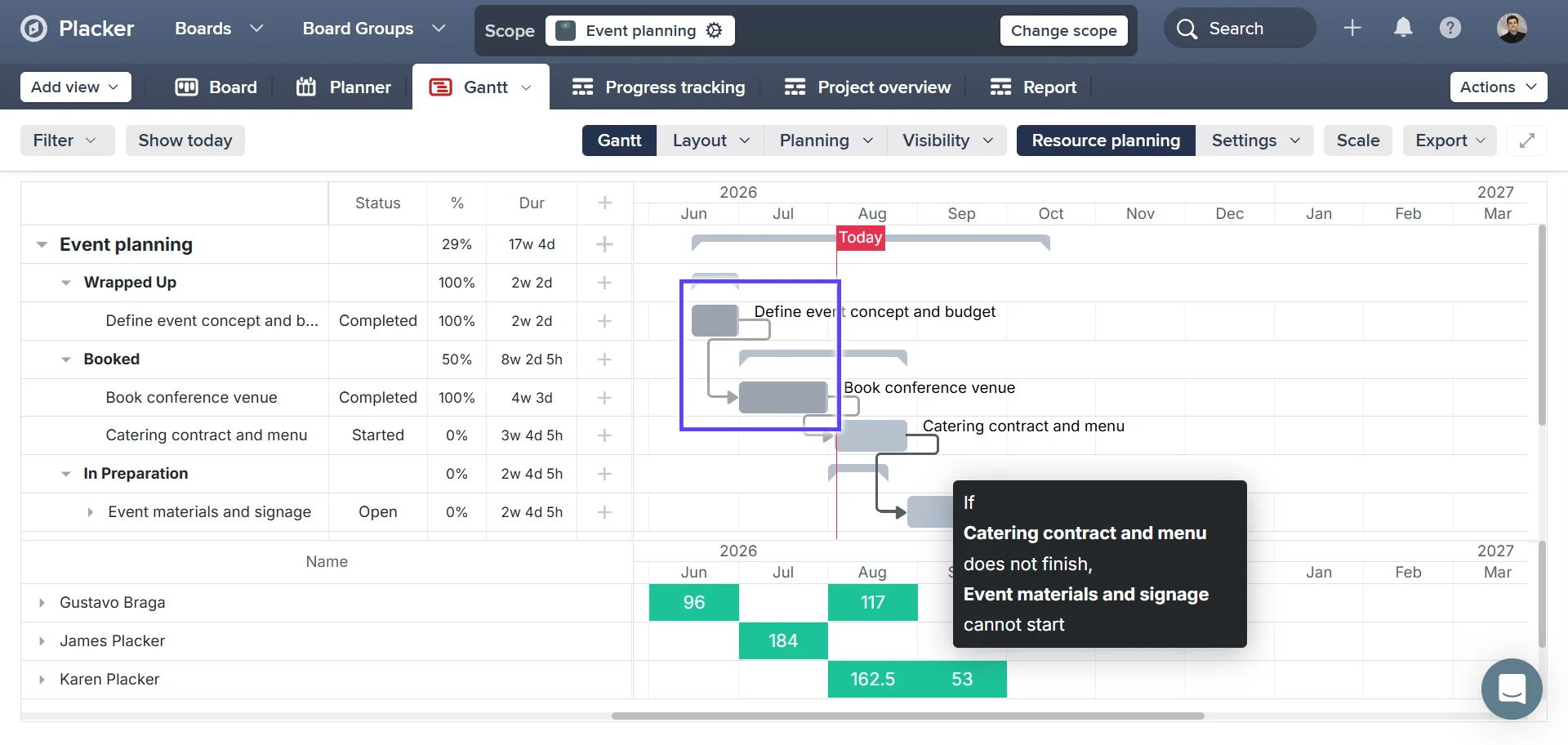
Set up task dependencies
Link tasks in your Gantt chart with dependency rules, so the schedule reflects how the work actually depends on itself.
- 2
Pick a scheduling mode
Choose Loose mode to avoid unnecessary movement, or Strict mode to recover float automatically as soon as predecessors complete.
- 3
Change a task date
When one task's end date moves, every task that depends on it recalculates in one operation — a 40-task schedule doesn't need 40 manual edits.
Screenshot to be added
Placker Gantt chart with every dependent task recalculated in one operation after a task end date moved
- 4
See the new end date immediately
When any predecessor slips, the full chain recalculates and the new project end date shows right away, before it becomes a surprise in a stakeholder conversation.
Use cases
Where teams rely on auto-scheduling to keep their plan up to date as work shifts.
Project lead with data-driven deadline
A project lead uses Placker auto-scheduling to generate a completion date based on task durations and real dependencies rather than optimistic estimates. The scheduled end date becomes the commitment to stakeholders, grounded in the actual work rather than a best guess.
Team adapting to scope changes
When two new tasks are added mid-project, the project manager triggers an auto-reschedule in Placker. The scheduler fits the new work into the existing sequence, updates all affected due dates, and flags if the overall deadline is at risk, all in one action.
Planner with conflict-free schedule
A resource manager uses Placker auto-scheduling to produce a plan where no team member is assigned to more than one task at the same time. The engine respects both task dependencies and person availability, eliminating the schedule conflicts that typically emerge in the second week of a sprint.
Tips & Best Practices
Practical advice to get the most out of your workflow
Use Auto-scheduling to build a realistic project schedule in seconds
Instead of manually dragging tasks to set dates, let Placker's Auto-scheduling calculate the timeline for you based on task durations and dependencies. What used to take an hour of Gantt editing takes moments.
Connect your task dependencies before running Auto-scheduling
Auto-scheduling works best when your dependencies are in place. Draw dependency arrows in the Gantt view first, then run Auto-scheduling to let Placker sequence the tasks in the right order automatically.
Use Auto-scheduling after a delay to see the new project end date instantly
When a key task is delayed, update its dates and run Auto-scheduling to see how the change cascades through the rest of the project. No manual recalculation. Placker updates the entire timeline in seconds.
Set task durations before running Auto-scheduling for the best results
Auto-scheduling uses task durations to space tasks across the timeline. Before running it, make sure your tasks have realistic durations set. The more accurate the inputs, the more useful the resulting schedule.
Related pages
Placker integrations: sync your project tools
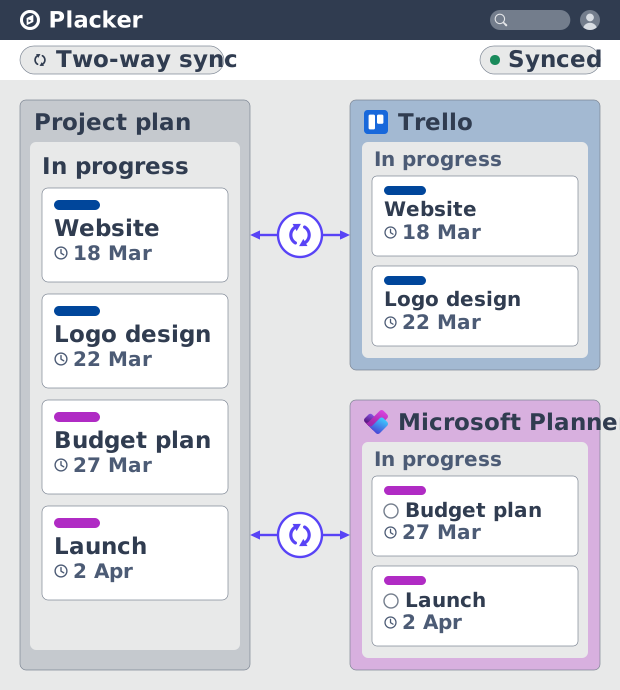
Placker integrations sync Trello, Microsoft Planner, Google Calendar, Clockify, and Zapier two ways, keeping one plan across every tool. See how it works.
Board views: one board, any view
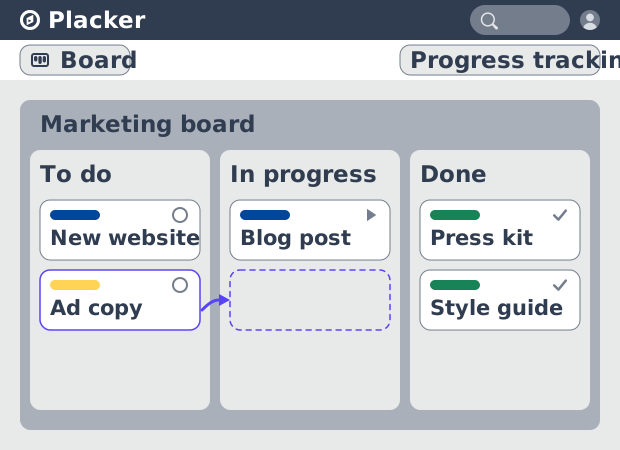
See all your work as cards moving across lists in Placker. Group by member, swimlane, or due date, and track flow with Kanban reports. See how it works.
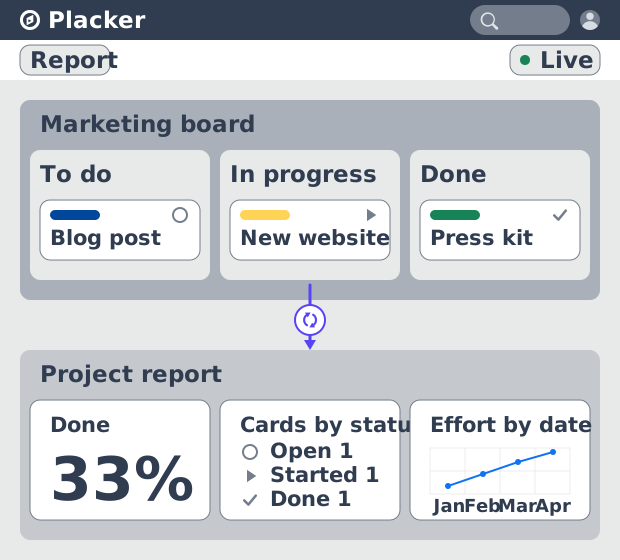
Project dashboards and reports
Build live project dashboards from your tasks. KPI widgets, pivot tables, portfolio roll-ups, and scheduled PDF reports. Start a free Placker trial.
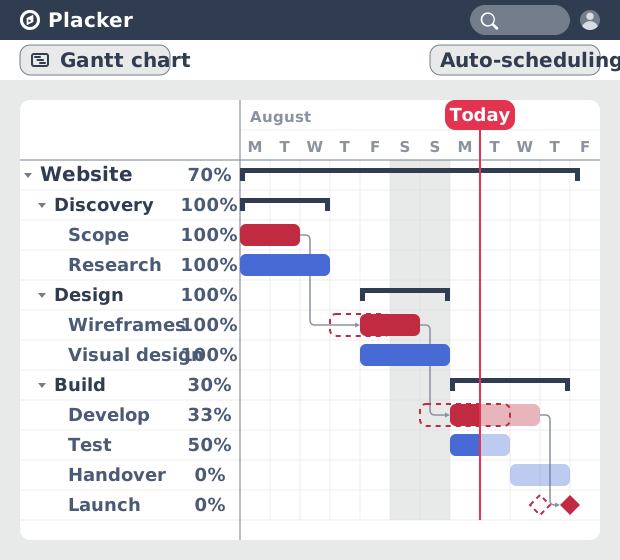
Gantt chart software with auto-scheduling
Plan projects on a visual timeline with Placker's Gantt chart software. Set dependencies, auto-schedule dates, and track the critical path.
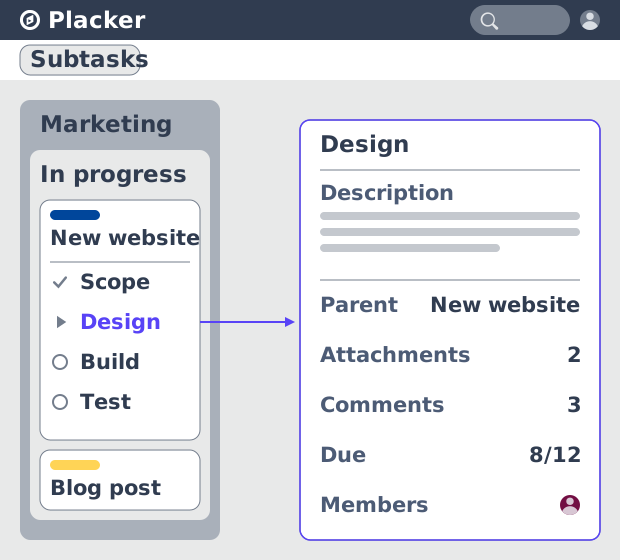
Parent-Child Cards in Placker | Subtasks that roll up
Parent-child cards in Placker give every subtask a full card and roll effort, dates and members up to the parent. Read the total on top.
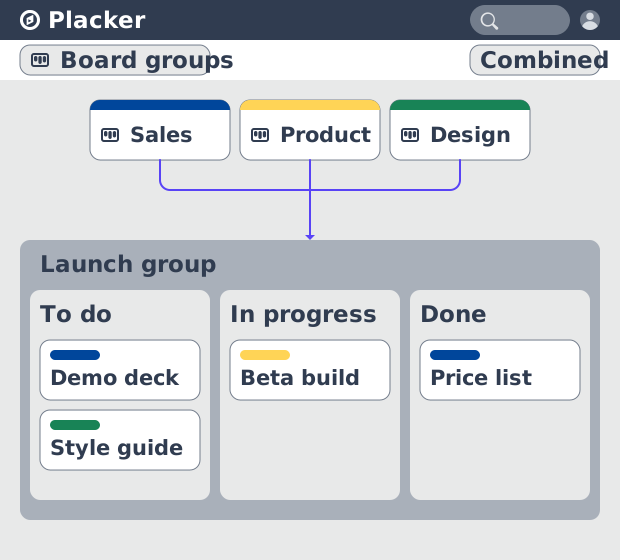
Board Groups: many boards, managed as one
Board Groups let you manage many boards as one workspace: plan, filter, and report across all of them, and save reusable groups. Start a free trial.
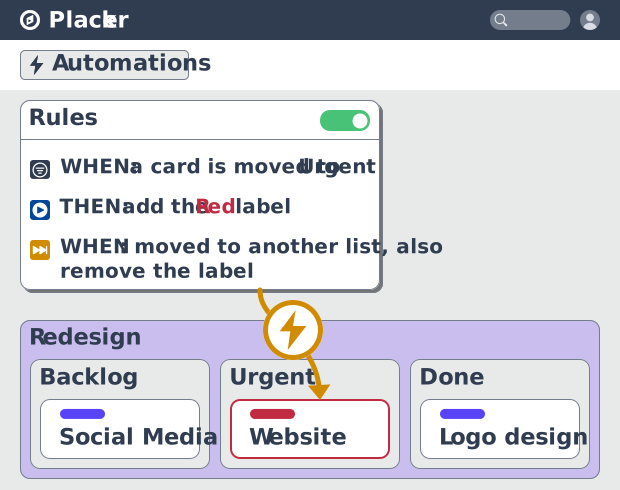
Project board automation rules, no-code
Automate project boards with condition-based rules. Placker mirrors, moves, assigns, and updates cards when work changes. See how it works.
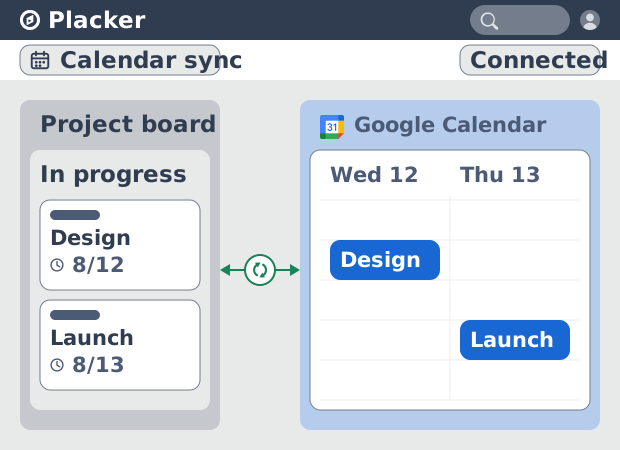
Placker Google Calendar sync: two-way, real-time
Placker syncs every dated card on your boards to Google Calendar, two-way, in under a minute. Edit either tool; both stay aligned. Start free.
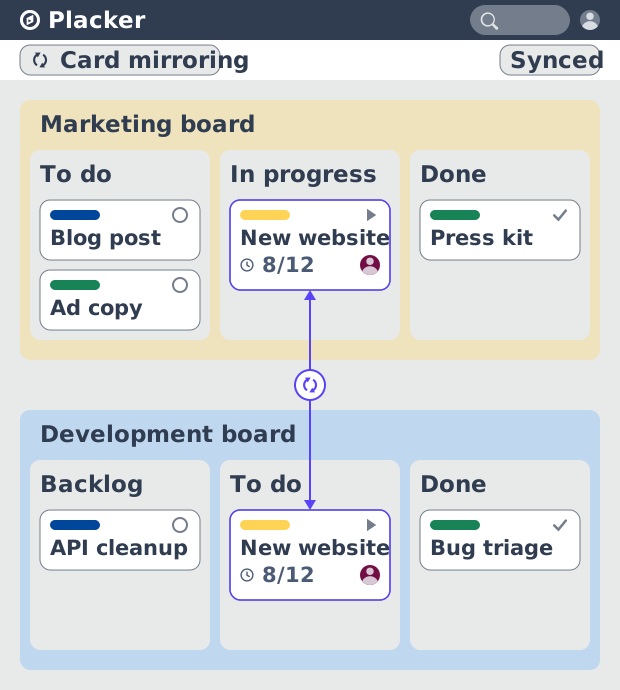
Card Mirror & sync in Placker: 2-way card sync
Card Mirror and sync keeps one task live across every Placker board. Edit a card once and status, dates and members update in seconds. Start a free trial.
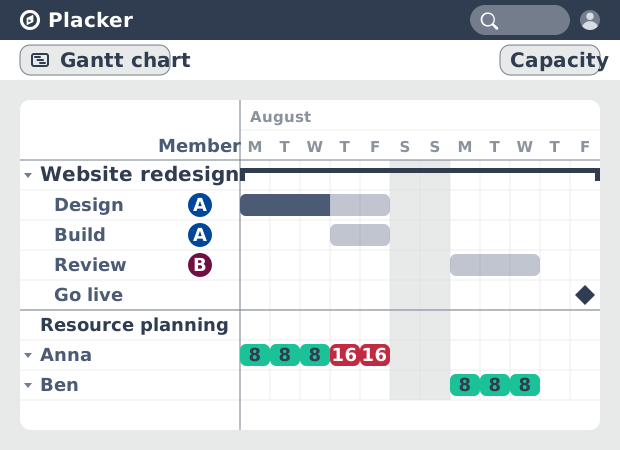
Placker Resource Planner: Capacity & Workload
Placker Resource Planner turns task assignments into a live workload view: daily capacity, FTE by member, and overallocation flags. Start a free trial.
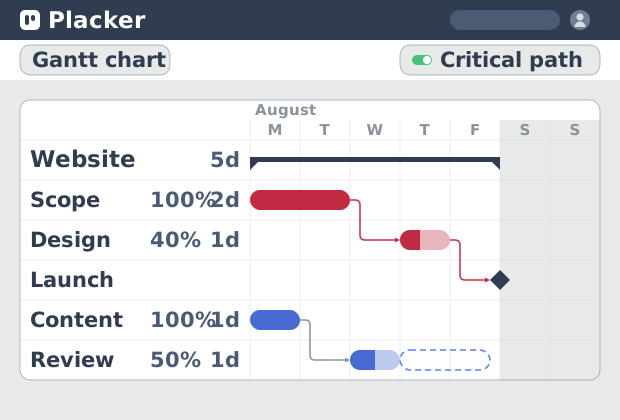
Critical path Placker: Gantt chart CPM analysis
Critical path in Placker finds the tasks that control your deadline and flags them on the Gantt, updating live as dependencies shift. Start a free trial.
Ready to get started?
Easy to setup, no credit card required, start your trial today!