One Kanban board view, every way to work
Show the same board as a list, a timeline, or a report, and save each view to share or keep for yourself.
Quick facts
Board views
One set of cards, seen every way your team needs. Here is what board views give you:
- Four layouts, one board. See the same cards as a Kanban board, a list, a timeline, or a report without duplicating any work.
- Group by whatever matters. Sort cards by member, label, priority, or a custom field to see exactly where the workload sits.
- Regroup without moving a card. Switch grouping or layout and jump back again while every card stays exactly where it was.
- Save it once, reuse it. Keep each view you build so you and the team can reopen or share it anytime.
- One shared picture. Every view reads the same cards, so the whole team sees the same progress at once.
Default view
Kanban board view
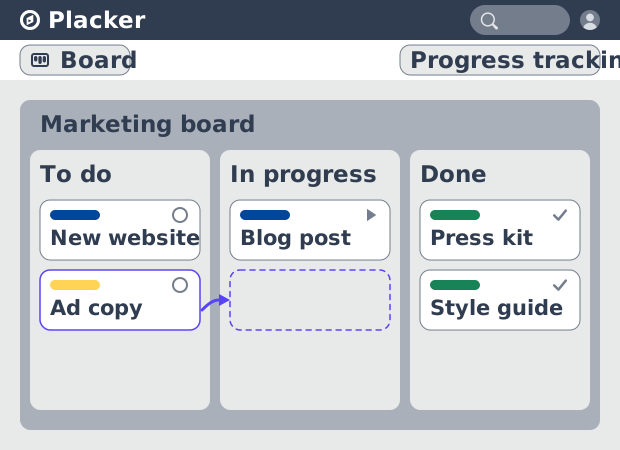
The board is where every view starts. Cards sit in lists, and each list is a stage of the work, so the layout itself shows where a task stands. You read progress by scanning across the board, and move a card forward by dragging it to the next list.
Because every card lives in one place, the team shares a single picture of what is in progress and what is waiting. Nobody has to ask where a task is. The list it sits in already answers that.
One shared view of every stage, from backlog to done.
Group by attribute
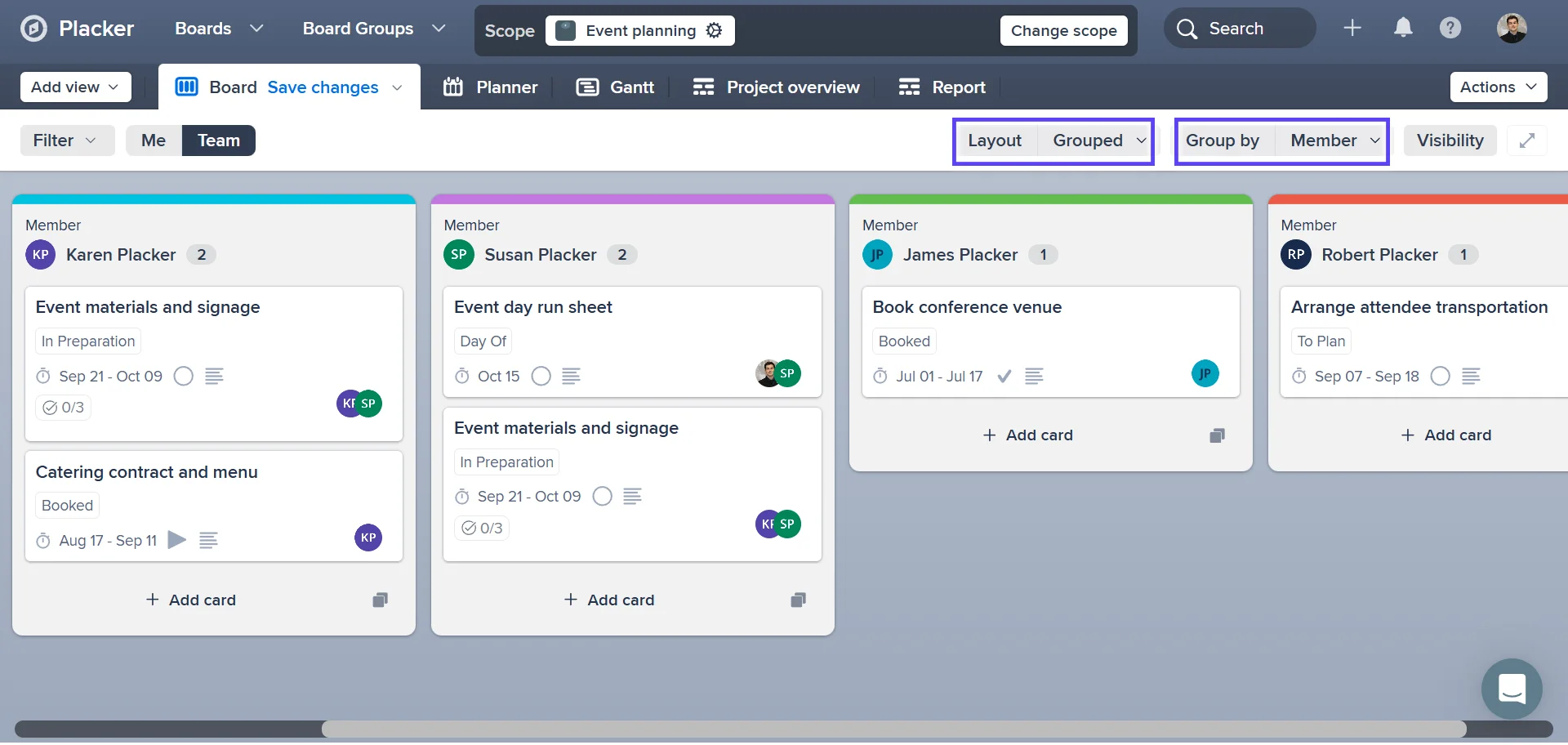
Grouped
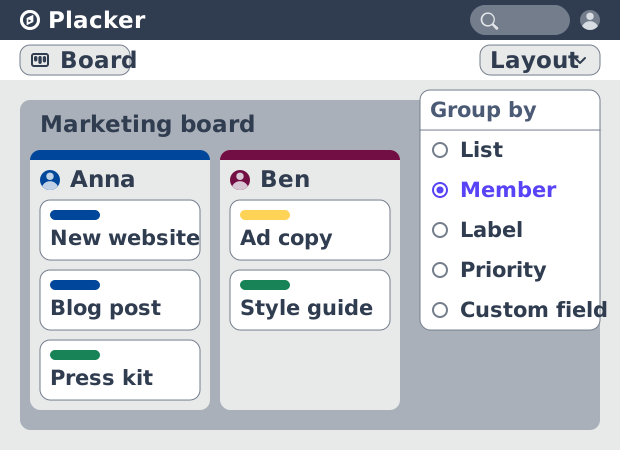
Grouping rearranges the same cards by an attribute you already track, such as member, label, priority, or a custom field. Pick the attribute in the Group by menu and the board reflows into a column per value, so a board built around workflow can, in one click, show who holds what instead.
Nothing about the cards changes; only the way they are stacked. That lets you answer a specific question about where the workload is piling up or whose plate is full. Once you have the answer, you switch back to the workflow view without having moved a single card.
Reslice the board by owner, label, or any field in one click.
Split into lanes
Swimlanes
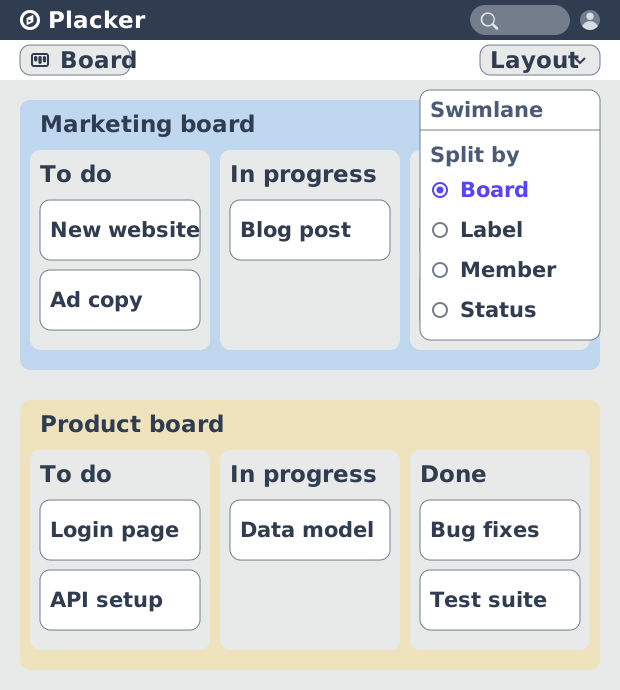
Swimlanes cut the board into horizontal rows while every card keeps its column. Each row holds one team, project, or client. Each lane runs its cards through the same stages, so a shared board reads as several tidy boards stacked on top of each other.
This keeps related work together without splitting it into separate boards. A team scans its own lane and ignores the rest, and you still see the whole operation on one screen when you need the wider view.
Give every team its own row on a board you all share.
Lay out by date
Planner
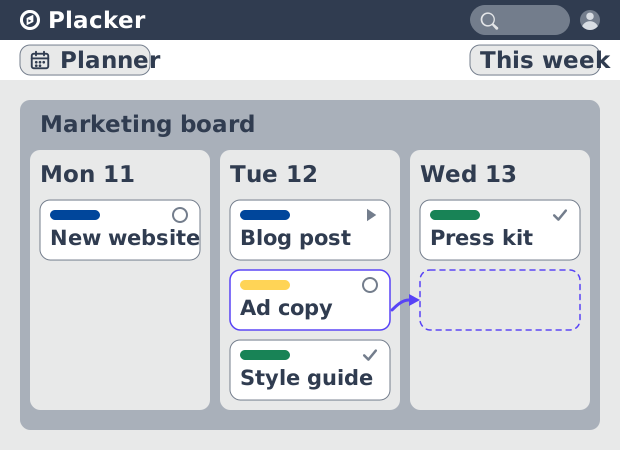
The planner lays the same cards out by date, so a board organized around stages turns into a view organized around time. You see what is due this week, where the deadlines cluster, and which days are already full.
When a day is overloaded, you drag a card to one with room and its due date updates with it. The board tells you what stage work is in. The planner tells you when it lands, and that timing is exactly what a list of stages can't show.
See what's due when, and drag a card to rebalance a crowded week.
Timeline view
Gantt
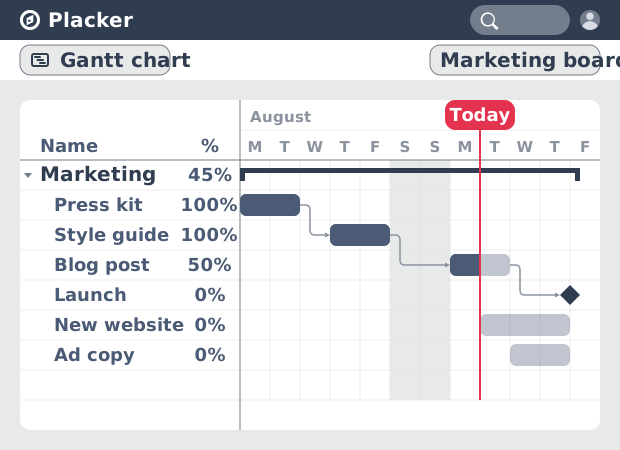
The Gantt view places the same cards on a timeline and draws the links between them, so you read the board as a sequence instead of a set of stages. Bars show how long each task runs, and dependency lines show what has to finish before the next thing can start.
That turns a board full of due dates into a plan you can reason about: move one card and you see what shifts downstream. Open the dedicated Gantt page for the full timeline. There you get dependencies, the critical path, and scheduling.
Read the board as a timeline, with dependencies drawn in.
Dashboards and reports
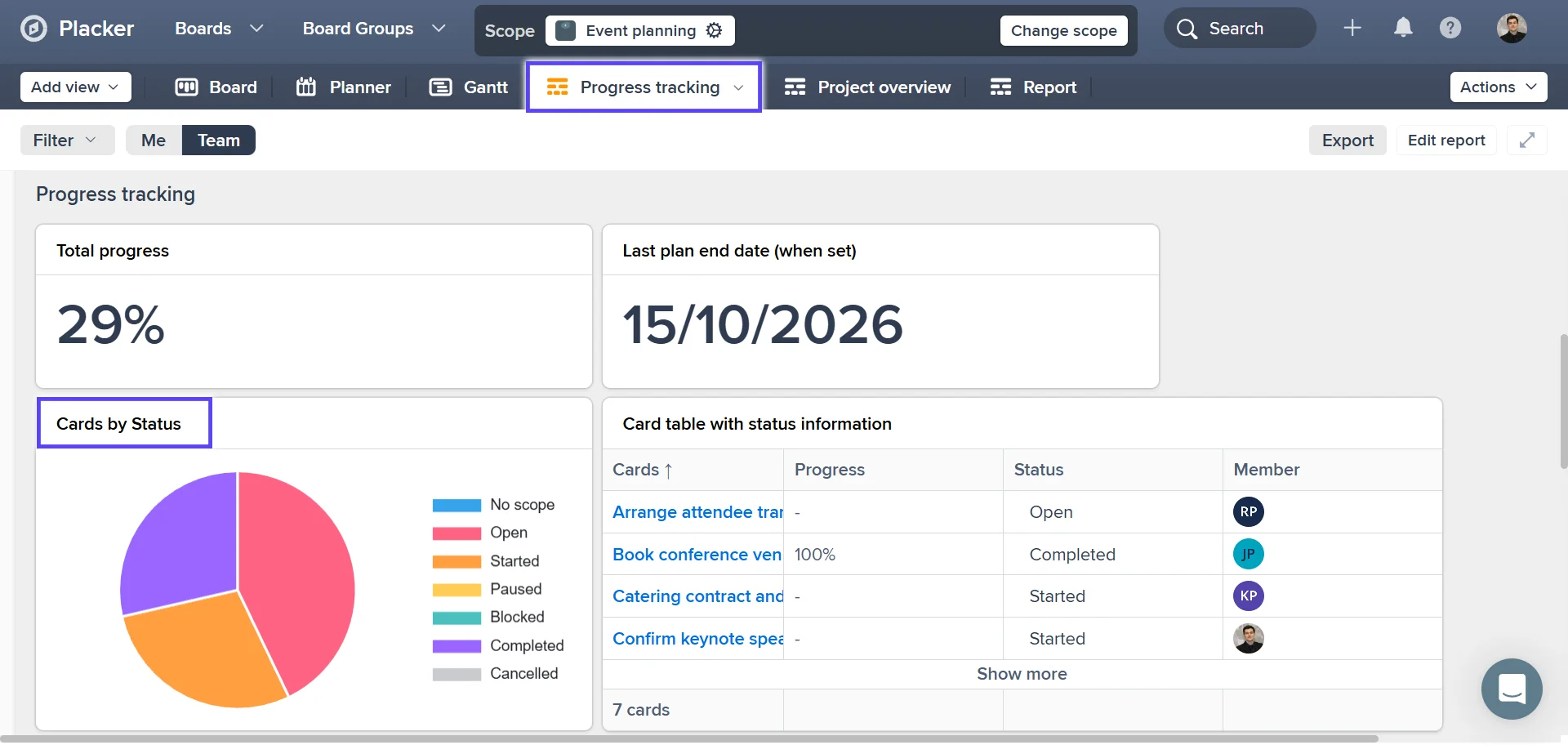
Report
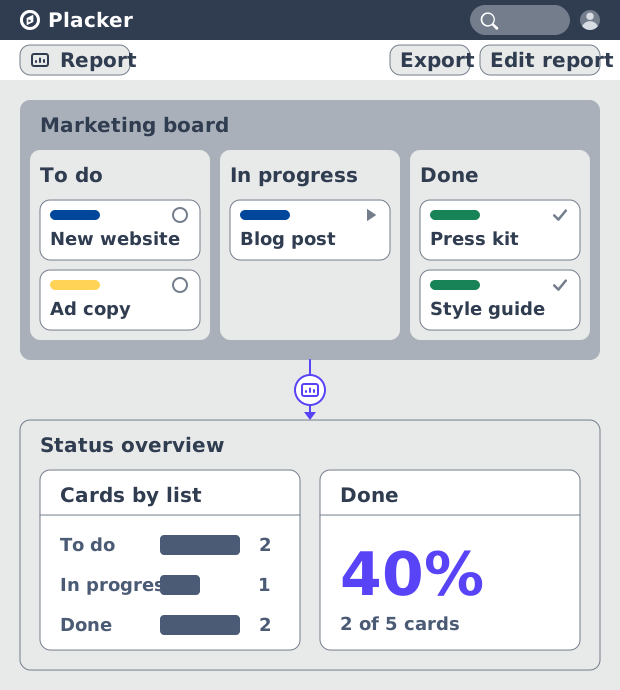
Reports roll the same cards up into live counts and charts, so the board that tracks individual work also answers the status question at a glance. Instead of counting cards by hand, you see how many cards sit in each stage and where flow is stalling.
This is the view you share upward, when a stakeholder wants progress rather than the card-by-card detail. It stays live as cards move, so the numbers are current every time you open it. For the full set of charts and dashboards, open the dedicated reports page.
Turn the board into live status numbers you can share upward.
How It Works
Set up the board view in a Placker project in four steps.
- 1
Open your board view
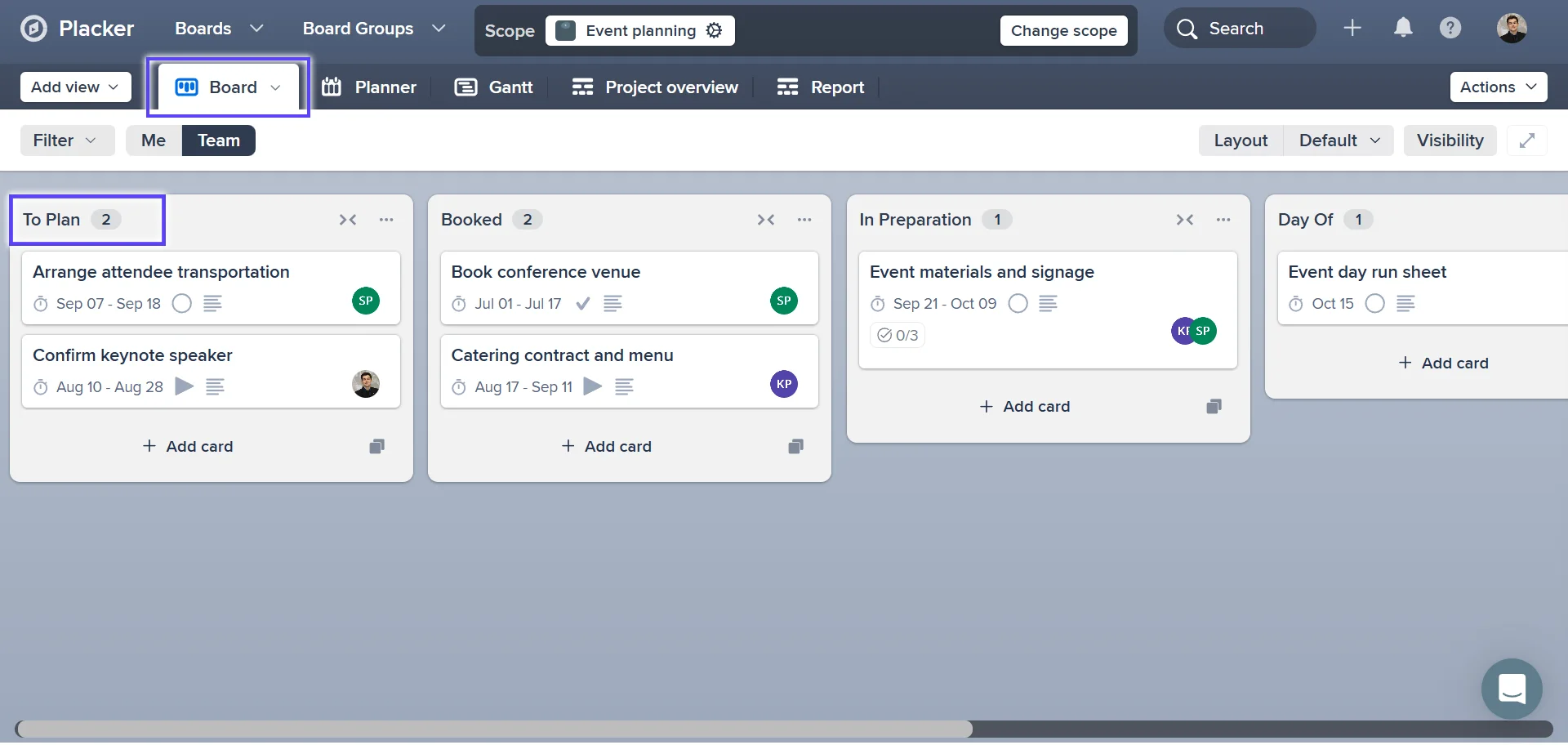
In your Placker project, open the board view. Your tasks appear as cards in lists, with each list a stage of your workflow.
- 2
Set what each card shows
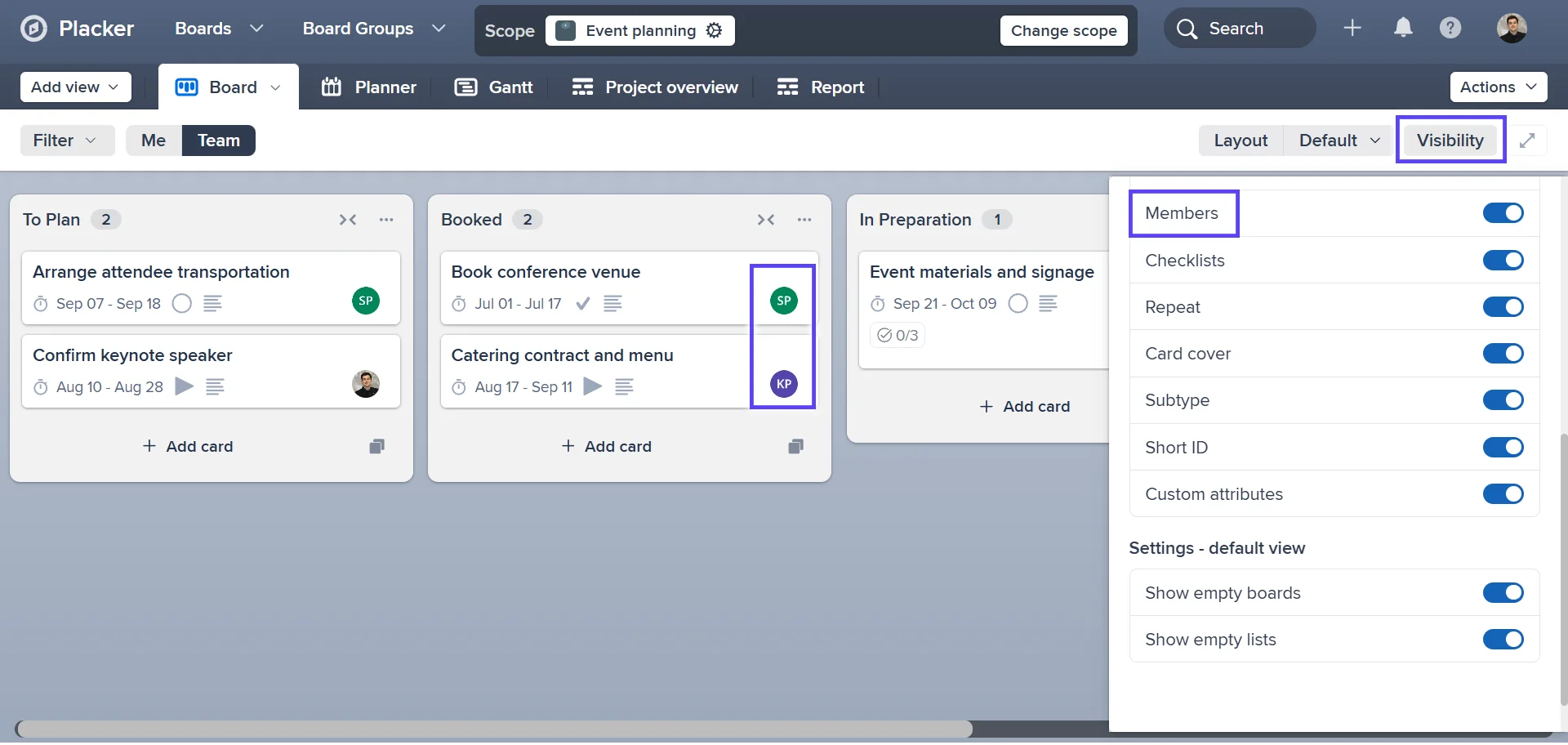
Open the card front settings and choose the attributes to display: duration, members, and your own text, number, or date fields.
- 3
Choose a layout and filters
Pick a list layout, a grouping by an attribute such as member, swimlanes, or a layout organized by due date. Add filters by attribute or date range, and hide empty lists to tighten the view.
- 4
Move cards and read the flow
Drag a card to the next list as work progresses. Switch to the Placker report views to see cards per stage and lead time, and adjust where work is piling up.
Use cases
Where teams use Placker's board views to organize and track work across their projects.
Agency delivery team
An agency project manager runs five client projects at once. They group the board by member to see who is overloaded before taking on a new deliverable, and filter to cards due this week to brief the team at the start of each week.
Professional services lead
A consulting lead tracks engagements through stages from scoping to delivery. The Kanban process report view shows which stage cards stall in, so they fix the handoff between research and drafting instead of guessing.
Internal operations team
An internal operations team handles requests from across the company. Swimlanes split the board by department, so each team reads its own row while the ops lead reads the whole board, then rebalances work with capacity planning when one lane fills up.
Tips & Best Practices
Practical advice to get the most out of your workflow
Save one view for each question you keep asking
Arrange the board the way you need it, grouped by owner, laid out in the planner, or filtered to your cards, then save it with a clear name. Next time you switch to it in one click instead of rebuilding it, and you can share the saved view with the team or keep it just for you.
Filter the board down before you switch views
Narrow the board to one label, member, or due window first. The grouped, planner, and timeline views all keep that filter, so you get a focused workload or timeline of just the cards that matter instead of the whole board.
Run the same saved view across a whole Board Group
When related boards are combined in a Board Group, apply the same grouped or planner view to all of them at once. A single group by owner view then shows workload across every project in the group, not just one board.
Flip to group by owner for standups and workload checks
Keep the board organized by workflow stage day to day, then switch to group by member when you need to see who is overloaded. You get an instant per person read, and switch straight back without moving a card.
Related pages
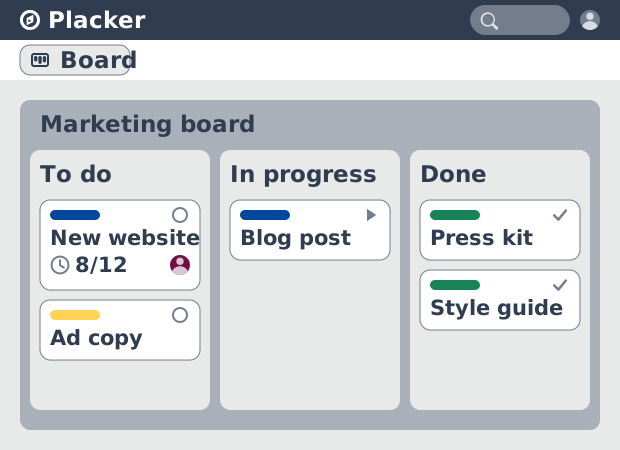
Boards that fit any kind of work
Plan your project on a board where every task is a card. Set the card front, filter by due date, and focus on your own work in Placker. Start free.
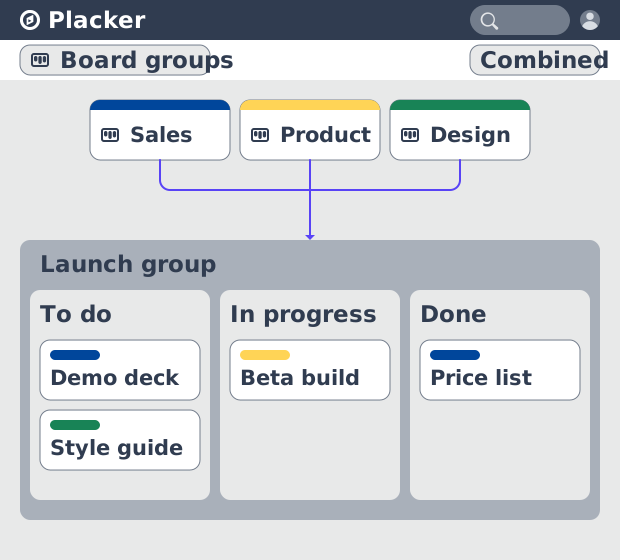
Board Groups: many boards, managed as one
Board Groups let you manage many boards as one workspace: plan, filter, and report across all of them, and save reusable groups. Start a free trial.
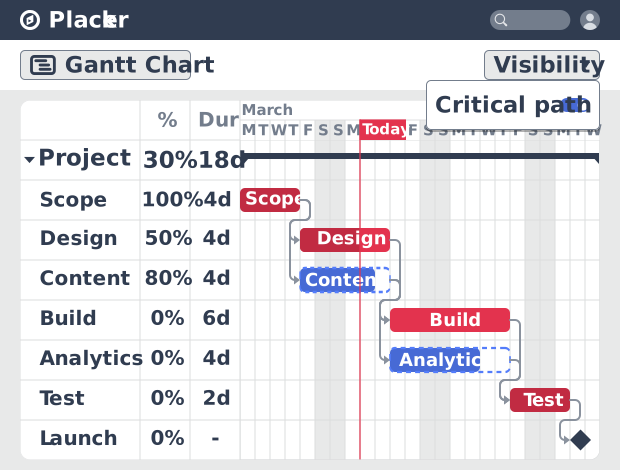
Gantt chart software with auto-scheduling
Plan projects on a visual timeline with Placker's Gantt chart software. Set dependencies, auto-schedule dates, and track the critical path.
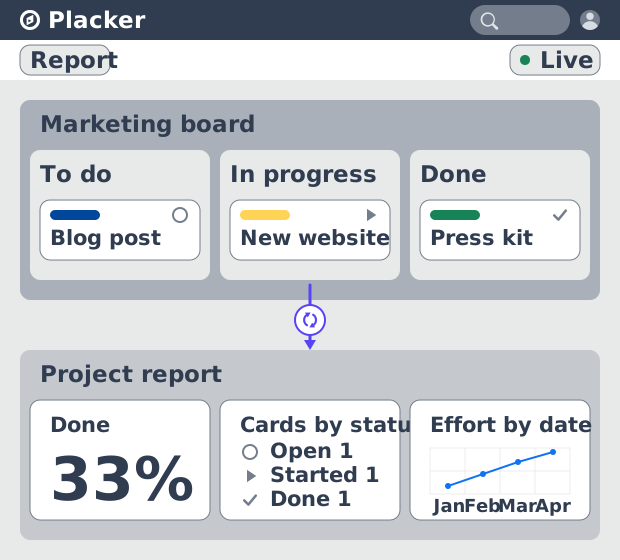
Project dashboards and reports
Build live project dashboards from your tasks. KPI widgets, pivot tables, portfolio roll-ups, and scheduled PDF reports. Start a free Placker trial.
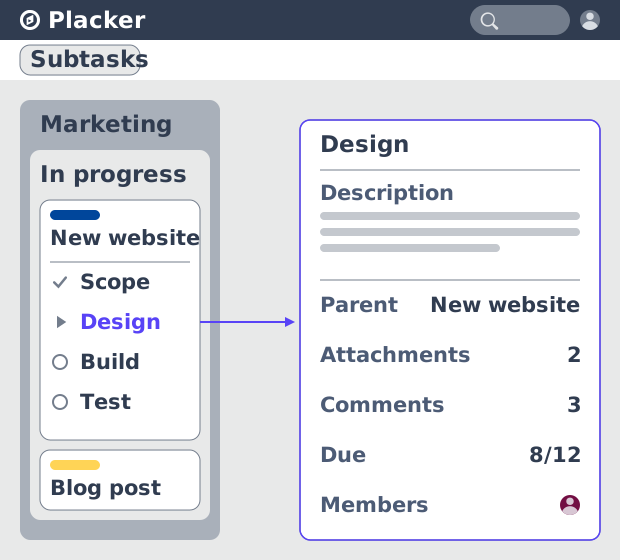
Parent-Child Cards in Placker | Subtasks that roll up
Parent-child cards in Placker give every subtask a full card and roll effort, dates and members up to the parent. Read the total on top.
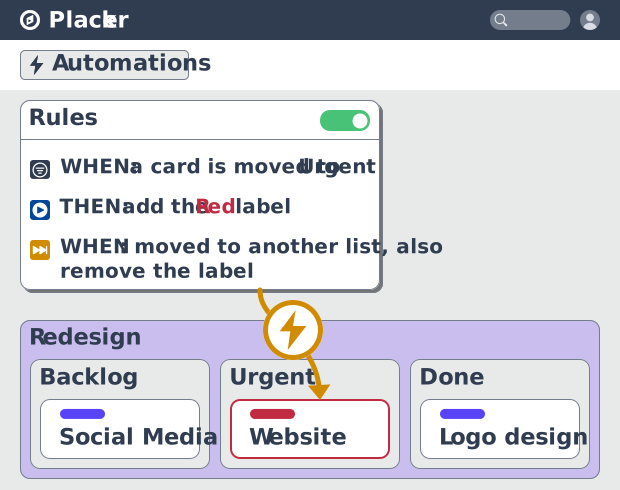
Project board automation rules, no-code
Automate project boards with condition-based rules. Placker mirrors, moves, assigns, and updates cards when work changes. See how it works.
Ready to get started?
Easy to setup, no credit card required, start your trial today!