Build a master board across every project with Placker
Your projects live on separate boards, so no one sees the whole picture. Placker loads them into one view, with no cards copied or moved.
Quick facts
Two ways to build a master board
Two ways to pull scattered boards into one master board. Here is what each gives you:
- Two routes, one master board. You either aggregate boards into a single view with a Board Group or consolidate them onto a real destination board with Card Mirroring.
- Board Groups need the least setup. A Board Group loads several boards into one view without copying a card, so it's the fastest place to start.
- One scope drives every view. The boards you group feed Board, Gantt, Report and Planner from a single grouped scope.
- Combine merges matching lists. Lists that share a title collapse into a single column instead of sitting side by side.
- Rules keep a mirror current. When you build a mirrored master board, rules keep it up to date as the source cards change.
The problem
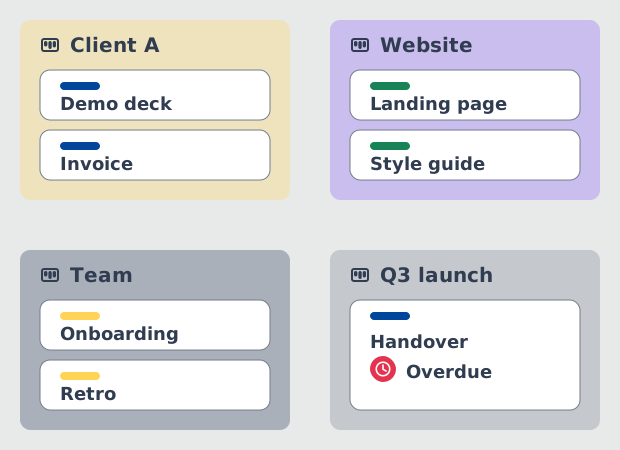
Work is split across boards, and nobody sees all of it
One board per project keeps each project readable. It also hides the whole.
Splitting work across boards is the right call. One board per client, per team or per project keeps each one readable, and the people who own it can run it their way. The cost shows up elsewhere. There is no single place to see what is due this week, who is carrying too much, or which project has quietly slipped. So you open board after board, keep a browser tab per project, and still find the overdue card on the quiet board a week late.
The approach
Aggregate the boards you have, or consolidate into a new one
Two architectures, one decision. Start with the one that copies nothing.
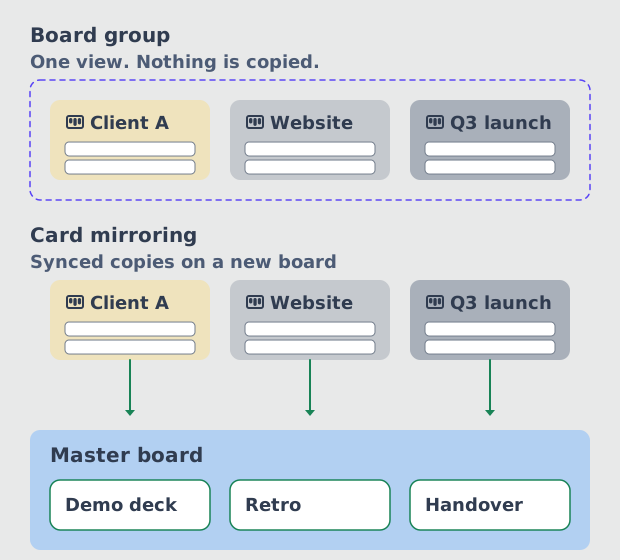
A master board is built one of two ways, and the choice is architectural. Aggregation loads the boards you already have into one view: cards never move and nothing is copied. In Placker that is a Board Group, and it is where to start, because a saved selection is reversible and needs no agreement from the teams who own each board. You get a cross-project view the same afternoon. Consolidation is the other route. Card Mirroring builds a real destination board holding synced copies, which is what you need when the master board has to be a board in its own right.
The steps
Build the group first, then automate the mirrors
Route A takes minutes. Routes B and C build a destination board.
Route A is the default and takes minutes. Routes B and C matter when the master board has to exist as a board rather than as a view, and C is the one that keeps it current without anyone maintaining it. Every board involved has to be in Placker first, whichever route you take. The steps below run in the Placker web app.
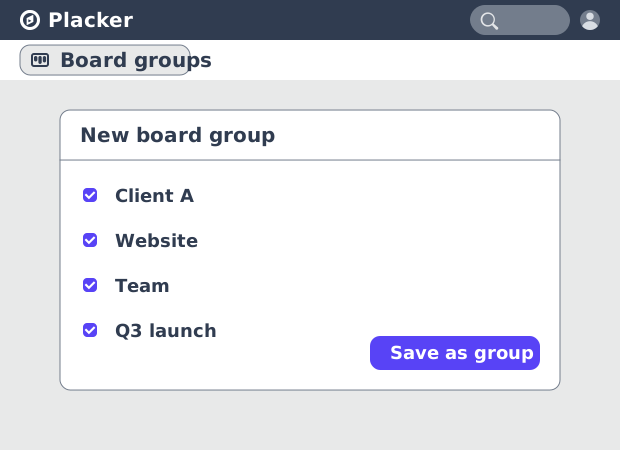
- Route A: build a Board Group (recommended)
- Route B: mirror cards onto a destination board
- Route C: let mirror rules maintain it
The outcome
What the finished master board gives you
One surface to read, and the same scope feeding your timeline and reports.
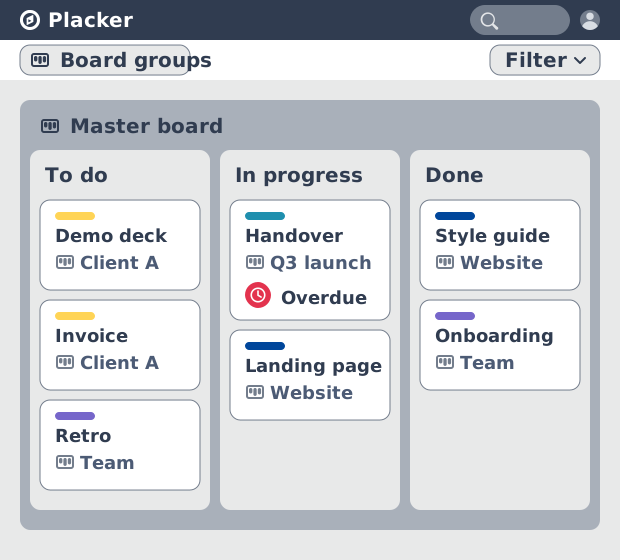
You now open one view and read every project at once. Filters run across the whole group, so assigned to me returns your work from every board, and overdue returns the exceptions a lead actually needs. Per-board scope lets a personal board and a client board sit in the same group without one drowning the other. The same scope opens in Gantt for a cross-project timeline and in Report for progress across projects, so the master board you built is also your portfolio view.
What your finished master board looks like
One view across every project, with the same scope ready for your timeline and your reports. You built a master board without migrating anything. The boards each team owns still work the way they did. What changed is that you now have one saved scope that reads them together, filters across them, and carries into every other view.
One view, every project
Opening the group shows cards from each board you selected, and nothing has left the board it came from.
Filters that cross boards
One filter such as assigned to me or overdue returns matching cards from every board in the group at once.
The same scope in Gantt and Report
Switching view keeps the selection, so your timeline and your progress report cover the same set of projects.
Tips & Best Practices
Practical advice to get the most out of your workflow
Align list names before you combine
Combine keys on list titles. Renaming Complete to Done on one board does more for the merged view than any setting you can change.
Build one group per audience, not one big one
A group for your own work, a group per client, a group for the weekly review. An unfiltered group across a dozen boards is as unreadable as the boards were.
Give every mirror rule a reverse action
Set what happens when conditions are no longer met at the same time you set the trigger. A rule without one turns the master board into an archive that never shrinks.
Watch the middle card in a mirror chain
Mirroring A to B and then B to C links A to C through B. Remove the card in B and the remaining two disconnect.
Use My Scope instead of leaving a board out
Per board you choose all cards, no cards, or only yours. A personal board and a busy client board can sit in the same group without either one taking over.
Related pages
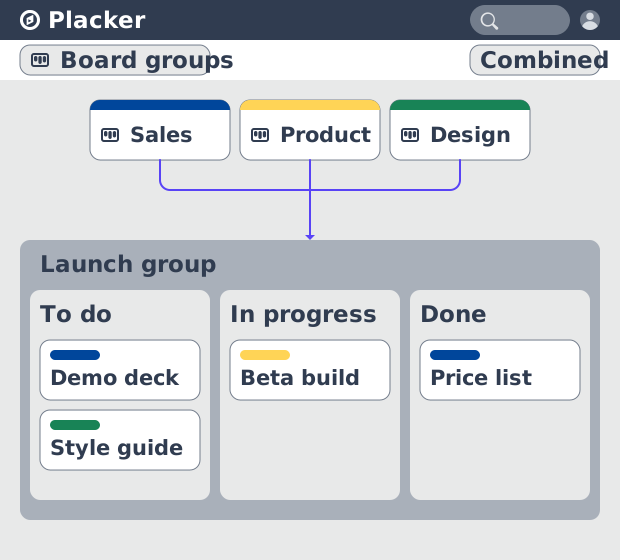
Board Groups
Board Groups let you manage many boards as one workspace: plan, filter, and report across all of them, and save reusable groups. Start a free trial.
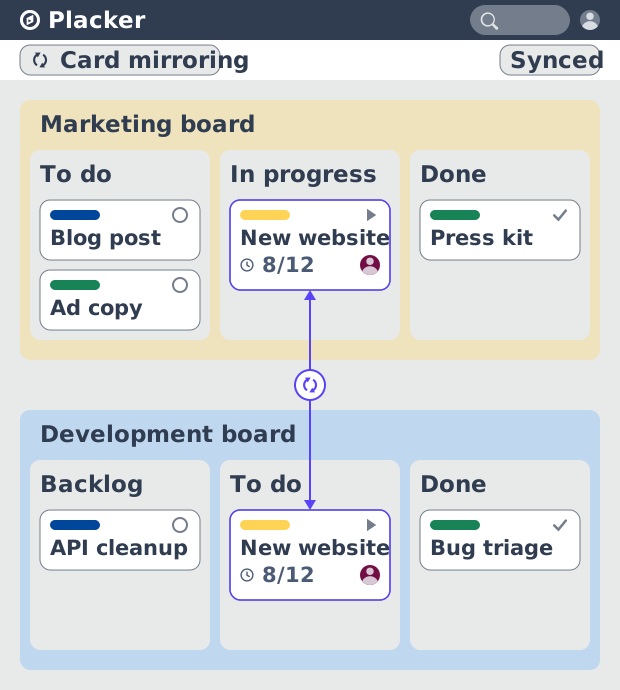
Card Mirror and sync
Card Mirror and sync keeps one task live across every Placker board. Edit a card once and status, dates and members update in seconds. Start a free trial.
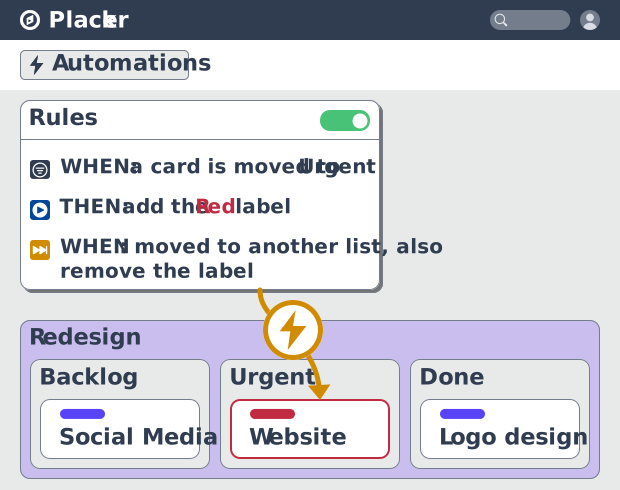
Automation
Automate project boards with condition-based rules. Placker mirrors, moves, assigns, and updates cards when work changes. See how it works.
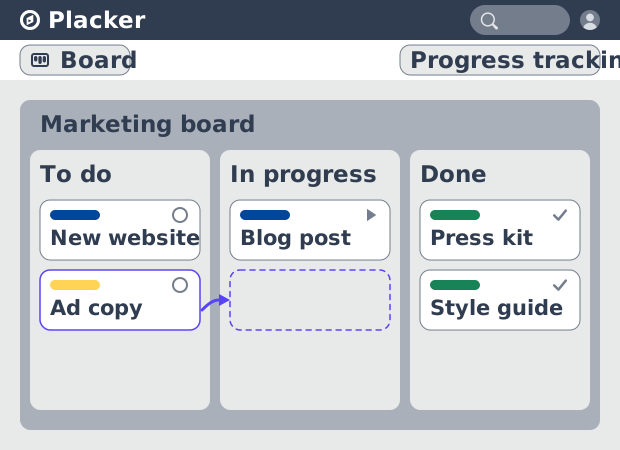
Advanced boards
See all your work as cards moving across lists in Placker. Group by member, swimlane, or due date, and track flow with Kanban reports. See how it works.
Ready to get started?
Easy to setup, no credit card required, start your trial today!