Track all your Microsoft Planner plans in one board view
Microsoft Planner shows one plan at a time, and its cross-plan Roadmap and Portfolio views require a paid Project license. Placker imports your plans and loads them into one Board Group, so you work across all of them in Board, Gantt, Planner, and Report on every Placker tier.
Quick facts
Board Groups for Microsoft Planner
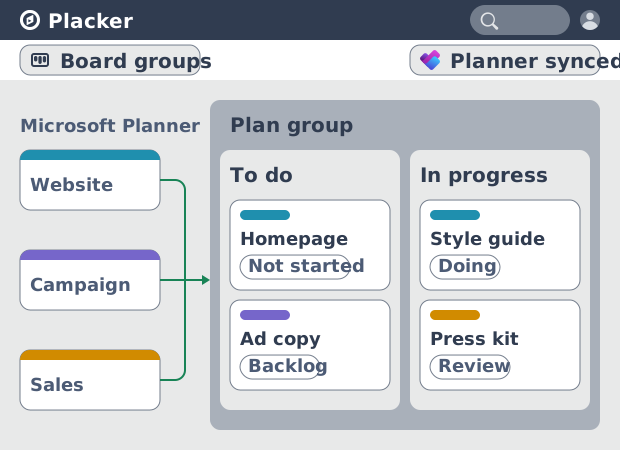
Every Microsoft Planner plan in one synced view. Here is what that gives you:
- Plans together, still synced. Bring Microsoft 365 Planner plans into one view and keep every task in two-way sync, so tasks stay in their original plans, buckets, and assignments.
- Four views to work in. Open the group in Board, Gantt, Planner, or Report view to plan and report the way that fits.
- Filter every plan at once. Apply a single filter (your tasks, a due date, or a label) across every plan at the same time.
- Portfolio views, any tier. Get cross-plan portfolio views on every Placker tier, without the Project Plan 3 or 5 license Planner's native Portfolios require.
One combined view
Manage Microsoft Planner multiple plans without a premium license
Microsoft Planner's cross-plan tracking lives in Portfolios, and the Roadmap and Portfolio views require Planner and Project Plan 3 or 5; teams on lower tiers can only read a portfolio someone else built. Placker imports your plans and loads them into one Board Group, and that group works on every Placker tier. You see tasks from each plan together, tagged by plan and bucket, without adding a Project license for everyone who needs the view.
Timeline and reports
Put your plans on a timeline and a report
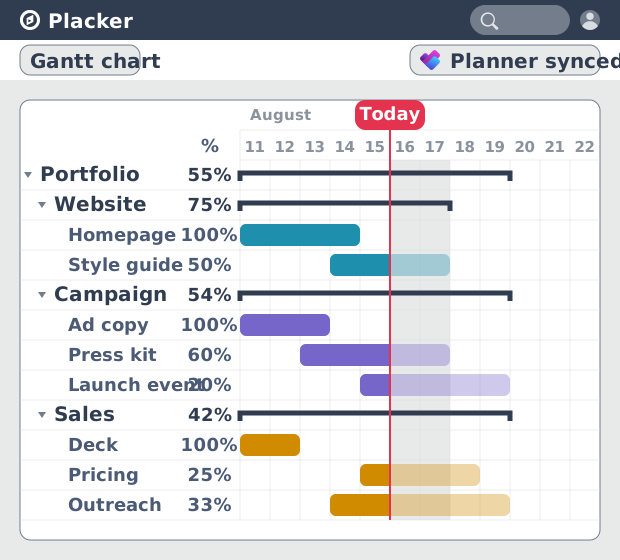
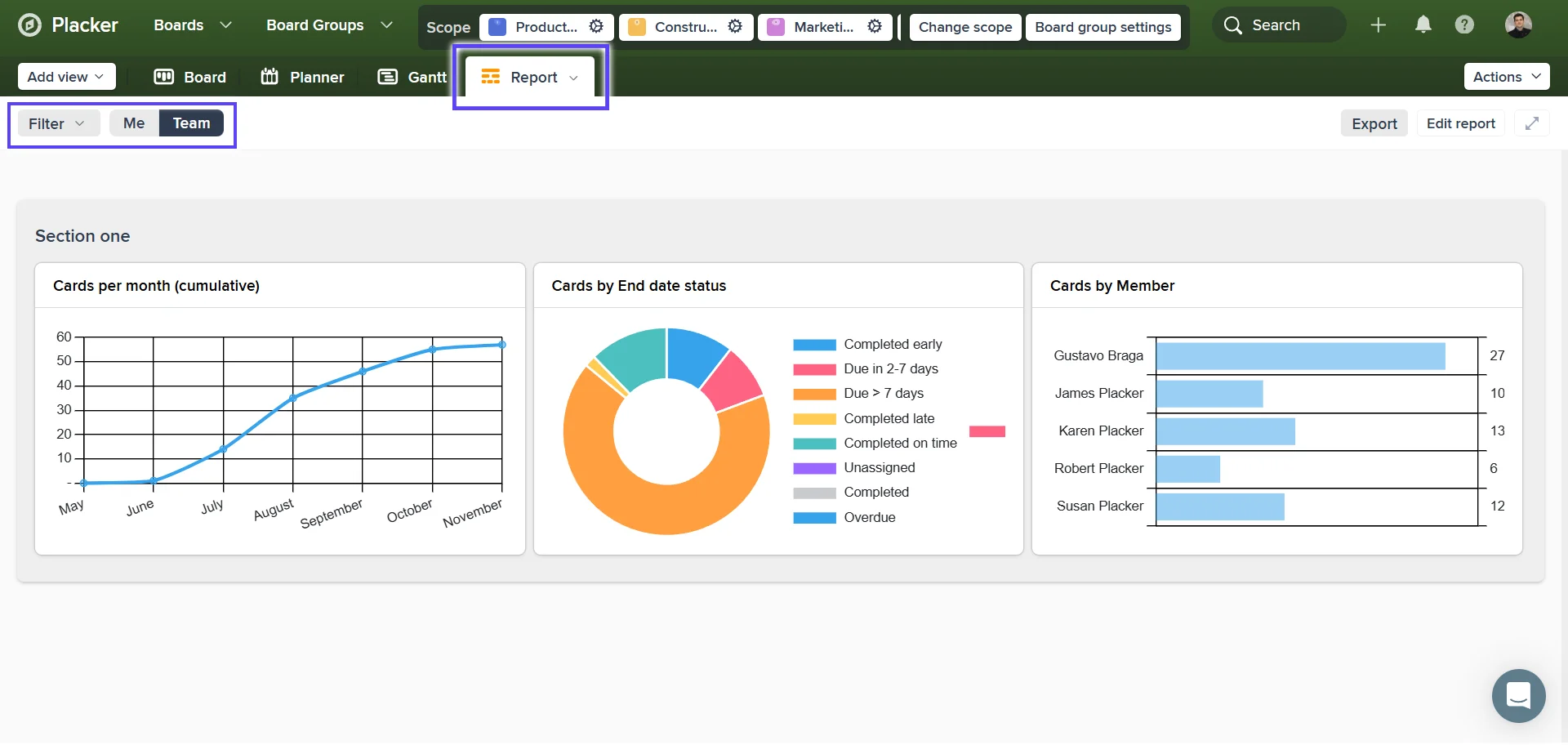
That combined view puts every plan's tasks in one place, but not on one schedule; Planner shows a plan as buckets and a basic schedule, and still not several plans on one timeline or one progress report. The same Board Group carries your imported plans into Placker's Gantt, Planner calendar, and Report views, so due dates from every plan land on one timeline and progress rolls up across plans. A program owner reads which plans are slipping from a single Gantt instead of opening each plan in the Planner app.
Cross-plan filters
Filter every plan to the work that matters
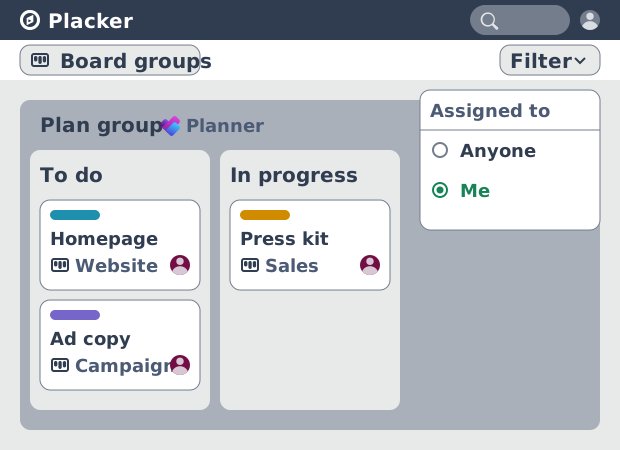
That single timeline holds every plan's tasks, and one filter narrows it. A filter in the Planner app applies only to the plan you are in; in a Board Group the filter runs across every imported plan at once, so assigned to me, a due date, or a label returns matching tasks from all of them together. For a department whose plans are tied to different Microsoft 365 groups, that gives one cross-group list of due work, and each member can set My Scope per plan to all tasks, none, or only theirs.
How It Works
Import your Planner plans, save them as a group, choose a view and filter across plans, then save the group to reuse it.
- 1
Import your plans into Placker
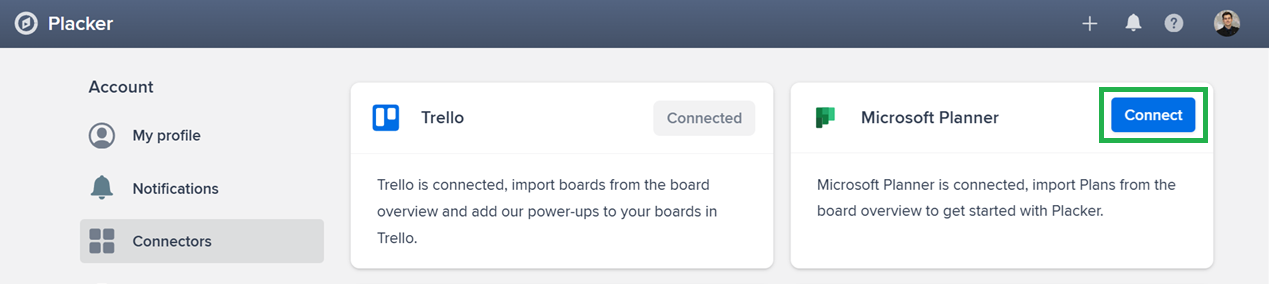
Connect Microsoft Planner and import the plans you want to work with. Each plan must belong to a Microsoft 365 group; you import up to 5 plans at a time, kept in two-way sync.
- 2
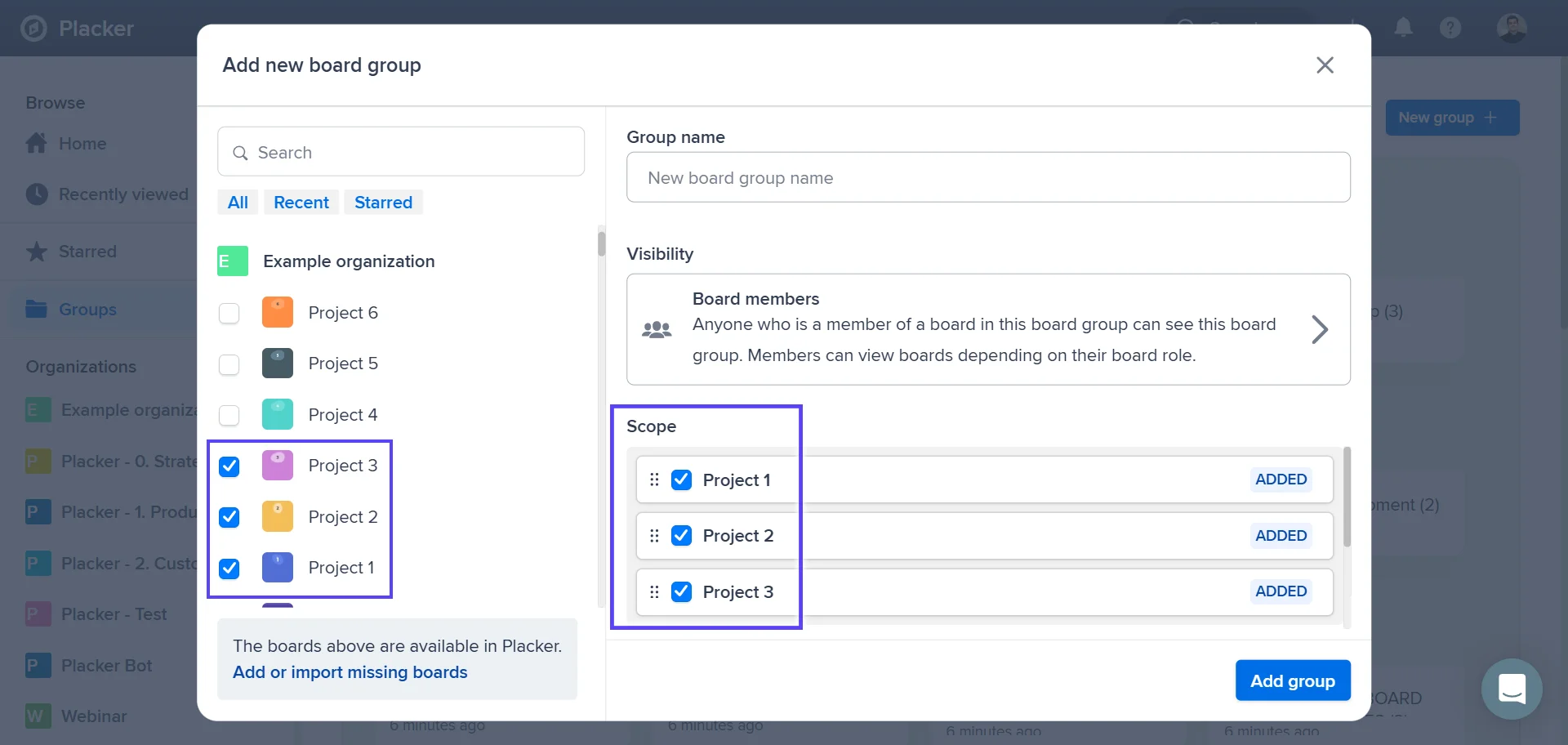
Save the plans as a group
Open Change scope, select the imported plans, and save them as a Board Group. The plans load together in one workspace.
- 3
Choose a view and filter
Open the group in Board, Gantt, Planner, or Report, and apply a cross-plan filter such as assigned to me, a bucket, or a due date.
Use cases
Where teams use Board Groups to plan and report across several Planner plans at once.
Team lead grouping by assignee
A team lead groups the Microsoft Planner board by assignee before a sprint planning session to see each person's current task count. Grouping exposes imbalances immediately, making redistribution decisions faster and more objective.
Project manager grouping by phase
A project manager groups a Planner board by project phase so stakeholders can see the pipeline at a glance. The groups follow stages like Discovery, Build, and Launch, and cards move between them as work progresses, replacing a manual status tracker.
HR team grouping by department
An HR team runs onboarding tasks for multiple departments on one Planner board and groups by department to give each team its own swimlane. Managers can view their department row and update tasks without touching other departments' work.
Tips & Best Practices
Practical advice to get the most out of your workflow
Build a group for each audience, not each plan
Create a Board Group that matches how people actually report, one per portfolio, client, or leadership review, and add every plan that audience cares about. Grouping by who needs the view keeps each person's workspace short and relevant.
Open your group in Board view, then group and add swimlanes
A Board Group merges the plans; the board view then reorganizes them. Group the combined tasks by member or label and split them into swimlanes with Advanced Boards to read workload across every plan at once.
Set My Scope per plan so a shared group stays focused
In a Board Group each member can set My Scope per plan to all tasks, none, or only theirs. Share one group across the team and let each person trim the plans they don't own, so the same group works for everybody without duplicating it.
Filter across every plan, then save the group already narrowed
In a group, one filter runs across all imported plans at once, so 'assigned to me' or a due-date range returns matching tasks from every plan together. Apply the filter you use most and save the group so it reopens focused on what needs attention.
Related pages
Microsoft Planner integrations: two-way sync
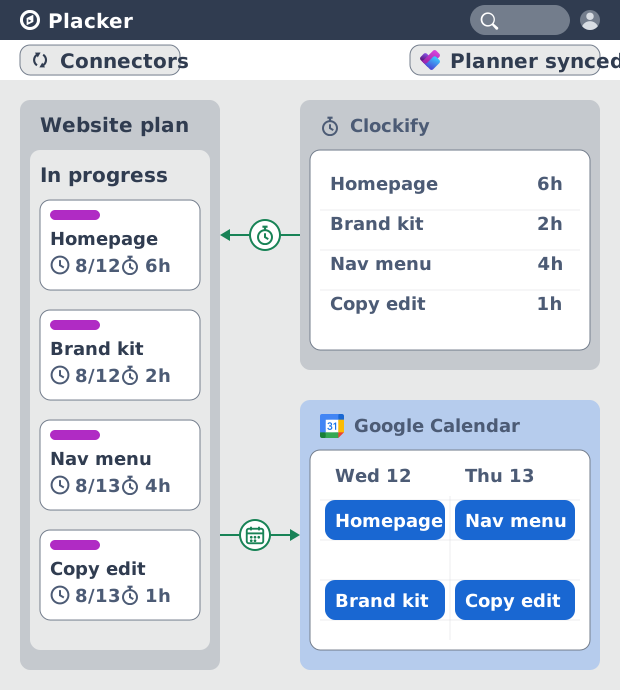
Sync Microsoft Planner plans two ways with Placker and add the calendar, time tracking, and automation Planner lacks. See how it works.
Microsoft Planner board view: layouts and reports
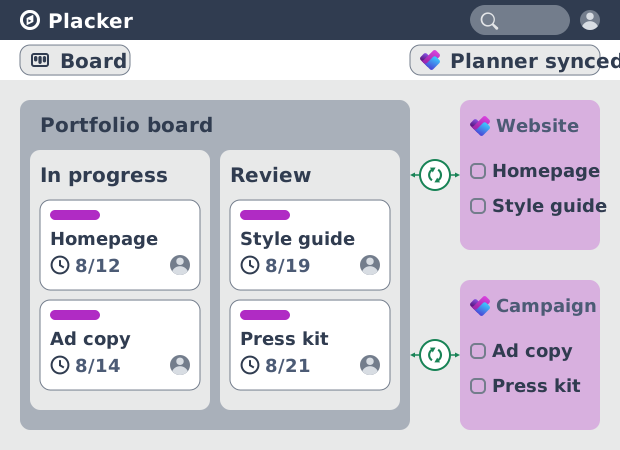
Add custom grouping, swimlanes, and Kanban reports to your Microsoft Planner board view. Placker reads your plans, no rebuild. Start a free trial.
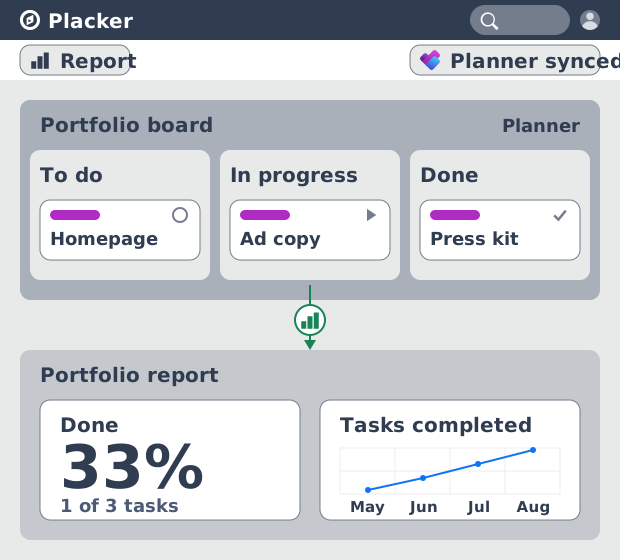
Microsoft Planner dashboards & reports
Report across Microsoft Planner plans without Power BI. KPI widgets, pivot tables, portfolio dashboards, and scheduled PDF reports. Start a free trial.
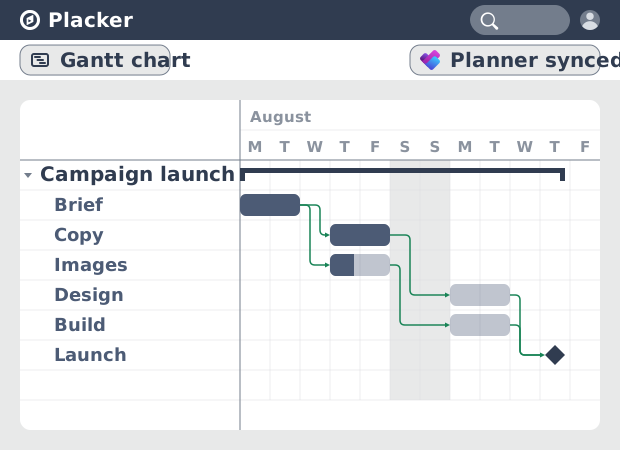
Microsoft Planner Gantt Chart: Add Dependencies
Microsoft Planner has no true Gantt chart. Placker turns Planner tasks into a timeline with dependencies and a critical path. Start free.
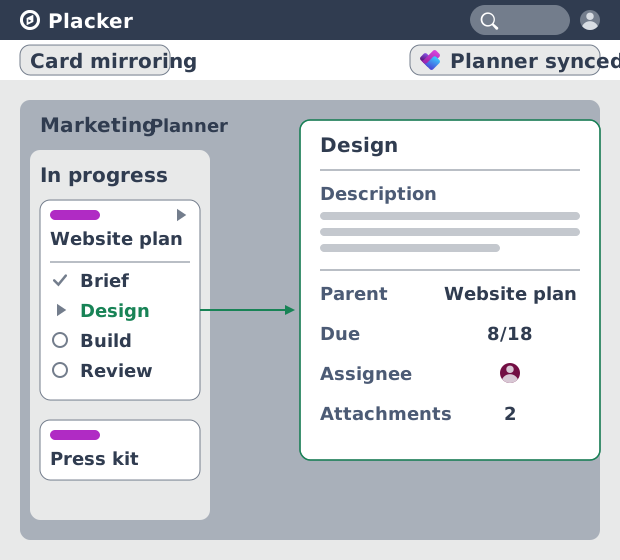
Subtasks in Microsoft Planner: Parent-Child Tasks
Add real subtasks to Microsoft Planner without premium. Parent-child tasks give each subtask an assignee and dates, and roll effort up.
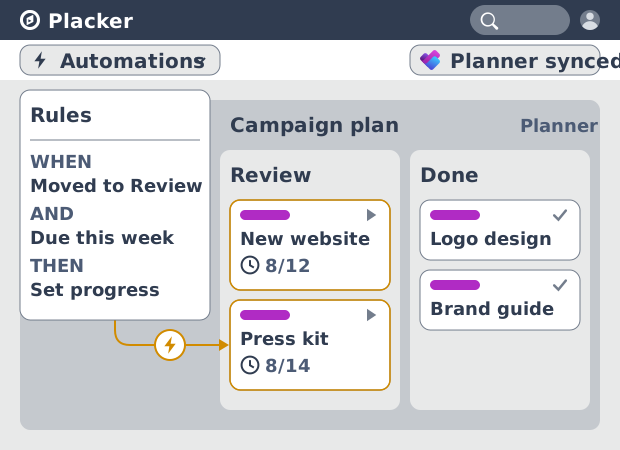
Microsoft Planner automation, no Power Automate
Add conditional automation to Microsoft Planner without Power Automate. Placker runs visual rules on your plans and tasks, plus recurring cards. See how.
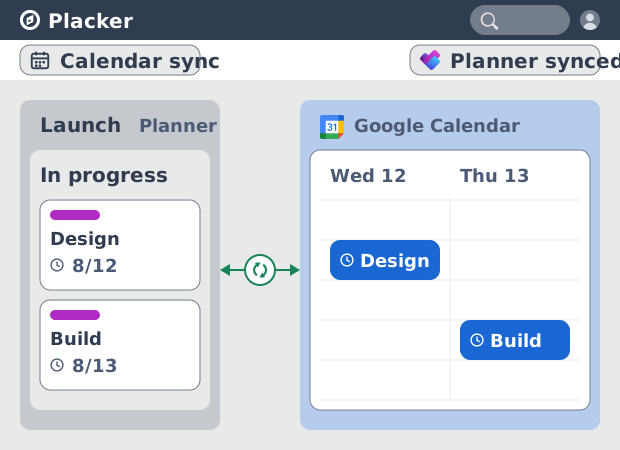
Microsoft Planner Google Calendar sync (2-way)
Microsoft Planner has no native Google Calendar sync. Placker syncs your tasks to Google Calendar, both ways, in minutes. Start free trial.
Ready to get started?
Easy to setup, no credit card required, start your trial today!