Microsoft Planner integrations for the views and syncs it lacks
Microsoft Planner keeps tasks tidy inside Microsoft 365, but its third-party integration is thin and there's no time tracking. Placker connects to your plans with two-way sync and adds the connectors Planner leaves out, so your buckets and tasks reach a calendar, a time tracker, and the tools your team runs on.
Quick facts
Microsoft Planner integrations in one workspace
Placker connects Microsoft Planner to the tools around it. Here's what that adds:
- Plans in two-way sync. Microsoft 365 group plans sync both ways, with changes flowing between Planner and Placker within minutes.
- Tasks on your calendar. Tasks with a due date move into Google Calendar in both directions.
- Time tracked per task. Log Clockify time on any task through the Chrome extension.
- Automate without Power Automate. Chain cross-tool steps with Zapier, board webhooks, or Placker's own rules.
- One workspace for Planner. Placker connects Microsoft Planner to the tools around it, so your work stays in one place.
Two-way sync
Keep your plans, gain the views Planner doesn't show
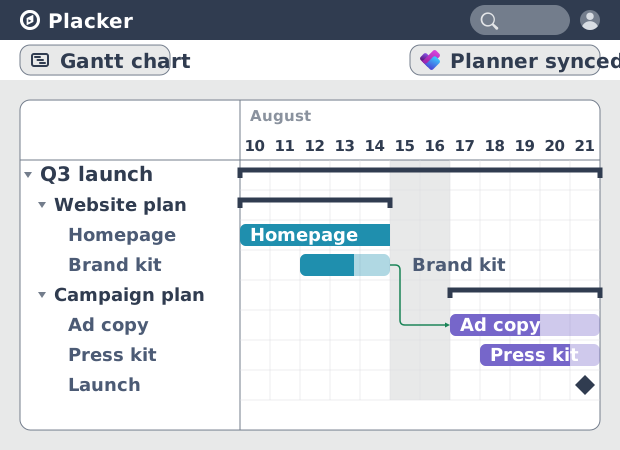
Planner shows one plan at a time in buckets. Your plans sync two ways and land on a cross-plan timeline with dependencies and a resource view. Your team keeps assigning tasks in Planner, and a project lead sees every plan on one schedule without exporting anything.
Time and calendar
Track the time and dates Planner leaves out
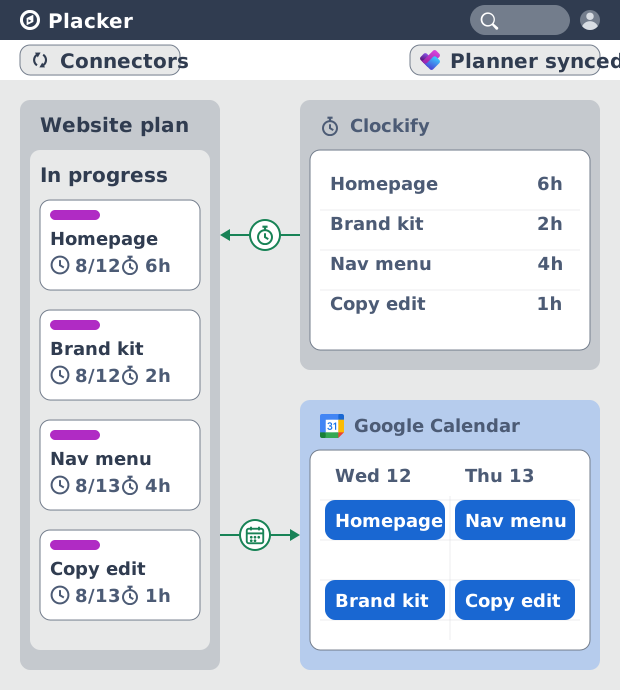
That schedule still can't show hours or feed those dates to a calendar; Planner tracks neither. You get both: Clockify records time on the task through the Chrome extension, and Google Calendar sync publishes task due dates as events. Hours and deadlines now sit on the same task your team works from in Planner.
Automation rules
Automate across tools without building flows
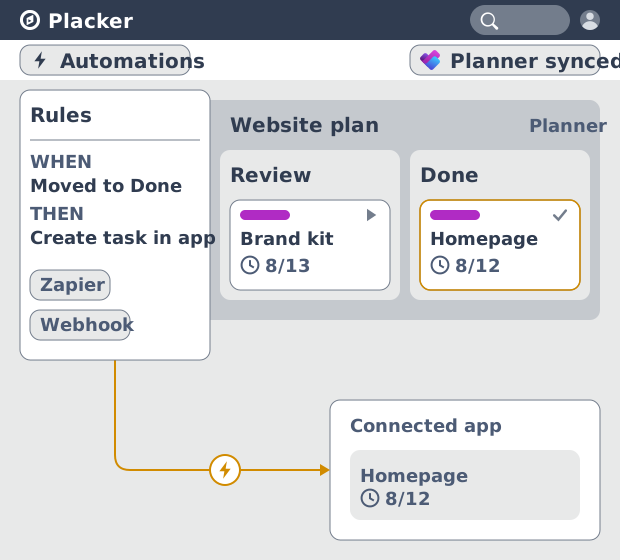
Now that the task carries its hours and dates, acting on it still means Power Automate in Planner, a flow to maintain for every rule. Automation rules run on that synced task instead, with webhooks and a Zapier connection for steps that reach other systems. A task marked complete can update another tool without a Power Automate flow behind it.
How It Works
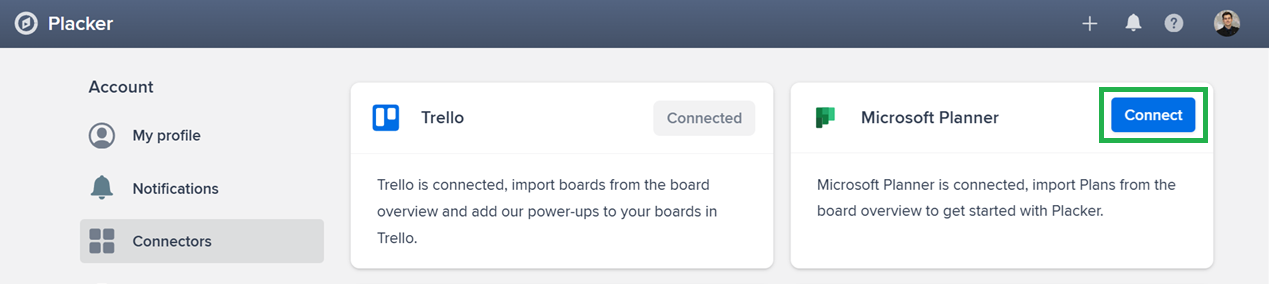
Open Connectors and choose Microsoft Planner, have an admin approve access for the tenant, import up to five group plans, then work in either Planner or Placker and stay in sync.
- 1
Open Connectors and choose Microsoft Planner
In your Placker profile, open Connectors and select Microsoft Planner. This starts the connection to your Microsoft 365 tenant.
- 2
Have an admin approve access
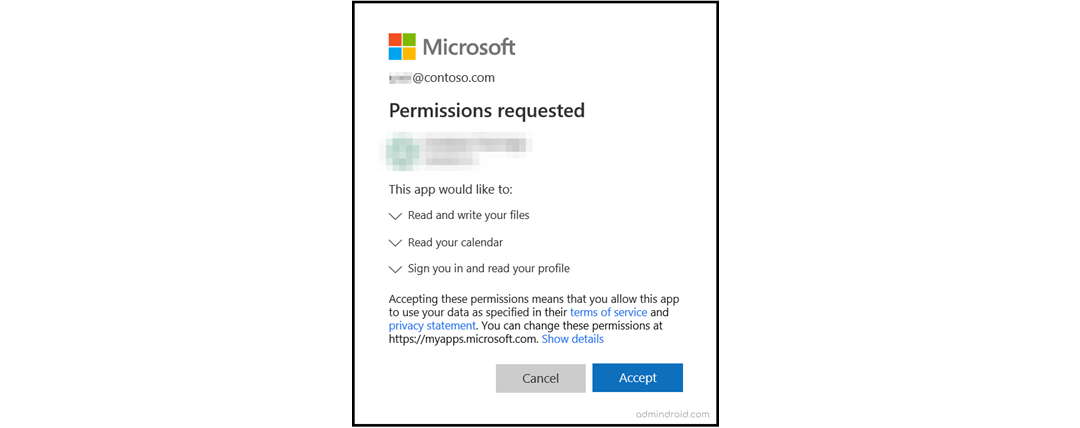
A Microsoft 365 administrator grants consent for the tenant, covering the task, group, and user permissions the sync needs. This is a one-time approval for the organisation.
- 3
Import your plans
Choose up to 5 group plans to bring in. Plans must belong to a Microsoft 365 group, and premium plans are not eligible. Placker imports the buckets, tasks, and assignments and keeps them synced.

- 4
Work in Planner or Placker
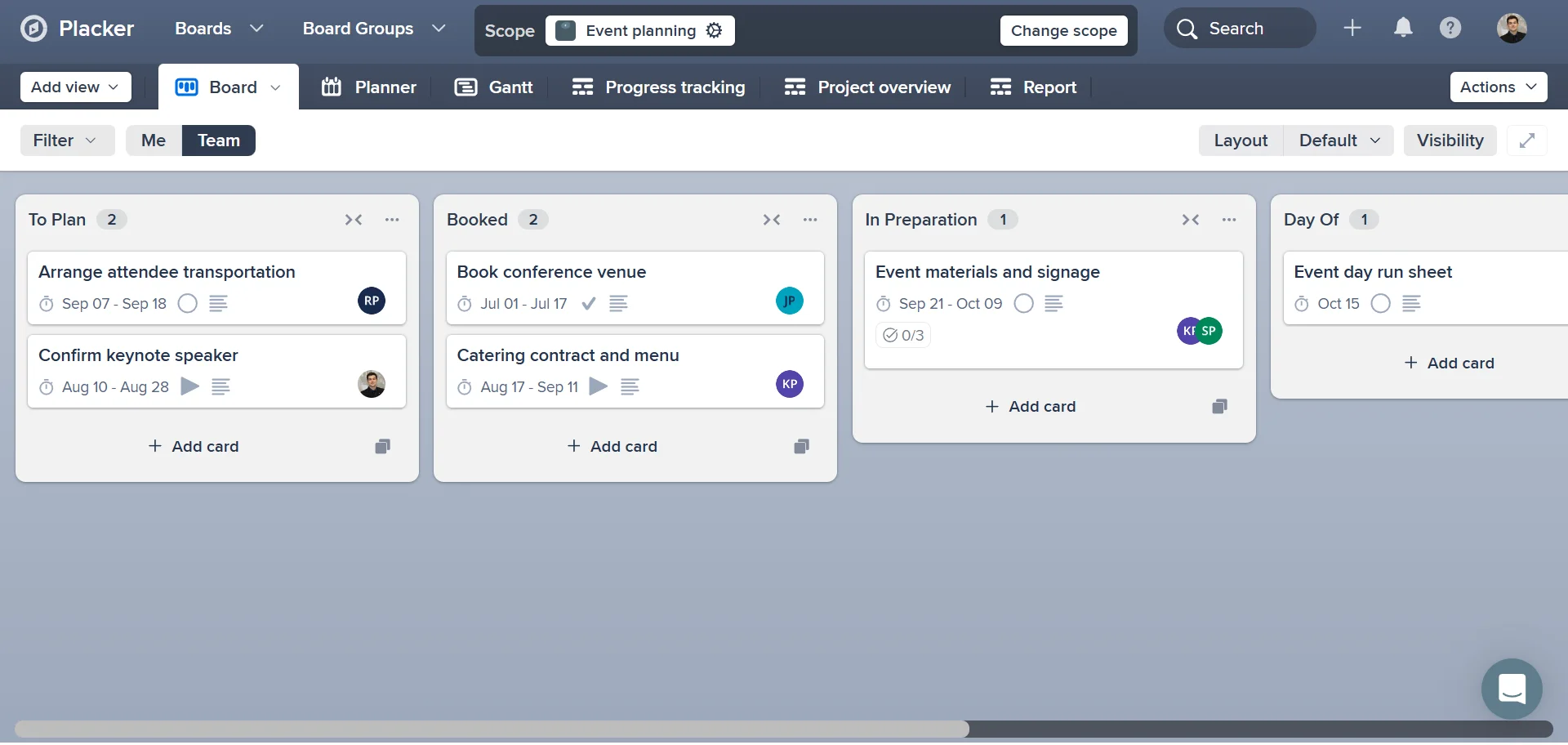
Your team keeps assigning and completing tasks in Planner. Changes there reach Placker within a few minutes, and edits in Placker write back to the plan, so both stay current.
Use cases
See how teams use Placker's integrations to keep Microsoft Planner in sync with the rest of their stack.
Remote team with Teams alerts
A remote operations team connects Placker to Microsoft Teams so changes to Planner tasks surface in a dedicated project channel. Team members see updates in the tool they already have open, reducing the need to jump between Planner and Teams.
PM syncing with Outlook Calendar
A project manager syncs Microsoft Planner task due dates to their Outlook Calendar so deadlines appear alongside meetings and availability. When a task is rescheduled in Planner, the calendar item updates automatically.
Analyst with Power BI reporting
A business analyst exports Planner task data to a spreadsheet and loads it into Power BI for project health dashboards. The Placker export integration makes the weekly data pull a one-click action rather than a manual export.
Tips & Best Practices
Practical advice to get the most out of your workflow
Add task deadlines to Google Calendar as they change
Sync your dated Microsoft Planner tasks into Google Calendar so deadlines sit next to your meetings, and any date you shift in Placker updates the calendar event automatically. See setup and sync options on Google Calendar Sync.
Get Slack notifications for Microsoft Planner task changes
Use Placker’s Slack integration to send your team updates when Planner tasks are reassigned, completed, or commented on. Team members stay informed in the channel they already use. No one has to check Planner separately.
Export your Microsoft Planner data to Excel or CSV
Placker makes it easy to export your Microsoft Planner task data to a spreadsheet. Use it to build custom reports, run analysis, or create a formatted summary for stakeholders who don’t have Planner access.
Track time on tasks with the Clockify extension
Install Placker's Clockify Chrome extension and start the timer straight from a Microsoft Planner task card, so logged hours attach to the right task instead of living in a separate timesheet you reconcile later.
Related pages
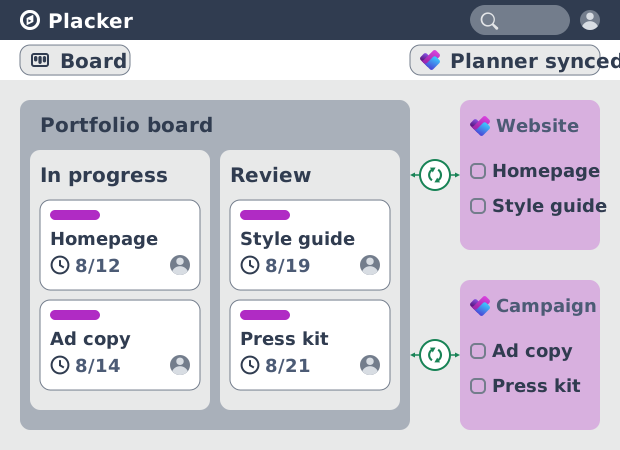
Microsoft Planner board view: layouts and reports
Add custom grouping, swimlanes, and Kanban reports to your Microsoft Planner board view. Placker reads your plans, no rebuild. Start a free trial.
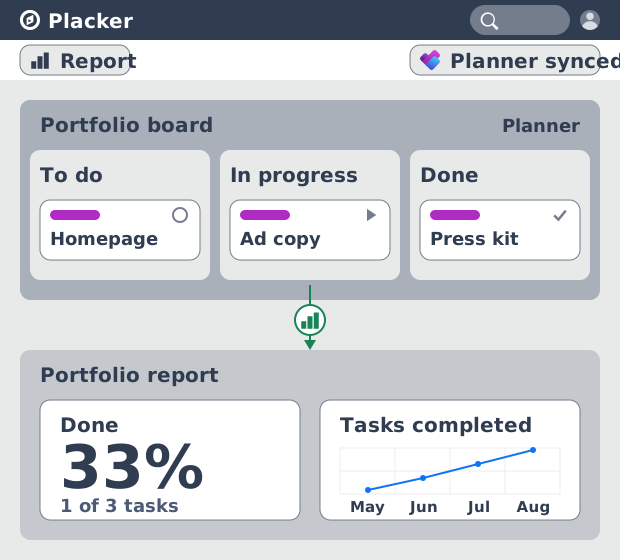
Microsoft Planner dashboards & reports
Report across Microsoft Planner plans without Power BI. KPI widgets, pivot tables, portfolio dashboards, and scheduled PDF reports. Start a free trial.
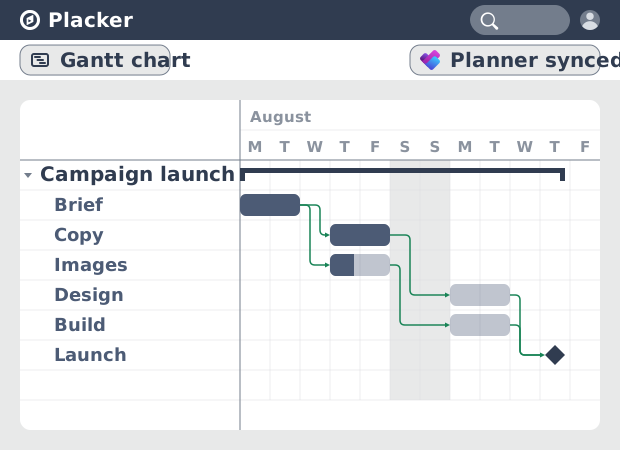
Microsoft Planner Gantt Chart: Add Dependencies
Microsoft Planner has no true Gantt chart. Placker turns Planner tasks into a timeline with dependencies and a critical path. Start free.
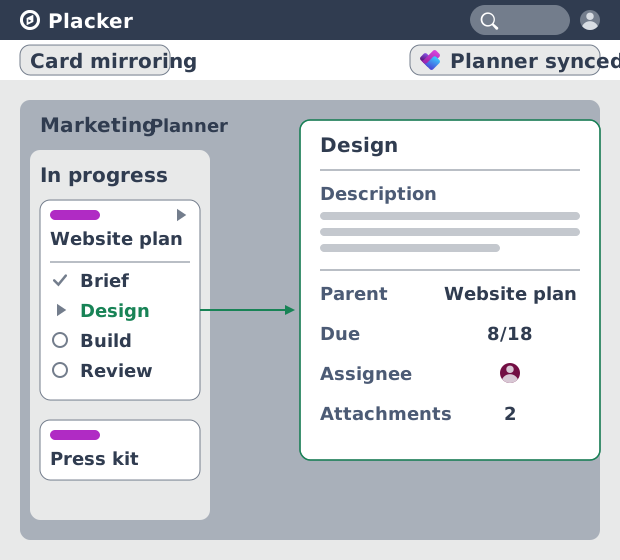
Subtasks in Microsoft Planner: Parent-Child Tasks
Add real subtasks to Microsoft Planner without premium. Parent-child tasks give each subtask an assignee and dates, and roll effort up.
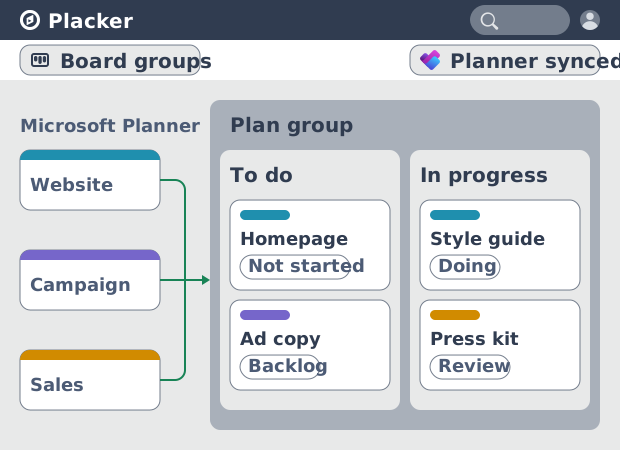
Microsoft Planner: see many plans in one view
See tasks from several Microsoft Planner plans in one board view, no Project Plan 3 or 5 license needed. Placker works on every tier. See how it works.
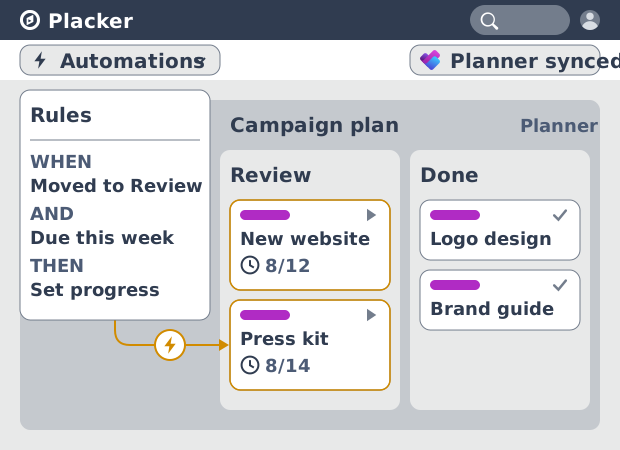
Microsoft Planner automation, no Power Automate
Add conditional automation to Microsoft Planner without Power Automate. Placker runs visual rules on your plans and tasks, plus recurring cards. See how.
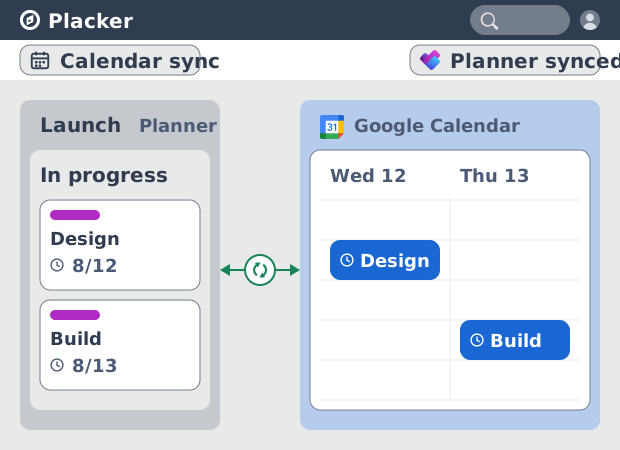
Microsoft Planner Google Calendar sync (2-way)
Microsoft Planner has no native Google Calendar sync. Placker syncs your tasks to Google Calendar, both ways, in minutes. Start free trial.
Ready to get started?
Easy to setup, no credit card required, start your trial today!