The Trello integrations your board doesn't ship with
Trello connects to other apps through Power-Ups, but two-way card sync across boards, a real calendar feed, and time tracking on the card aren't in the box. Placker installs as a Trello Power-Up and adds them, reading your boards, cards, lists, and due dates in place. Nothing moves off Trello.
Quick facts
Integrations for Trello
Placker installs as a Trello Power-Up and links your boards outward. Here's what you get:
- Installs as a Power-Up. Placker links your Trello boards to the tools around them without leaving Trello.
- Two-way calendar sync. Cards with a due date sync to Google Calendar in both directions.
- Cards mirrored across boards. Mirrored cards stay in step across any number of boards.
- Time logged in the card. Log Clockify time inside a card through the Chrome extension.
- Reach beyond the Power-Up. A REST API, board-level webhooks, and Zapier connect Trello to systems no single Power-Up covers.
Card mirroring
Sync one card across several boards, both directions
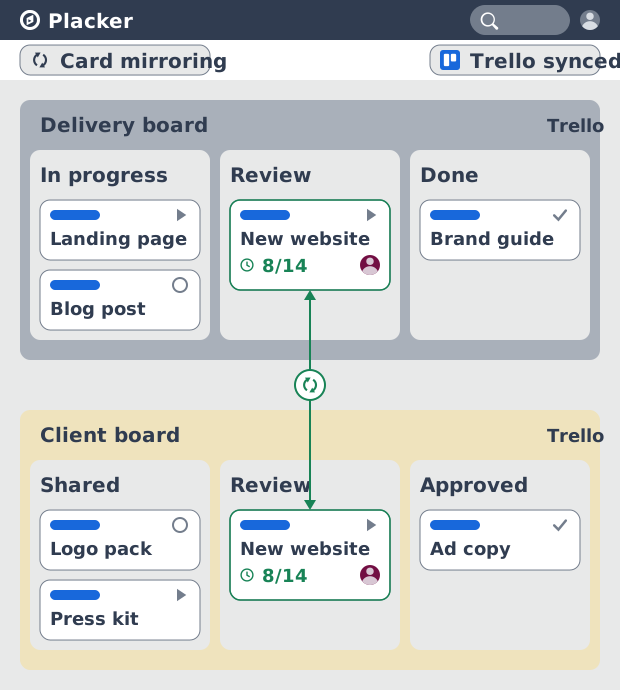
Trello can copy a card, but the copy drifts the moment either side changes. Placker Card Mirroring keeps the original and its mirror in step across boards, so a due-date edit on the delivery board shows up on the client board straight away. One card of truth replaces a row of stale copies.
Calendar sync
Put your Trello due dates on a real calendar
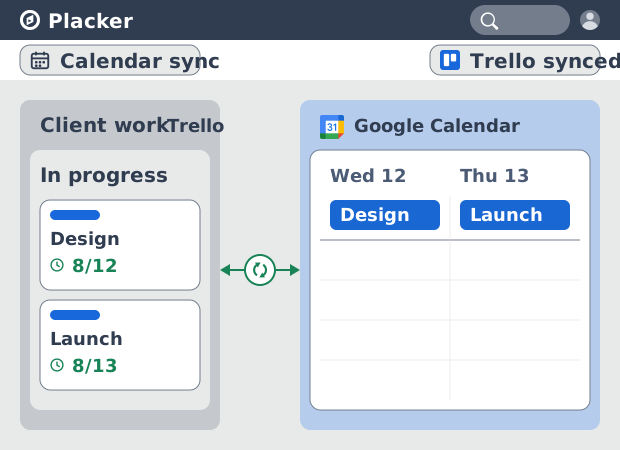
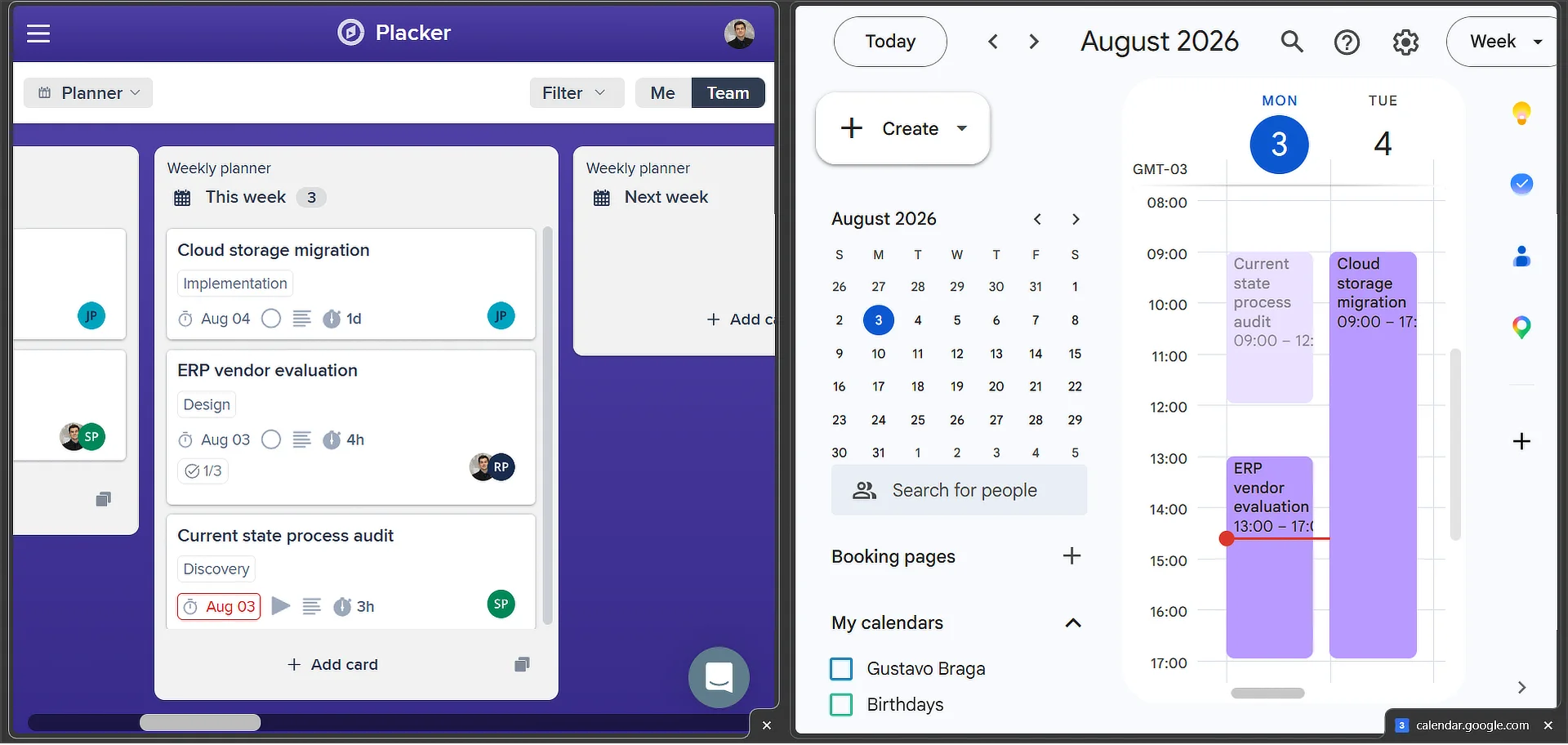
That single card carries a due date, but Trello shows it only on the board, with no start time, so durations are hard to see across a week. Those due dates sync to Google Calendar two ways, with full-day events for date-only cards. Your board and your calendar show the same deadlines, and a calendar reschedule writes back to the card.
Webhooks and Zapier
Trello integrations that reach the apps Power-Ups leave out
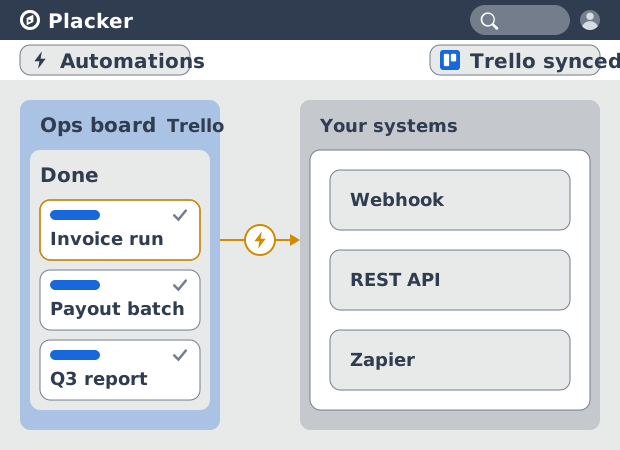
Calendar is one outside app; the rest of your stack isn't in the Power-Up directory, which covers many apps but not your internal systems. A REST API, board-level webhooks, and a Zapier connection sit on top of your boards. A card moving to Done can fire a webhook to your billing system or a zap into another app, so Trello drives work that lives outside Trello.
How It Works
Open your Trello board, add the Placker Power-Up, connect a calendar or time tracker, then work from your board or from Placker and watch the connected tools follow.
- 1
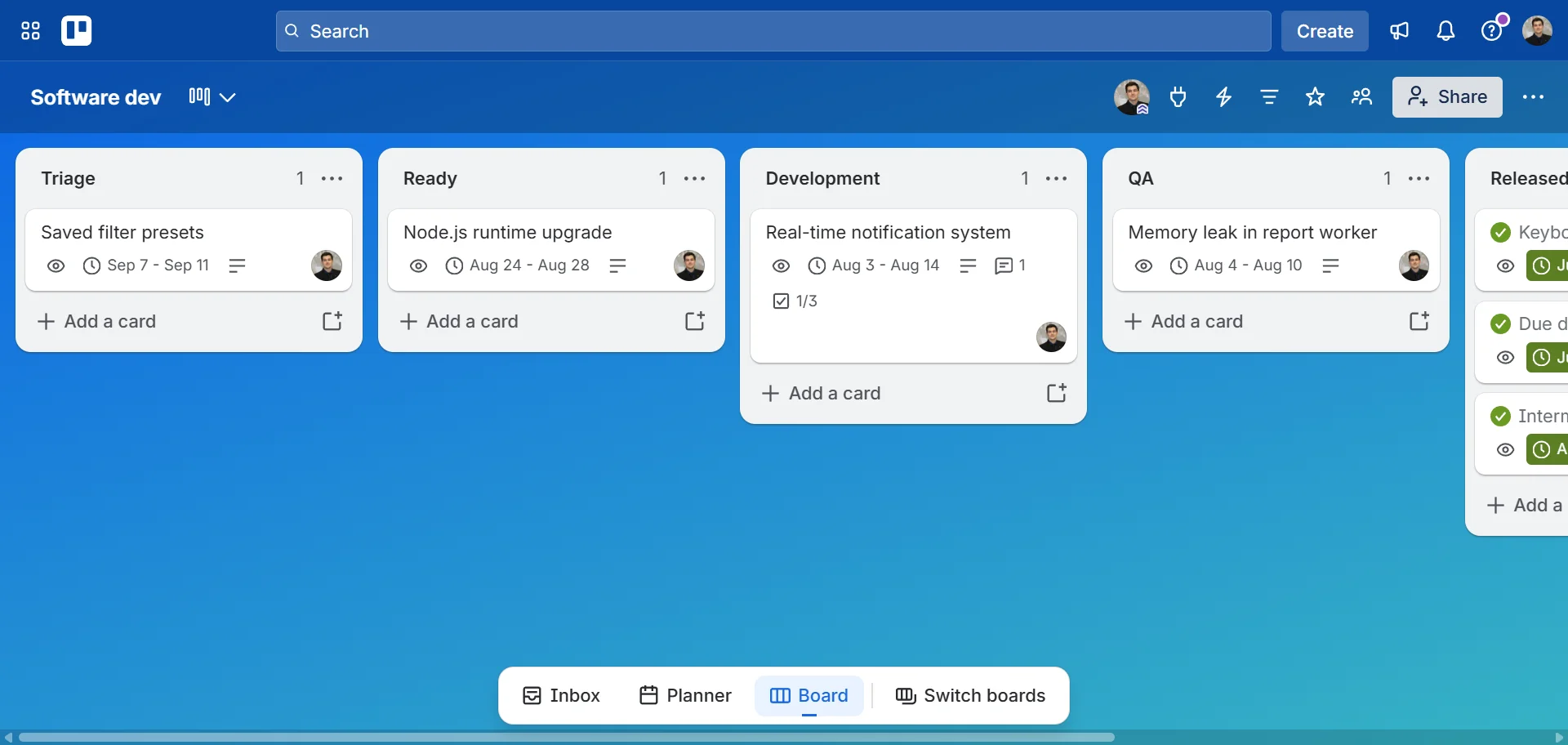
Open your Trello board
Start on the board you already run your work on. Placker reads its lists, cards, due dates, members, and labels as they are.
- 2
Add the Placker Power-Up
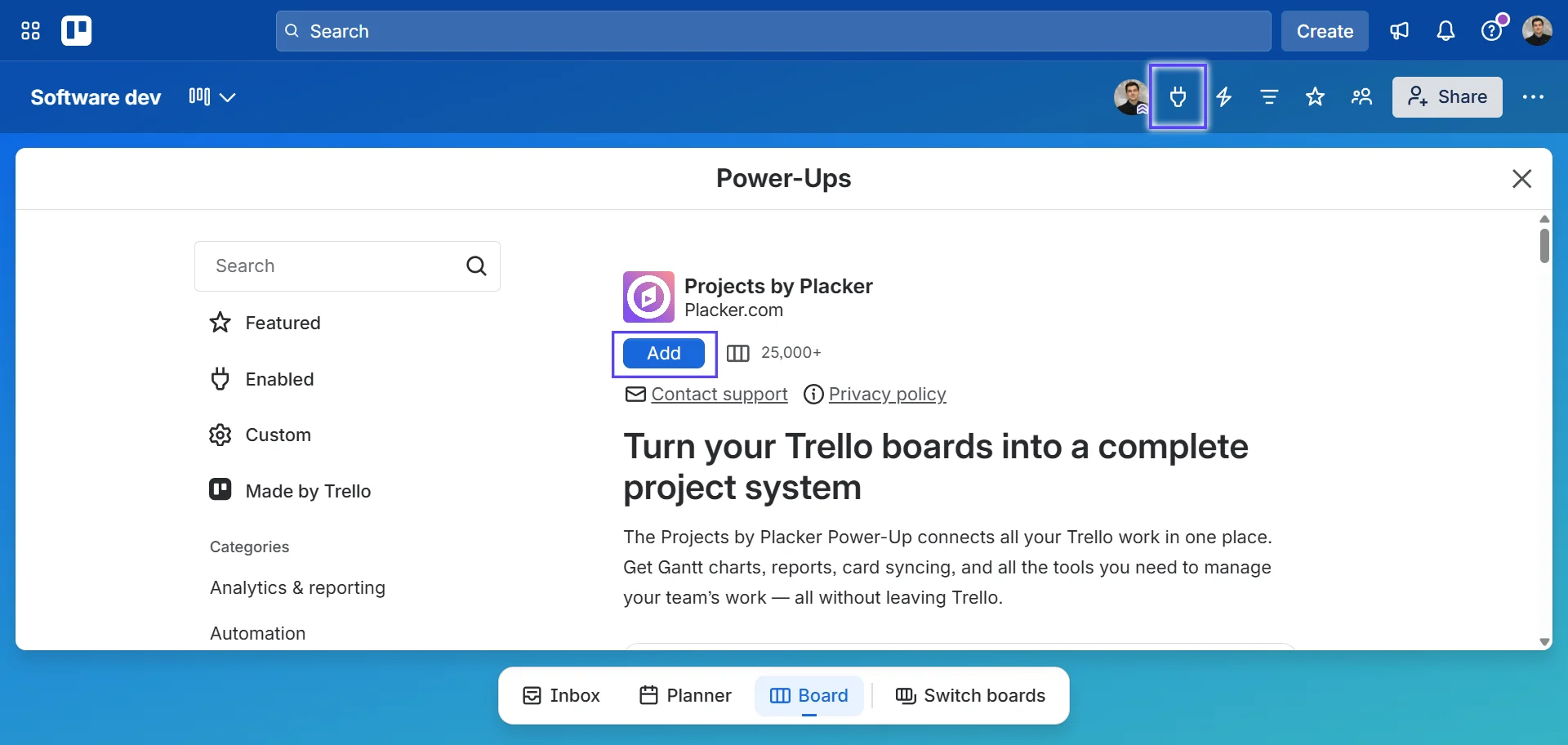
Open the board menu, choose Power-Ups, and enable Placker. The Power-Up button appears on the board, and your cards are ready to mirror, schedule, and track without any data import.
- 3
Connect a calendar or time tracker
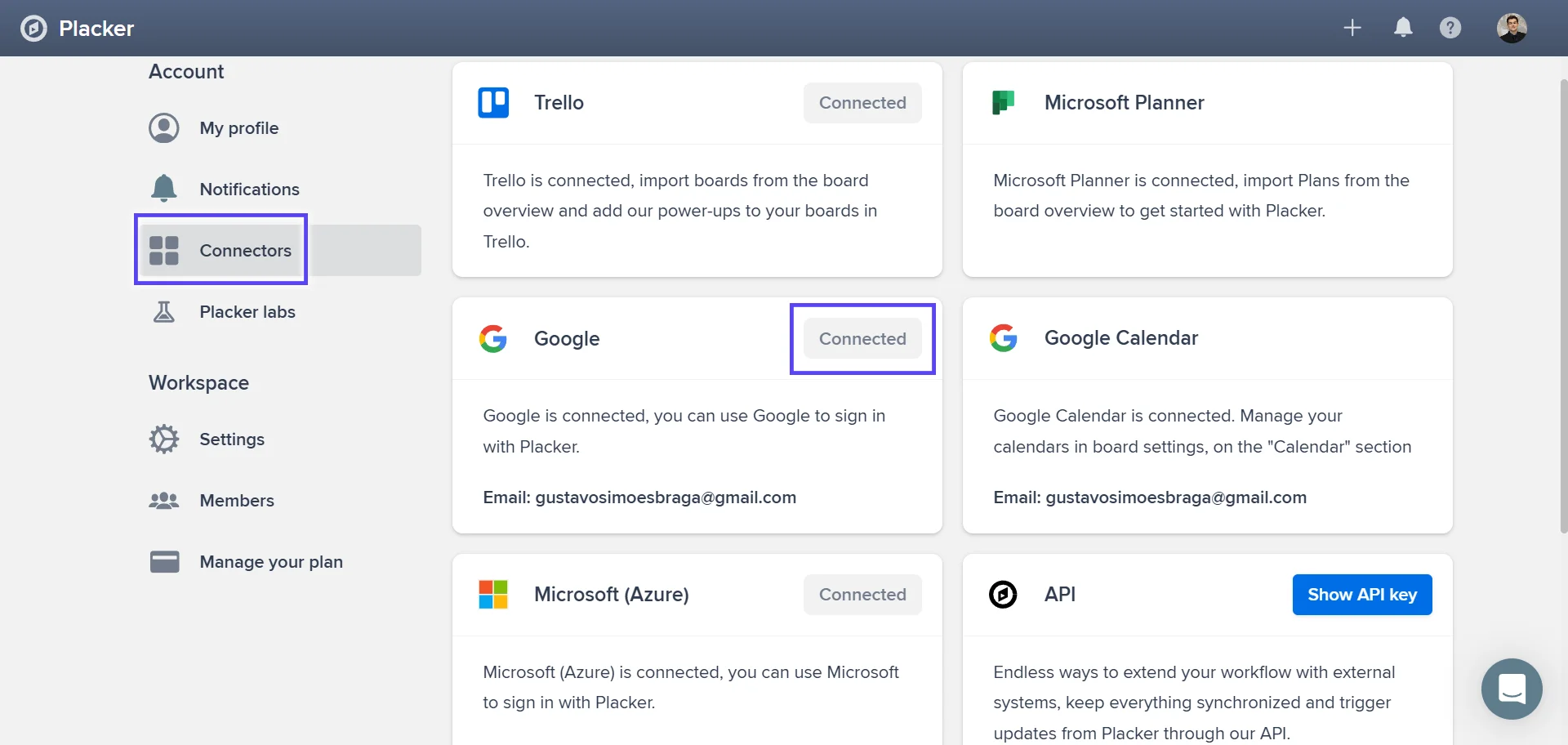
From the Power-Up, link Google Calendar for due-date sync or the Clockify extension for time on the card. Each connection sets its own sync direction, so you control what flows out and what comes back.
- 4
Work from your board or from Placker
Move a card, change a due date, or log time, and the connected tools follow. Mirrored cards update on every board they live on, and the calendar feed stays current with each change.
Use cases
See how teams use Placker's integrations to keep Trello in sync with the rest of their stack.
Remote team with Slack alerts
A remote development team connects Placker to Slack so card assignments and status changes post automatically to a shared project channel. Developers pick up updates between standups without switching tabs, and urgent blockers get a notification before they cause delays.
PM syncing with Google Calendar
A project manager links Trello card due dates to Google Calendar so all project deadlines appear alongside client meetings. When dates shift in Trello, the calendar reflects the change automatically. That removes the double entry.
Team lead with export reporting
A team lead uses Placker's export to push the Trello board status to a spreadsheet each Friday. Leadership receives a formatted progress report with owners, statuses, and completion rates without the team spending time on manual data prep.
Tips & Best Practices
Practical advice to get the most out of your workflow
Let Automation rules trigger your integrations
Pair your integrations with Automation rules: when a rule moves a card to Done, the webhook or Zapier zap fires on its own, so your billing, CRM, or reporting tools update without anyone touching the card.
Send Trello card updates to the right Slack channel
Connect Slack so card moves, comments, and completions post automatically, and point each board's activity at the channel that owns that work so your team stays aligned without opening Trello.
Export your Trello data to Excel or CSV for custom analysis
Use Placker to export your Trello board data to a spreadsheet. Build custom reports, analyze trends, or share a formatted summary with stakeholders who don’t use Trello or Placker.
Filter your Zaps so only the right cards sync
When you connect Trello to other apps through Zapier, add a filter step so only cards with a chosen label or in a specific list trigger the zap. That keeps your other tools free of noise and stops every minor card edit from firing an action.
Related pages
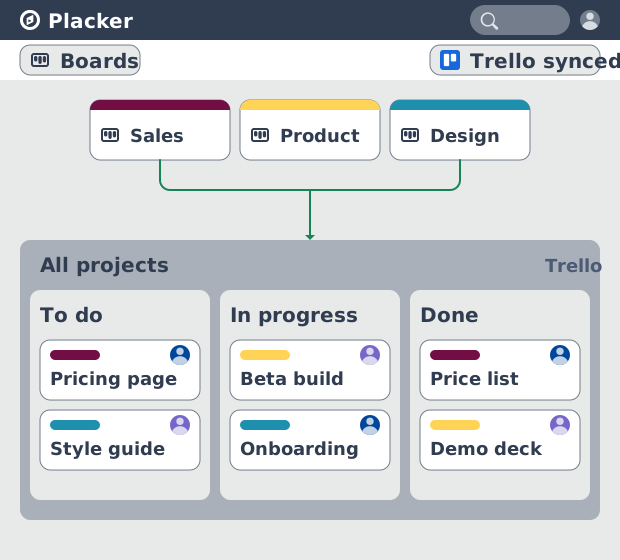
Trello board view: Kanban layouts and reports
Add Kanban structure to your Trello boards with Placker's board view. Group, swimlane, and report on the cards you already have. Add to Trello.
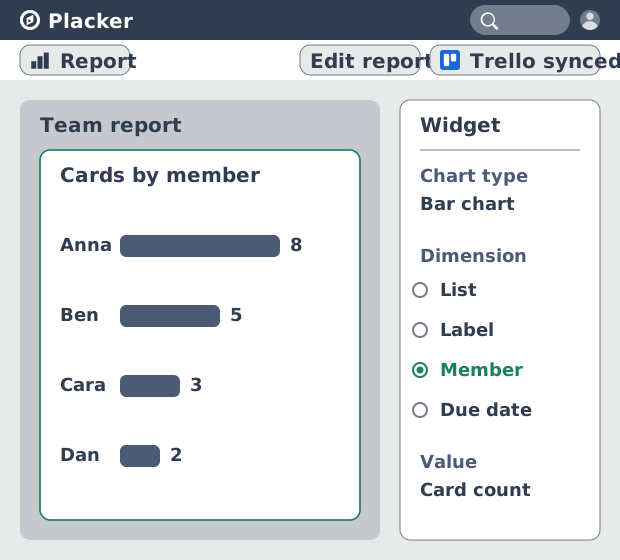
Trello dashboards and reports
Turn your Trello boards into live dashboards. Cross-board reporting, pivot tables, and scheduled PDF reports. Add Reports by Placker to Trello.
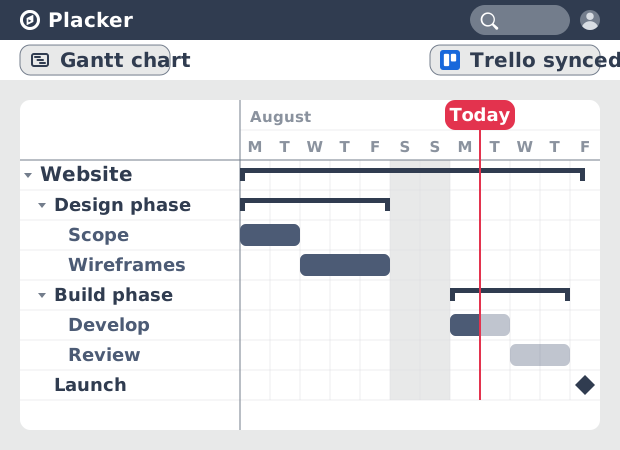
Gantt Chart for Trello with Dependencies
Add a real Gantt chart to your Trello boards. Placker turns cards with dates into a timeline with dependencies, critical path, and resource planning.
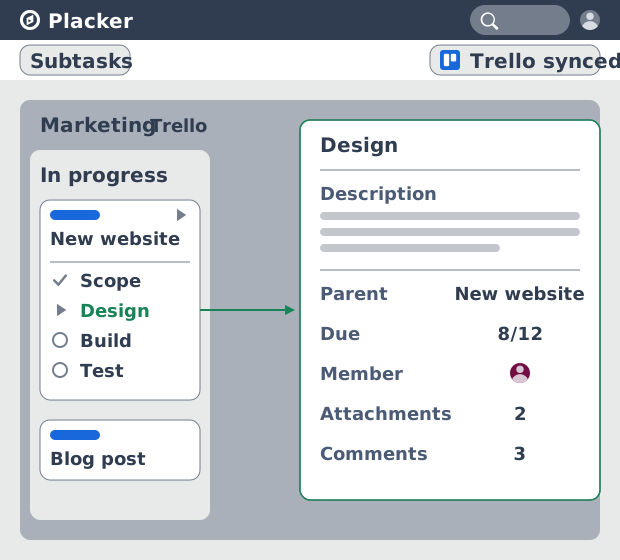
Trello Subtasks: Parent-Child Cards for Trello
Add real subtasks to Trello. Parent-child cards give each checklist item its own card and dates, and roll effort up. Add to Trello free.
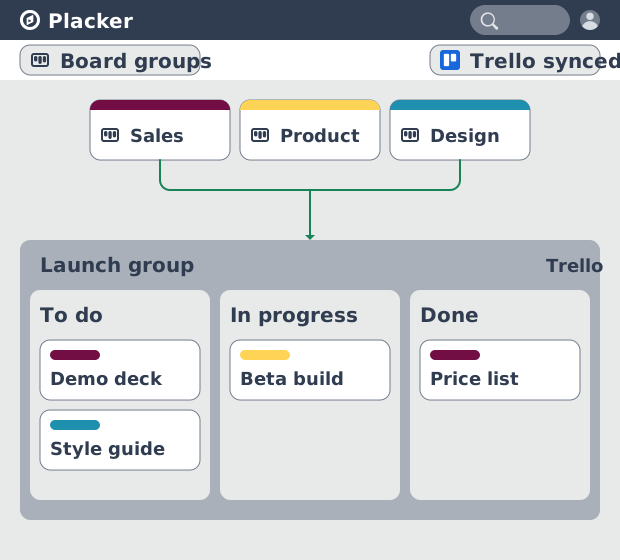
Board Groups for Trello: one combined board view
Load several Trello boards into one combined board view. Placker adds cross-board filtering, drag-and-drop between boards, and combine and split. See how.
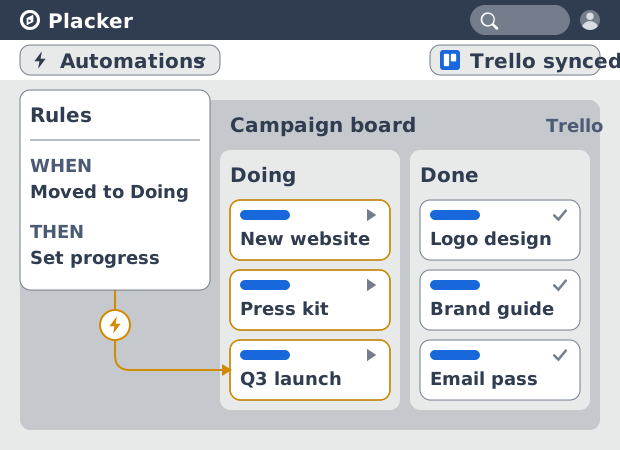
Trello automation rules: beyond Butler limits
Automate Trello boards with no monthly run cap. Placker rules mirror cards two ways and reach fields Butler can't. See how it works.
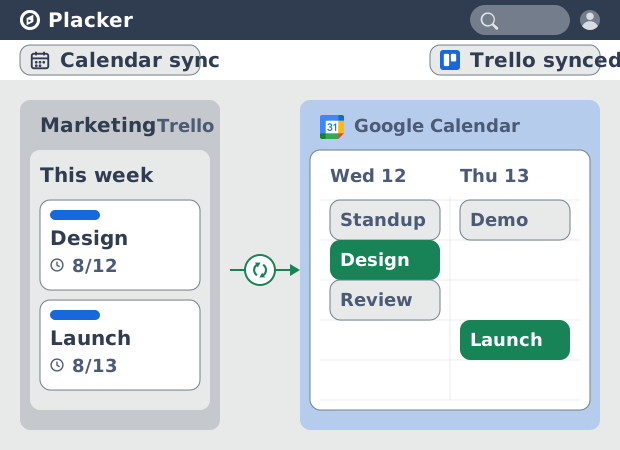
Trello Google Calendar sync: two-way & real-time
Sync Trello cards with due dates to Google Calendar both ways, in under a minute. Edit in either tool and the other updates. Add it to Trello.
Ready to supercharge your Trello boards?
Start your 15-day free trial today. No credit card required.