Resource planner for Microsoft Planner, across every plan
MS Planner Premium's People View shows how tasks distribute across team members. It does not show committed hours, utilization rates, or workload across multiple plans. Placker adds all of this to your Microsoft 365 environment.
Quick facts
Resource Planner quick facts: MS Planner
See who is overloaded across your Planner plans, day by day:
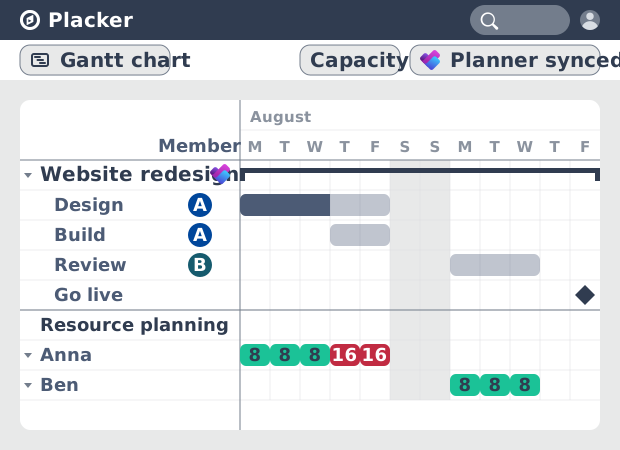
- Hours per member per day, not task counts. Placker shows how many hours each member has committed in the Gantt for Microsoft Planner, broken down by day, so you spot an overloaded Monday before you commit to the schedule.
- Overallocation highlighted automatically. When a member's committed hours exceed their capacity for the day, Placker highlights that day in the Resource Planner, with no spreadsheet to build.
- Cross-plan capacity without Project Plan 3 or 5. Connect multiple Microsoft 365 group plans and Placker aggregates workload across all of them in a single view, where Planner's own workload view is scoped to one plan at a time.
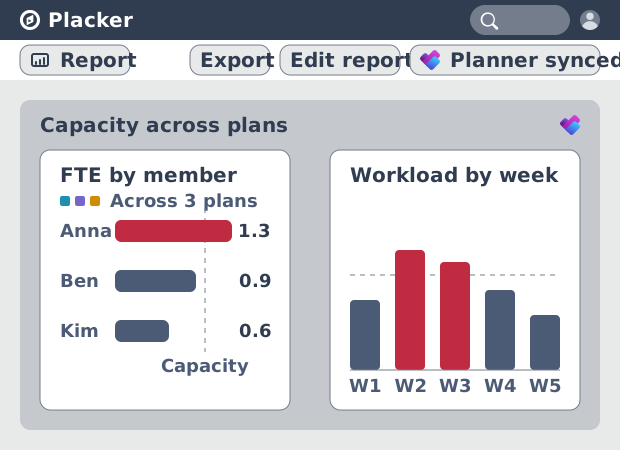
- FTE reports show whether intake is realistic. The Capacity Planning Report calculates FTE per member (planned effort divided by available hours), so an FTE above 1.0 flags an over-committed plan before the sprint starts.
Committed hours
Beyond task distribution: committed hours by day
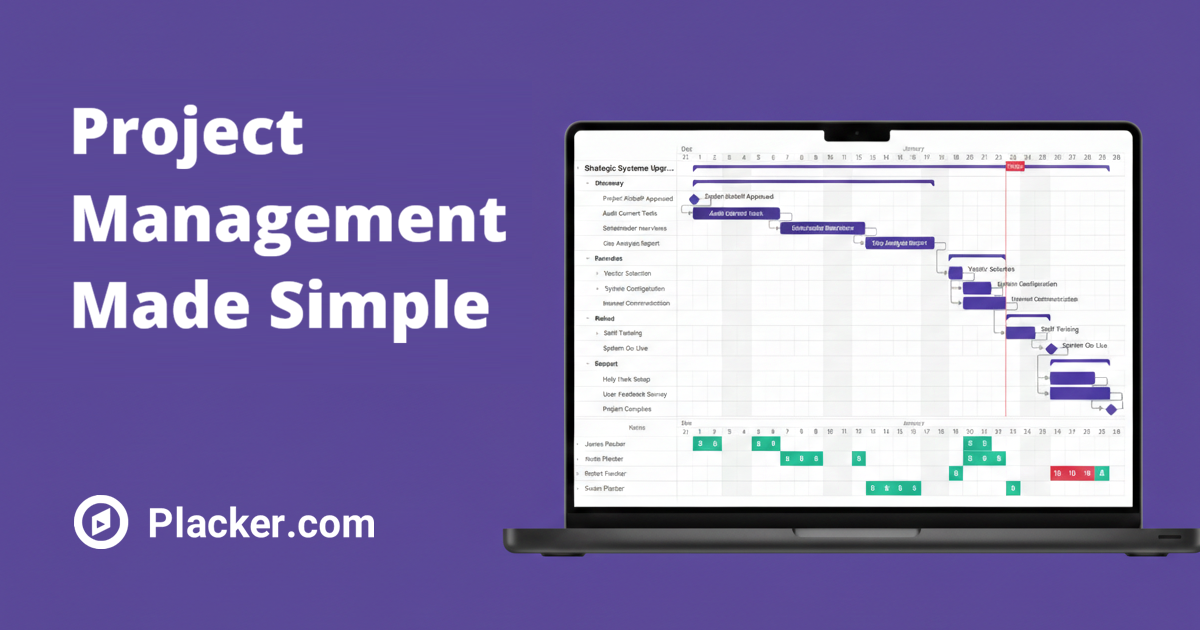
The Placker Resource Planner shows a Gantt-style row per team member with a workload bar derived from effort estimates on each Planner task. Overallocated days highlight automatically. The default capacity is 8 hours per day and you can configure it per member.
MS Planner Premium's People View distributes tasks across swimlanes by assignee. It does not attach hours to tasks, so two members with identical task counts can carry very different actual workloads. The view tells you distribution, not utilization.
You see where each person stands in hours before you assign the next task. Overcommitment shows up as a visual signal in the Gantt row, not as a missed deadline at the end of the sprint.
FTE reporting
Cross-plan workload visibility and FTE reporting
Multiple Planner plans connect into a portfolio view using masterboards and Board Groups. The Capacity Planning Report aggregates effort across all connected plans and calculates FTE for each member. A score above 1.0 means the person is overallocated across the full portfolio.
MS Planner has no cross-plan workload view. A team member assigned to three plans in your Microsoft 365 environment appears separately in each plan's People View. There is no native way to see their combined load. Most teams discover the conflict when someone misses a deadline.
You bring all plans into a single capacity view and spot overallocation before it reaches delivery. When a new project comes in, you check FTE scores across the portfolio before committing a start date.
Effort tracking
Plan, track, and adjust effort across Microsoft 365
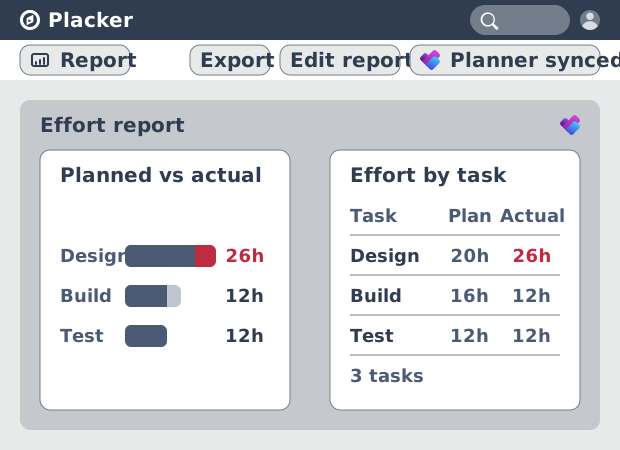
Each Planner task in Placker carries three effort fields: planned, actual, and remaining. You set estimates at planning, log actuals as work progresses, and remaining updates automatically. The Resource Planner and Capacity Planning Report reflect the current state of all three fields.
Planner tasks carry no effort fields in the native interface. Teams that need plan-versus-actual data typically maintain a parallel spreadsheet or project file outside of Microsoft 365. All three fields attach to each task inside your existing workflow.
You track delivery confidence without switching tools. When actuals diverge from estimates midway through a project, you see the drift in the Resource Planner and replanning happens in the same interface your team uses daily.
How It Works
See who's overloaded and reassign work with confidence, in four steps.
- 1
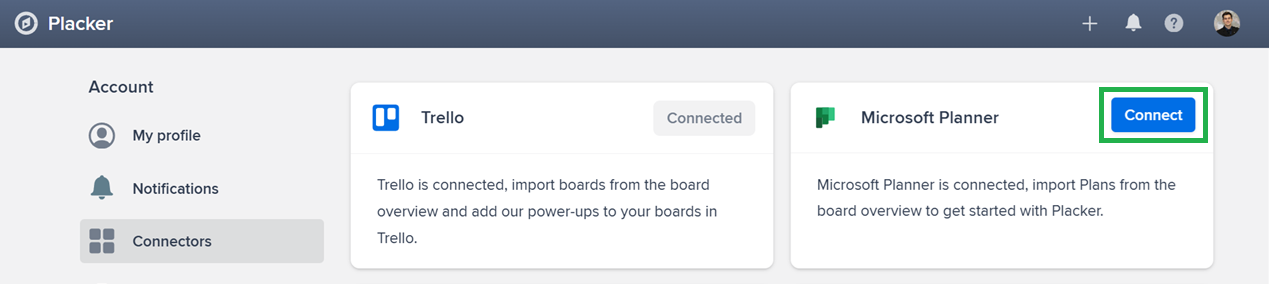
Connect your Microsoft 365 account
Connect your Microsoft 365 account to Placker and select the Planner plans you want to track.
- 2
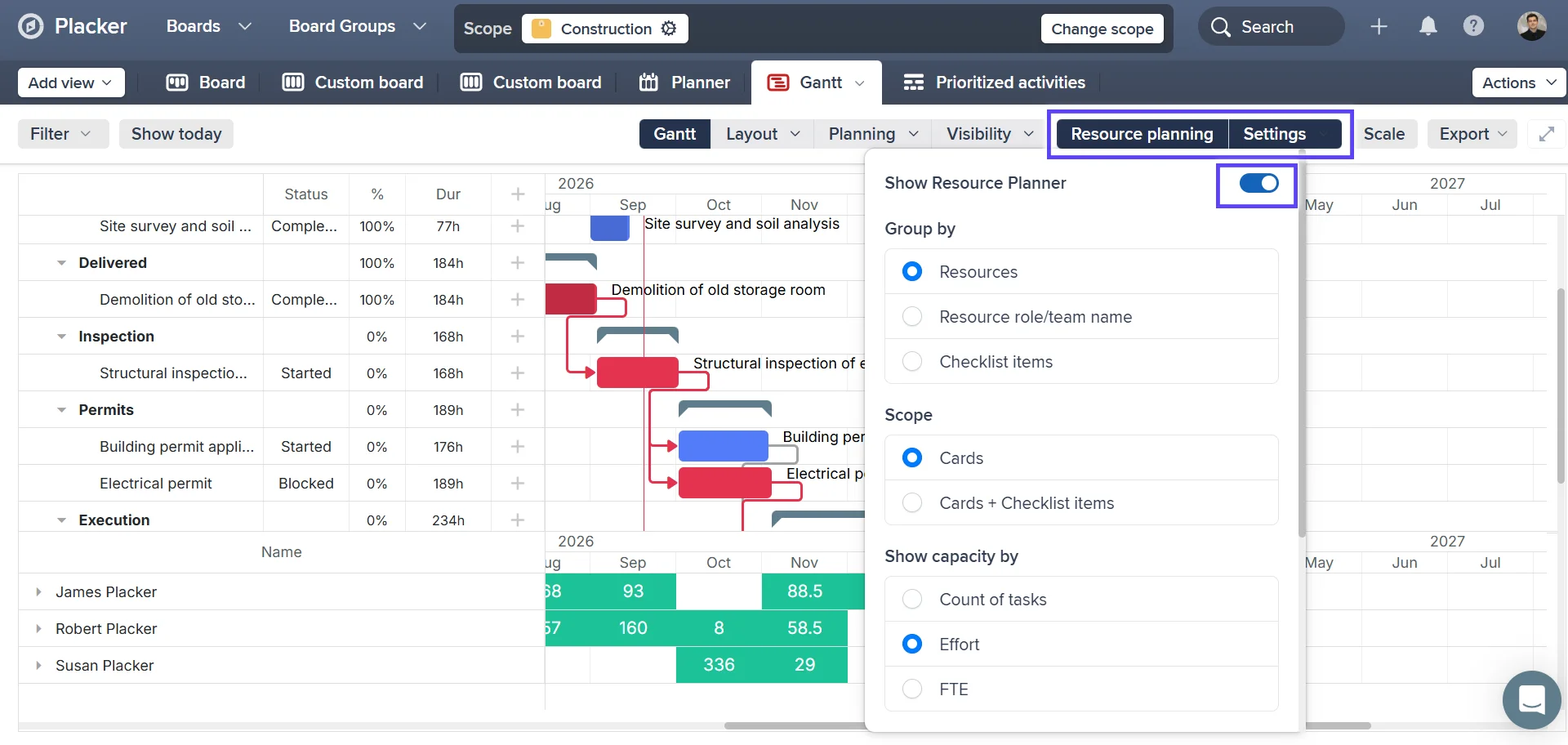
Enable the Resource Planner in the Gantt view
Open the Gantt view and toggle Show Resource Planner. Each team member appears as a row with a workload bar built from their task effort estimates.
- 3
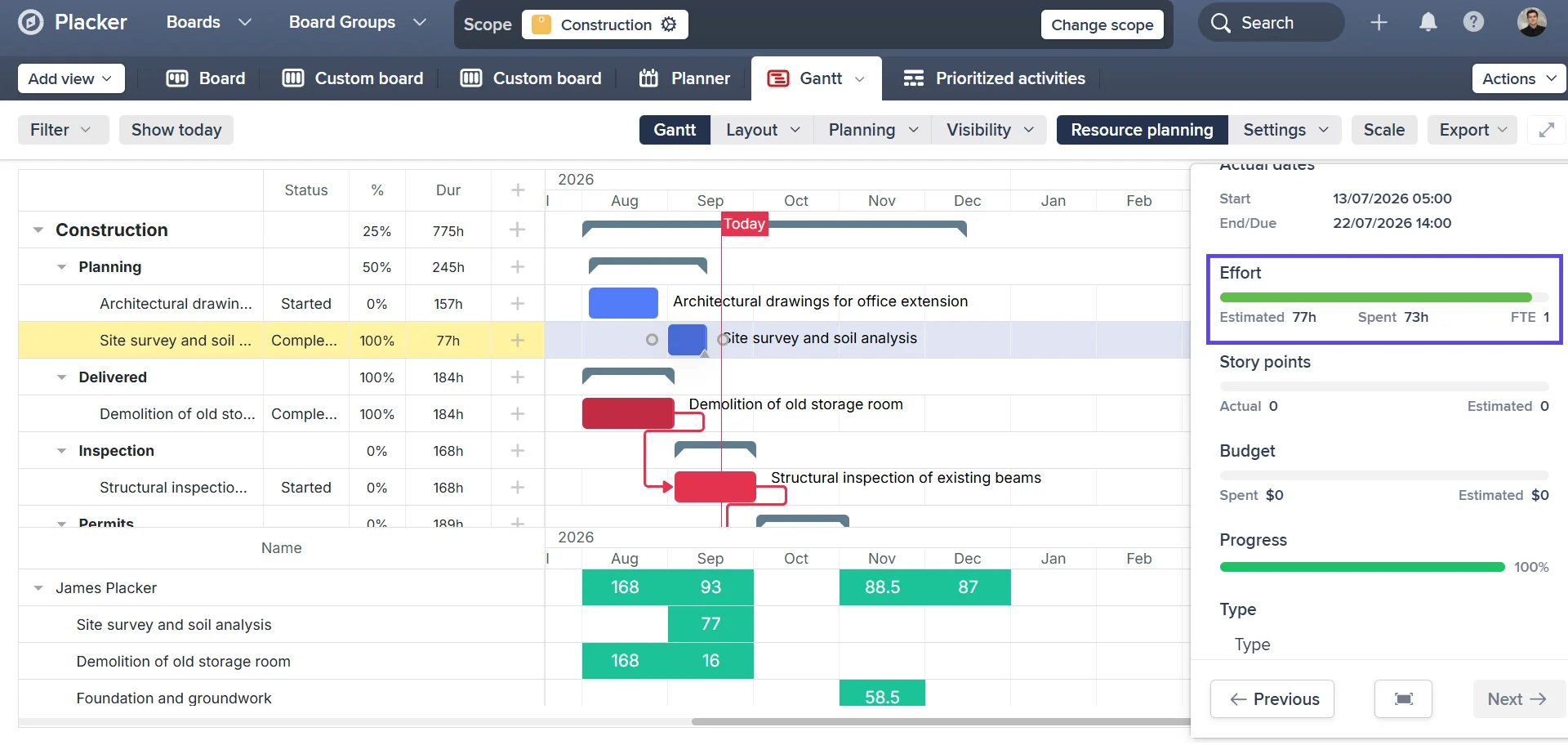
Add effort estimates to your tasks
Add effort estimates to Planner tasks using the planned hours field. Overallocated days highlight automatically based on each member's configured daily capacity.
- 4
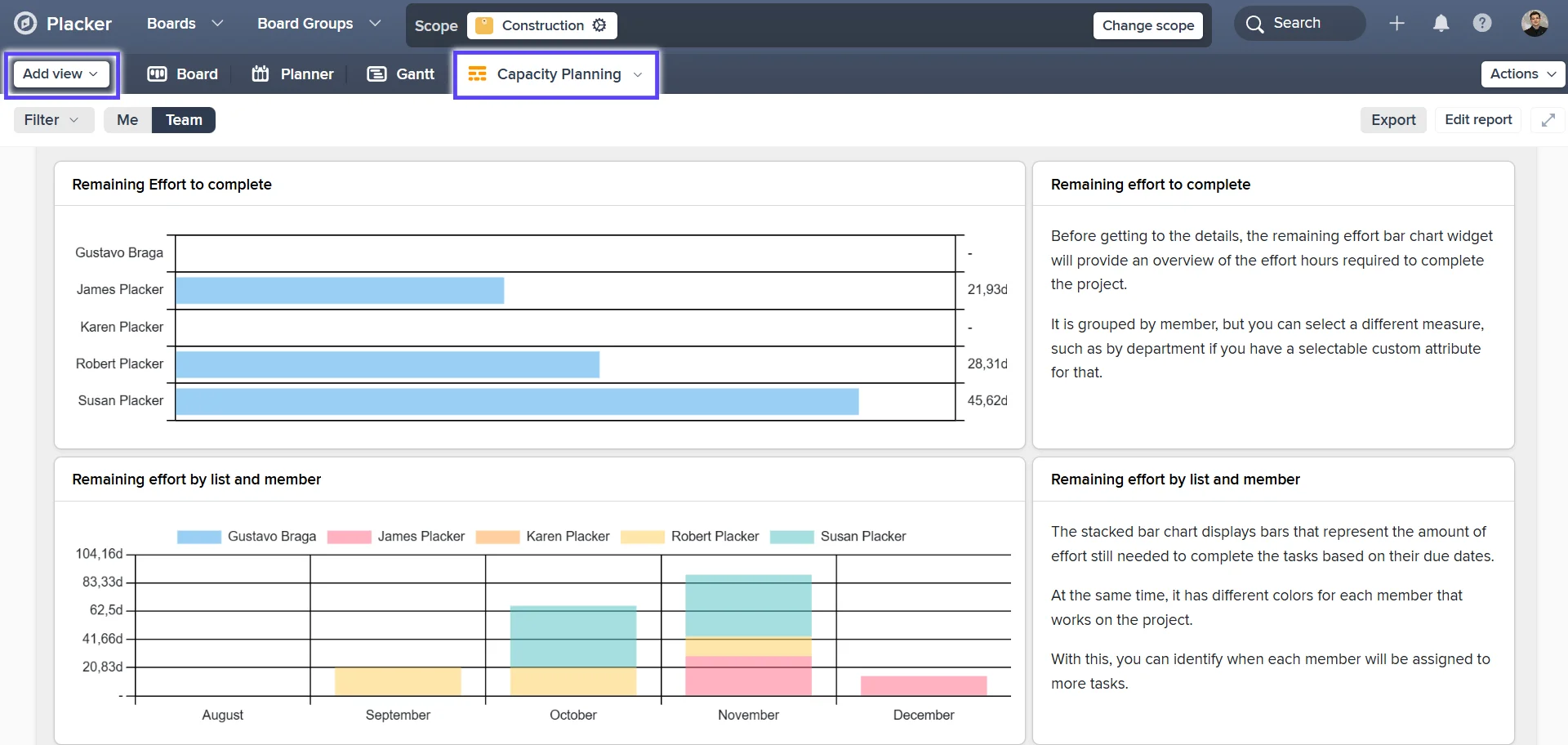
Review capacity with the Capacity Planning Report
Open the Capacity Planning Report to review FTE scores across your plans, and use the three built-in templates to share capacity data with project sponsors or leadership.
How It Works
1. Connect your Microsoft 365 account to Placker and select the Planner plans you want to track. 2. Open the Gantt view in Placker and toggle Show Resource Planner. Each team member appears as a row with a workload bar built from their task effort estimates. 3. Add effort estimates to Planner tasks using the planned hours field. Overallocated days highlight automatically based on each member's configured daily capacity. 4. Open the Capacity Planning Report to review FTE scores across your plans and use the three built-in templates to share capacity data with project sponsors or leadership.
Use cases
Where teams use the resource planner to balance workloads across their Planner plans and avoid over-committing people.
Manager checking capacity before intake
A team manager opens the Placker resource planner before accepting new work into the sprint. The resource view shows each person's committed hours this week, so the manager can accept the new request for the person with headroom rather than the person who volunteers first.
Team lead preventing burnout
A team lead reviews the resource planner at the end of each sprint to spot anyone carrying more than 40 hours of planned work in the next sprint. Overloaded members are visible immediately, and tasks can be redistributed before the burnout becomes a productivity problem.
PM balancing parallel projects
A project manager uses the Placker resource planner to allocate the same developers across two simultaneous Microsoft Planner projects. The planner shows combined hours across both plans, preventing double-booking that wouldn't show up in either project in isolation.
Tips & Best Practices
Practical advice to get the most out of your workflow
Use Resource Planner to see how Microsoft Planner tasks are distributed across your team
Placker's Resource Planner shows each team member's Planner tasks over time, colour-coded by capacity level. It's the clearest way to spot who's overloaded and who has room for more work.
Drag Microsoft Planner tasks in Resource Planner to rebalance the team
When you notice a team member's schedule is packed, drag their tasks to someone with capacity or adjust dates to spread the load. Placker syncs the changes back to Microsoft Planner automatically.
Review Resource Planner before committing to new Microsoft Planner tasks
Before adding a new task to a team member's plan, check the Resource Planner to see how their schedule already looks. Visible capacity helps you make commitments your team can actually deliver on.
Use weekly Resource Planner reviews to prevent team burnout
A quick Monday check of the Resource Planner helps you catch overloads before the week begins. Redistributing work at the start of the week is always easier than firefighting mid-sprint.
Related pages
Microsoft Planner integrations: two-way sync
Sync Microsoft Planner plans two ways with Placker and add the calendar, time tracking, and automation Planner lacks. See how it works.
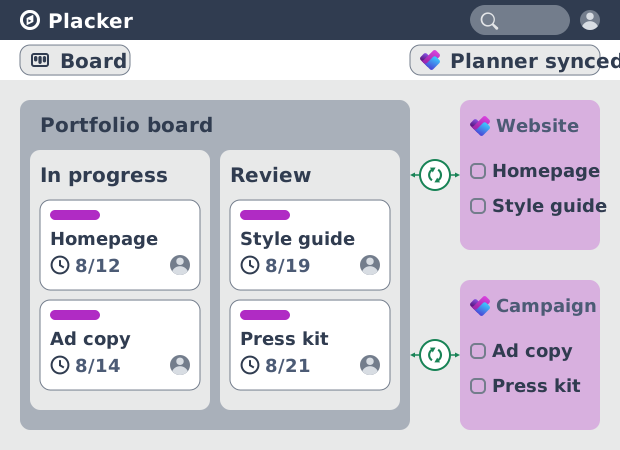
Microsoft Planner board view: layouts and reports
Add custom grouping, swimlanes, and Kanban reports to your Microsoft Planner board view. Placker reads your plans, no rebuild. Start a free trial.
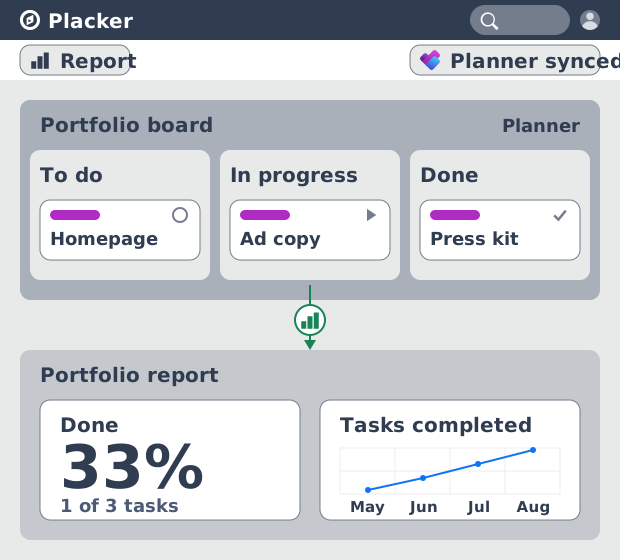
Microsoft Planner dashboards & reports
Report across Microsoft Planner plans without Power BI. KPI widgets, pivot tables, portfolio dashboards, and scheduled PDF reports. Start a free trial.
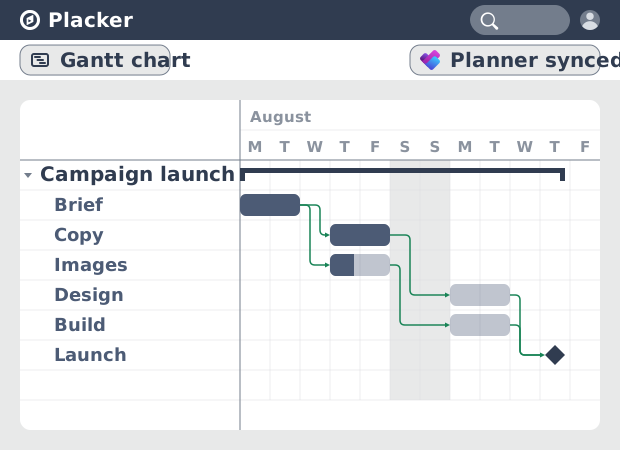
Microsoft Planner Gantt Chart: Add Dependencies
Microsoft Planner has no true Gantt chart. Placker turns Planner tasks into a timeline with dependencies and a critical path. Start free.
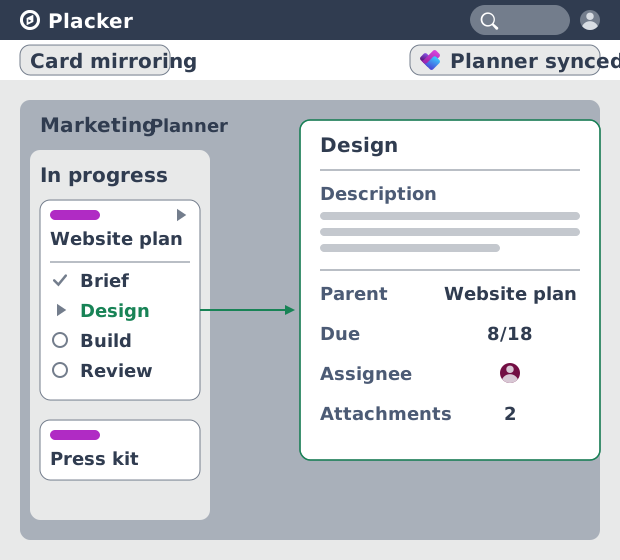
Subtasks in Microsoft Planner: Parent-Child Tasks
Add real subtasks to Microsoft Planner without premium. Parent-child tasks give each subtask an assignee and dates, and roll effort up.
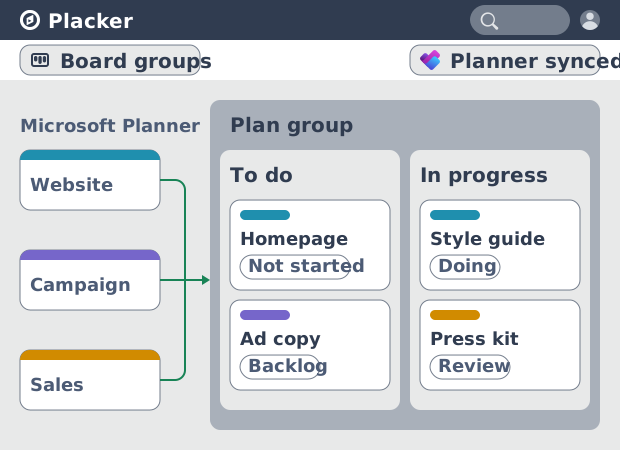
Microsoft Planner: see many plans in one view
See tasks from several Microsoft Planner plans in one board view, no Project Plan 3 or 5 license needed. Placker works on every tier. See how it works.
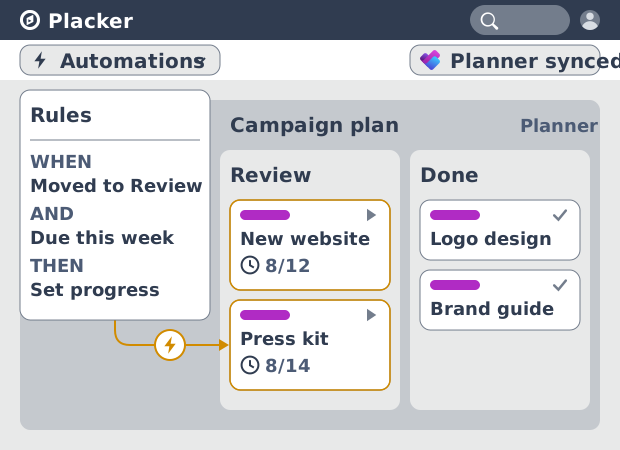
Microsoft Planner automation, no Power Automate
Add conditional automation to Microsoft Planner without Power Automate. Placker runs visual rules on your plans and tasks, plus recurring cards. See how.
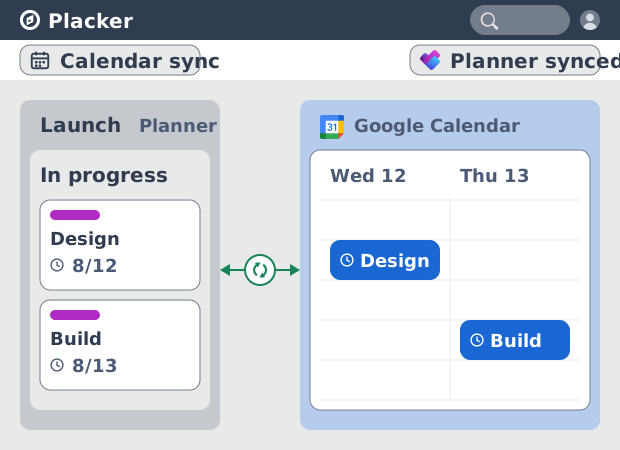
Microsoft Planner Google Calendar sync (2-way)
Microsoft Planner has no native Google Calendar sync. Placker syncs your tasks to Google Calendar, both ways, in minutes. Start free trial.
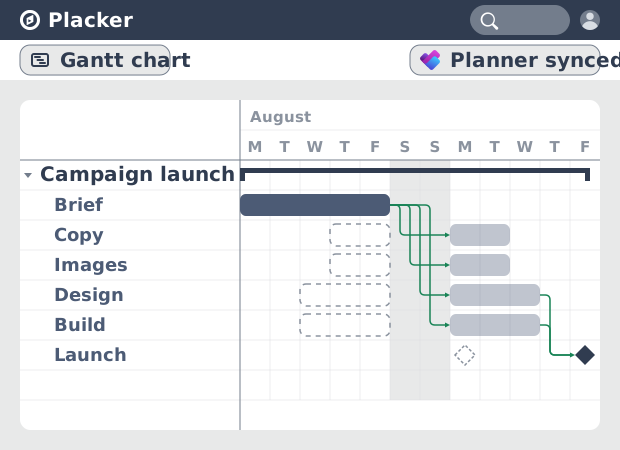
Auto-scheduling for MS Planner: Full Dependencies
Add auto-scheduling to MS Planner without Planner Premium. Placker gives M365 teams full task dependencies and Gantt scheduling. See how it works.
Critical Path for Microsoft Planner: Gantt & CPM
Add critical path analysis to Microsoft Planner. Placker calculates float and flags critical tasks in red on a Gantt chart. Start free.
Ready to get started?
Easy to setup, no credit card required, start your trial today!