Critical path for Trello shows which cards cannot slip
Placker highlights the longest chain of dependent cards on your Gantt chart, showing you exactly which ones control your project's deadline.
Quick facts
Critical Path in Placker for Trello
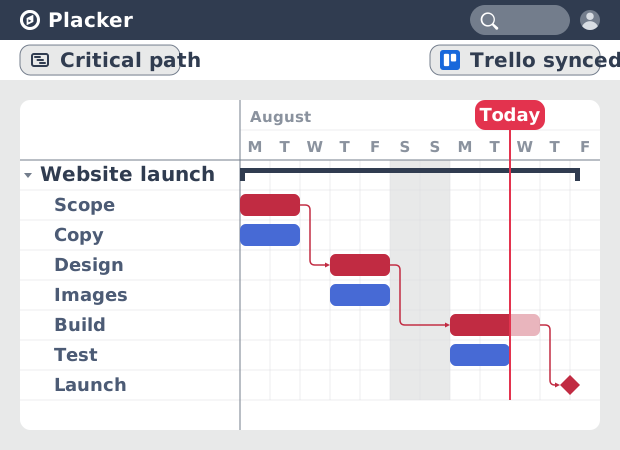
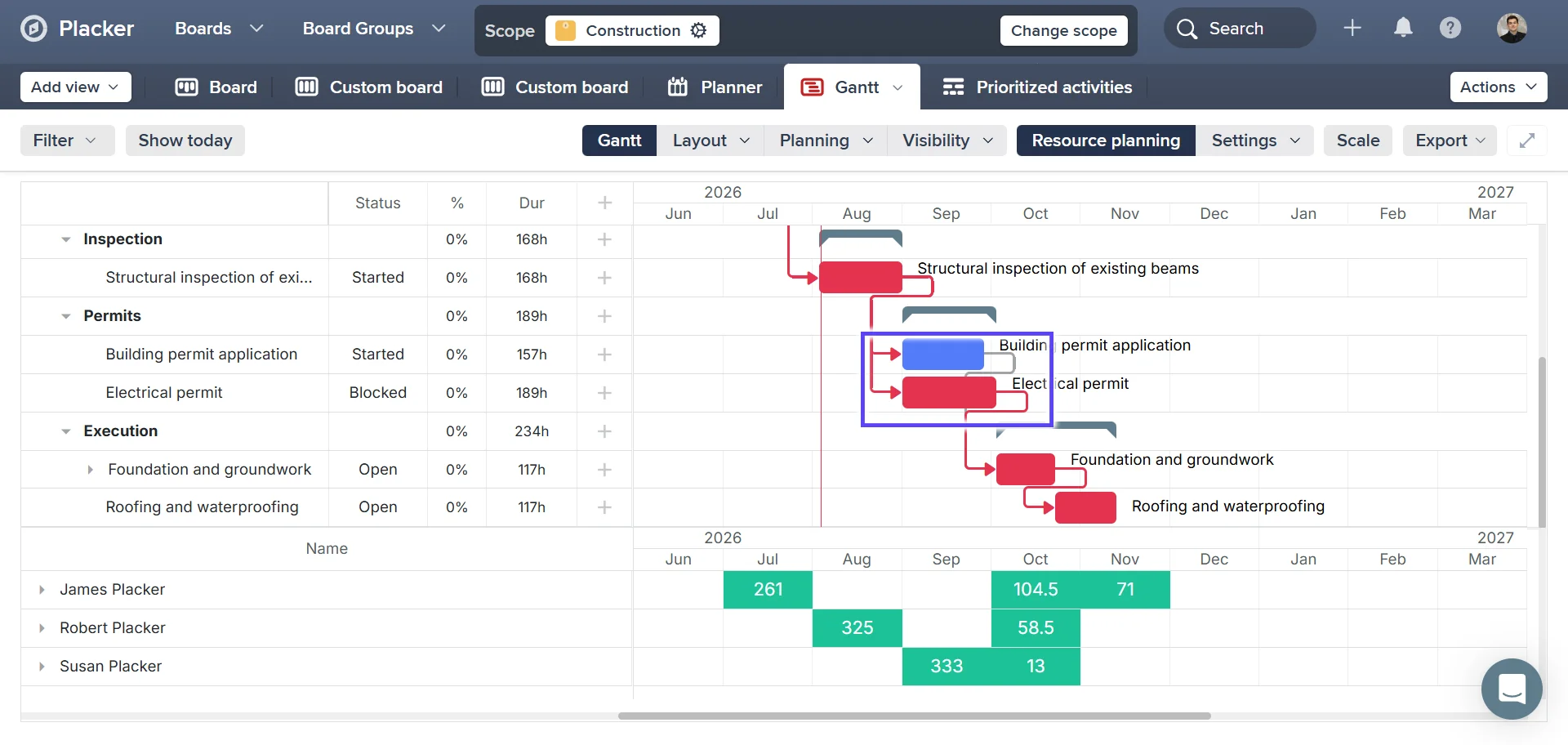
See which Trello cards decide your deadline, highlighted in red on the Gantt:
- Know which cards control your deadline. Placker calculates float for every card from its dates and dependencies, then highlights the zero-float chain in red on your Gantt, something Trello doesn't offer natively.
- Always shows today's risk. Change a card's date or a dependency and the critical path recalculates immediately, so you see which cards threaten your deadline now, not which ones did when you built the plan.
- Enable it in one step. Open the Visibility menu in the Placker Gantt for Trello and turn on Show critical path, and red highlighting appears on your existing cards with no separate Power-Up.
- Reflects real delivery constraints. Set a minimum lag between a predecessor and successor (an approval window or waiting period) and it factors into the float, so the path shows the real schedule, not just the shortest sequence.
Zero-float highlighting
See which Trello cards matter most
Your Trello board shows every card. It doesn't show which ones your deadline depends on.
When you turn on critical path, every card's float is calculated: the number of days a card can slip before it delays your project's end date. Cards with zero float are on the critical path, highlighted in red directly on your Gantt chart. No spreadsheets, no manual network diagrams.
The result: your team immediately sees which Trello cards to focus on and which ones have room to wait. Effort goes exactly where it moves the deadline.
Real-time recalculation
Always see the current critical path as plans change
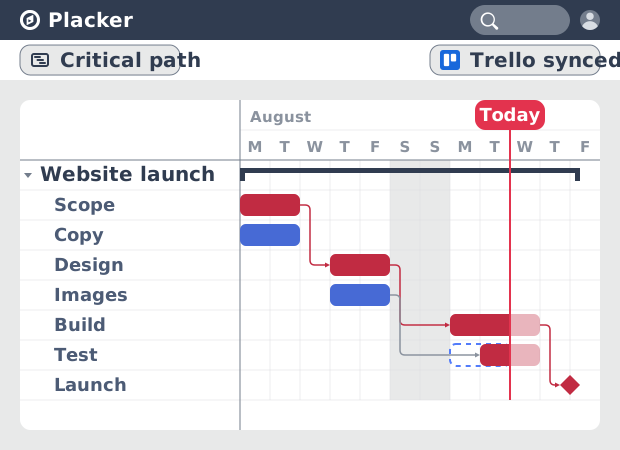
When you move a card in Trello, the critical path can shift. Without automatic recalculation, you're looking at yesterday's analysis while today's board has already changed.
The critical path recalculates automatically every time a due date or dependency changes on your Trello board. No re-running analysis, no refreshing a separate tool. The red highlighting always reflects the current state of your project.
When scope changes, you'll know immediately which Trello cards now control your deadline, and which ones no longer do.
Float visibility
See exactly how much buffer every card has
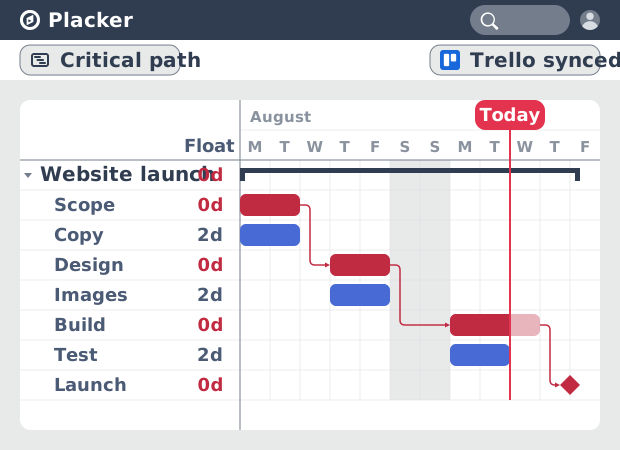
Critical path highlights zero-float cards in red. What it doesn't show you is how close a non-critical card is to becoming one.
The float value shows on every card on your Gantt chart. A card with two days of float can absorb a small slip without touching your deadline. A card with fourteen days can wait. This tells you where to shift effort when priorities change, and which cards are closer to the critical path than they appear.
When a card's float drops to zero, it turns red. You see it as it happens.
How It Works
See which Trello cards control your deadline, in four steps.
- 1
Open your board in the Gantt view
Switch your Trello board to Placker's Gantt view, where every card's float is calculated — the number of days it can slip before it delays your project's end date.
- 2
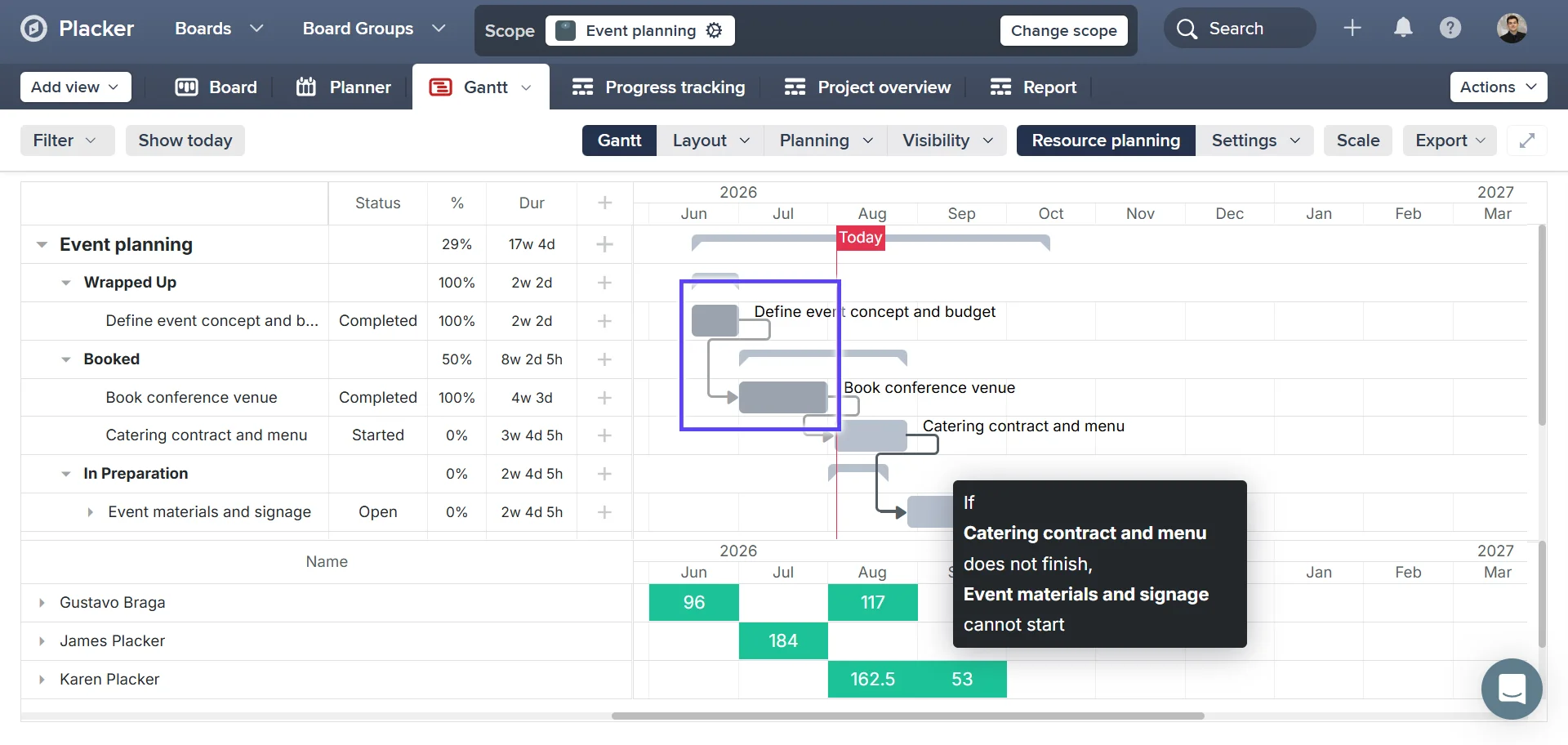
Turn on critical path highlighting
Cards with zero float are highlighted in red directly on your Gantt chart — no spreadsheets or manual network diagrams needed.
- 3
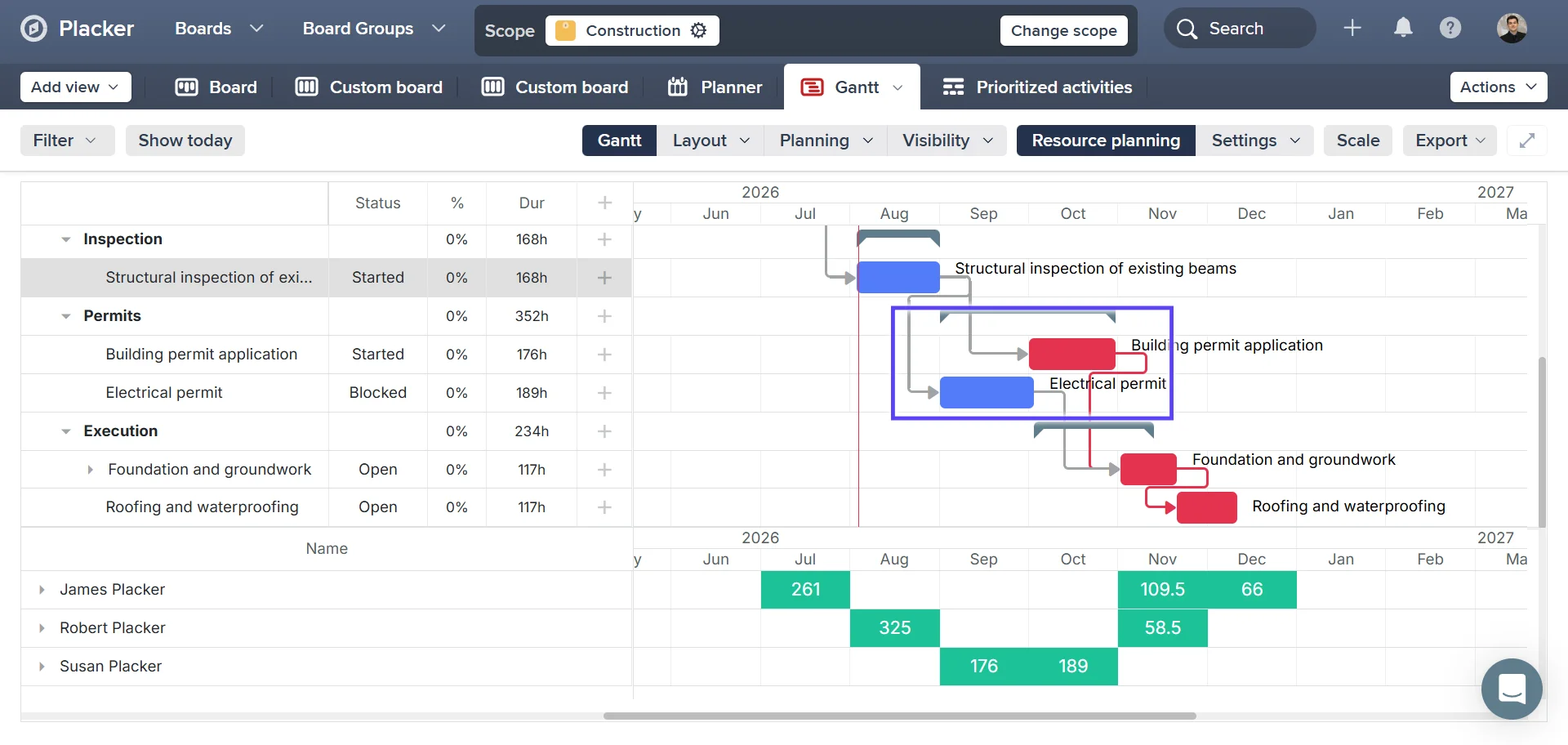
Check the float on any card
See the float value on every card: a card with two days of float can absorb a small slip, while a card with fourteen days can wait — useful for deciding where to shift effort.
- 4
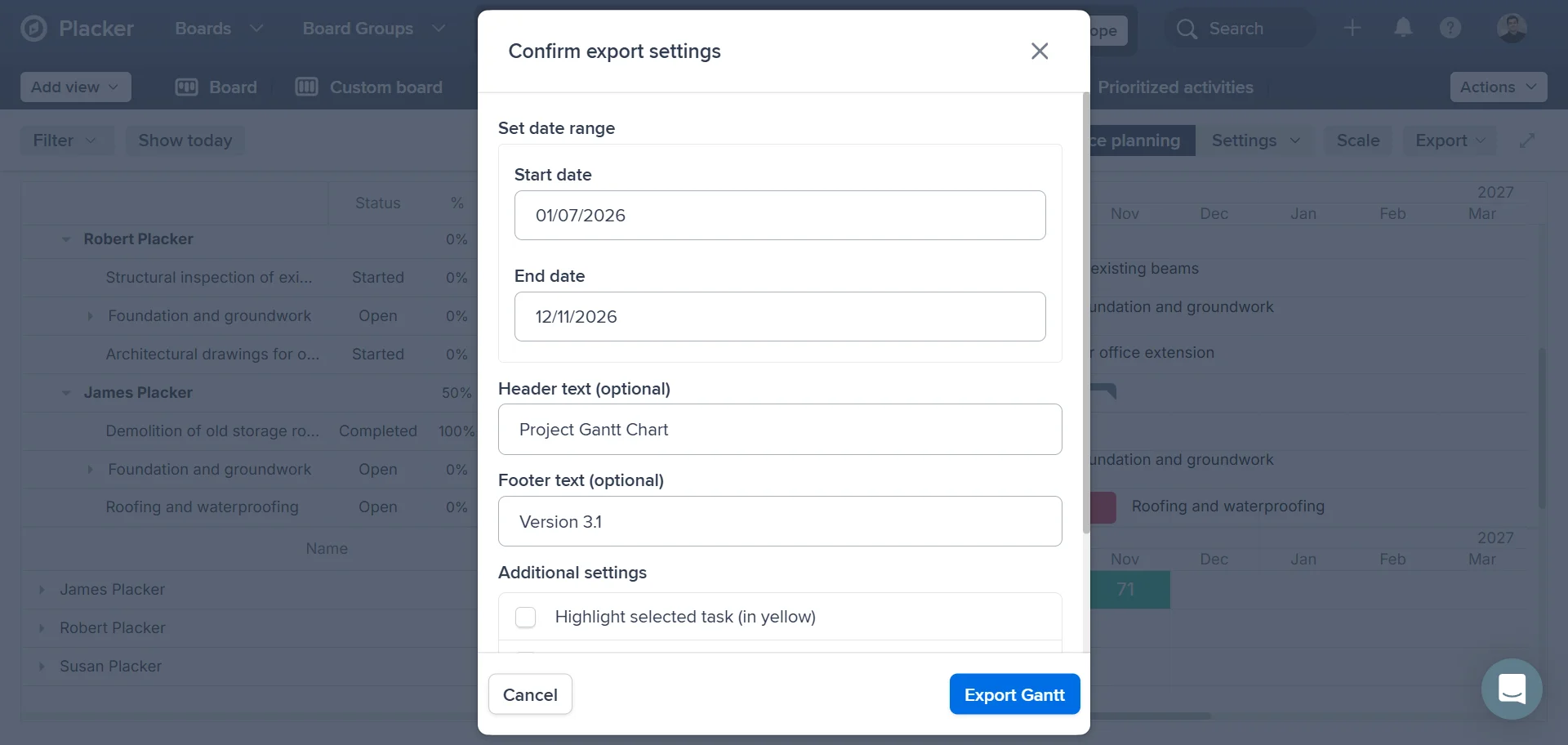
Move a card and see the path update
When you move a card in Trello, the critical path recalculates automatically, so the red highlighting always reflects your board's current state.
Use cases
Where teams rely on the critical path to protect their deadline.
Protecting a release date
A development team enables Placker's critical path on a Trello release board to see which tasks sit on the delivery chain. When one task slips, the team immediately knows whether it threatens the release date or can be absorbed, preventing last-minute surprises.
Cutting scope without cutting the deadline
A product manager uses the critical path to identify which Trello tasks sit off the critical chain. These are candidates for deferral if the team needs to protect the deadline. The critical path turns the scope conversation from a debate into a data-backed decision.
Sprint retrospective on dependencies
A scrum master reviews the critical path at the sprint retrospective to understand which task-to-task dependencies caused the most schedule pressure. The visual chain surfaces the bottlenecks that oral retros tend to miss, giving the team a concrete improvement target for next sprint.
Tips & Best Practices
Practical advice to get the most out of your workflow
Complete card dates unlock the full power of critical path
Placker uses your card dates to calculate float and highlight the critical path. The more complete your start and due dates are across all cards, the more accurate and actionable your critical path view becomes.
Draw dependencies in the Gantt view to get a precise critical path
The more accurately your dependencies reflect how tasks are connected, the more insightful your critical path analysis becomes. Add them in the Gantt view, then enable critical path from the Visibility menu.
Red cards show your team exactly where to focus for on-time delivery
Cards on the critical path are highlighted in red: these are where your team's effort will have the greatest impact on finishing on time. Use the critical path view to make priorities crystal clear and keep everyone aligned.
Update a date and watch the critical path recalculate instantly
Placker recalculates the critical path the moment you change any card date. Explore different scheduling options with confidence, knowing you'll always see the real impact on your project timeline before committing.
Gantt Chart by Placker
Critical path is a built-in feature of the Gantt Chart by Placker Power-Up. Add it to any Trello board and access critical path from the Gantt Visibility menu.

Related pages
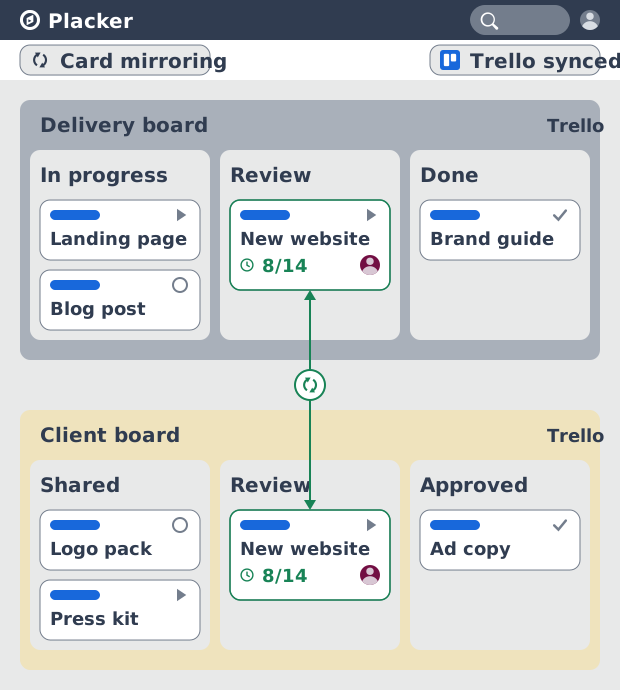
Trello integrations: two-way sync with Placker
Add two-way card sync, Google Calendar, Clockify time tracking, and webhooks to Trello with the Placker Power-Up. See how it works.
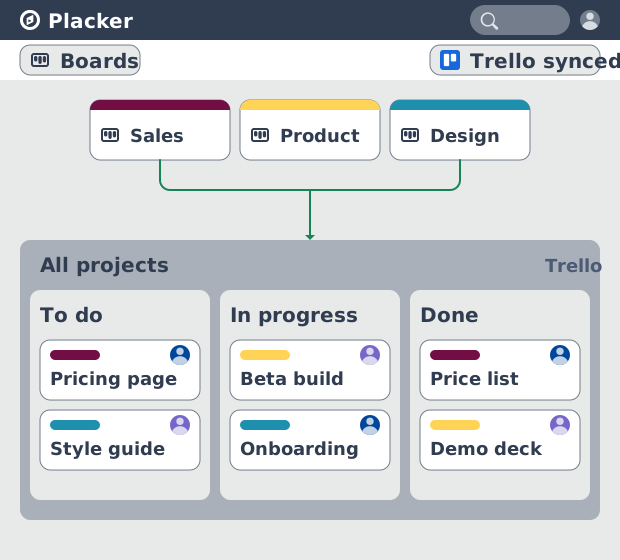
Trello board view: Kanban layouts and reports
Add Kanban structure to your Trello boards with Placker's board view. Group, swimlane, and report on the cards you already have. Add to Trello.
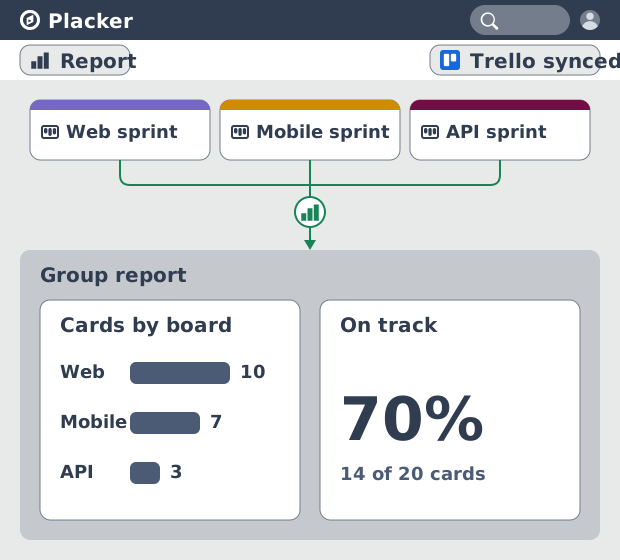
Trello dashboards and reports
Turn your Trello boards into live dashboards. Cross-board reporting, pivot tables, and scheduled PDF reports. Add Reports by Placker to Trello.
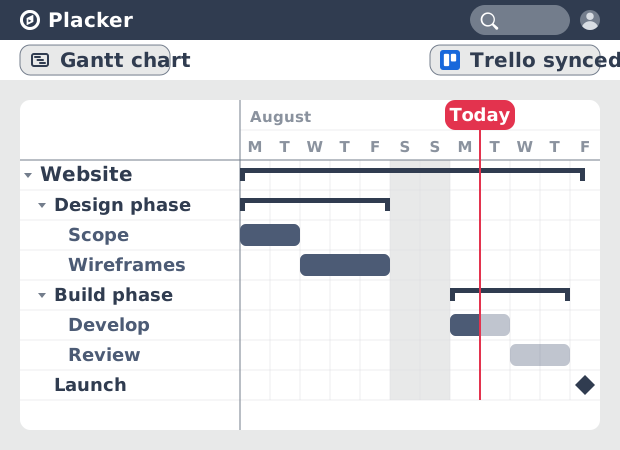
Gantt Chart for Trello with Dependencies
Add a real Gantt chart to your Trello boards. Placker turns cards with dates into a timeline with dependencies, critical path, and resource planning.
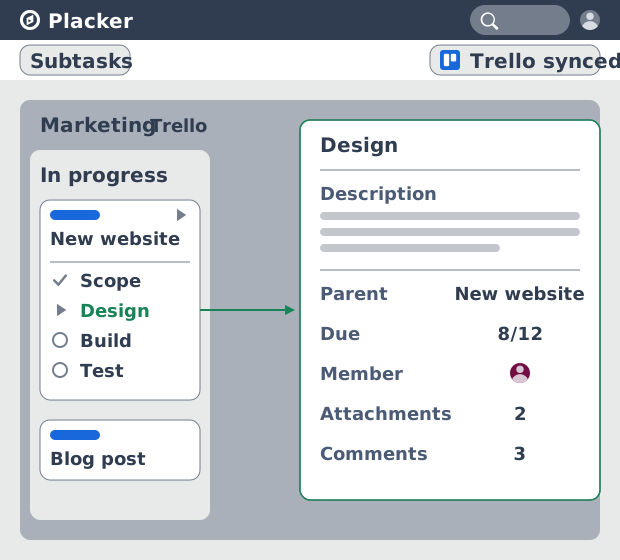
Trello Subtasks: Parent-Child Cards for Trello
Add real subtasks to Trello. Parent-child cards give each checklist item its own card and dates, and roll effort up. Add to Trello free.
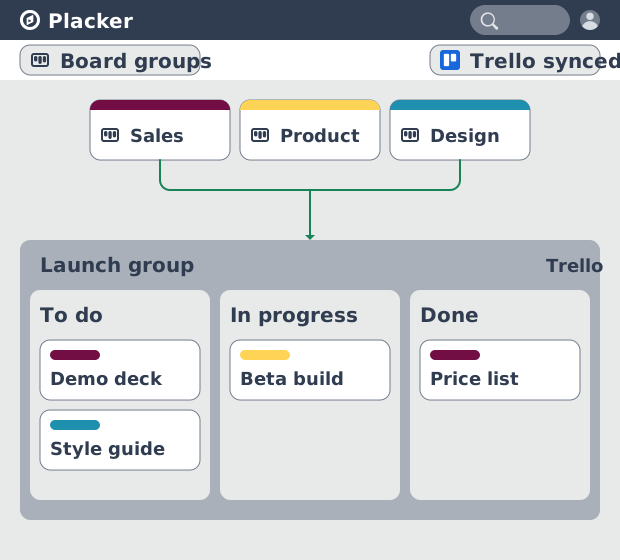
Board Groups for Trello: one combined board view
Load several Trello boards into one combined board view. Placker adds cross-board filtering, drag-and-drop between boards, and combine and split. See how.
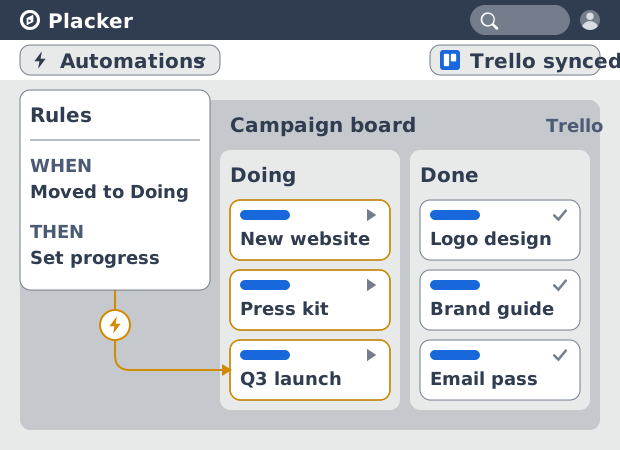
Trello automation rules: beyond Butler limits
Automate Trello boards with no monthly run cap. Placker rules mirror cards two ways and reach fields Butler can't. See how it works.
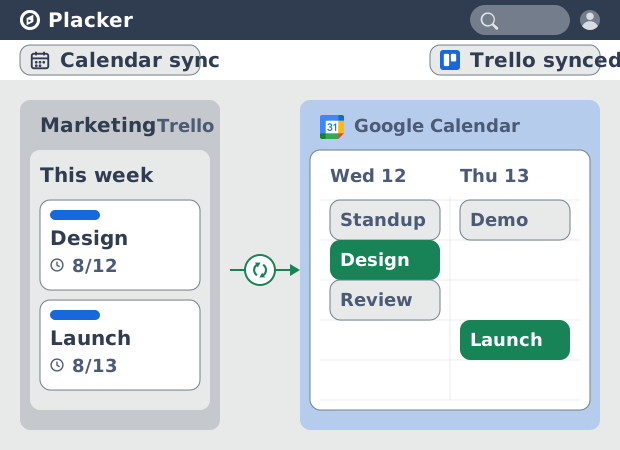
Trello Google Calendar sync: two-way & real-time
Sync Trello cards with due dates to Google Calendar both ways, in under a minute. Edit in either tool and the other updates. Add it to Trello.
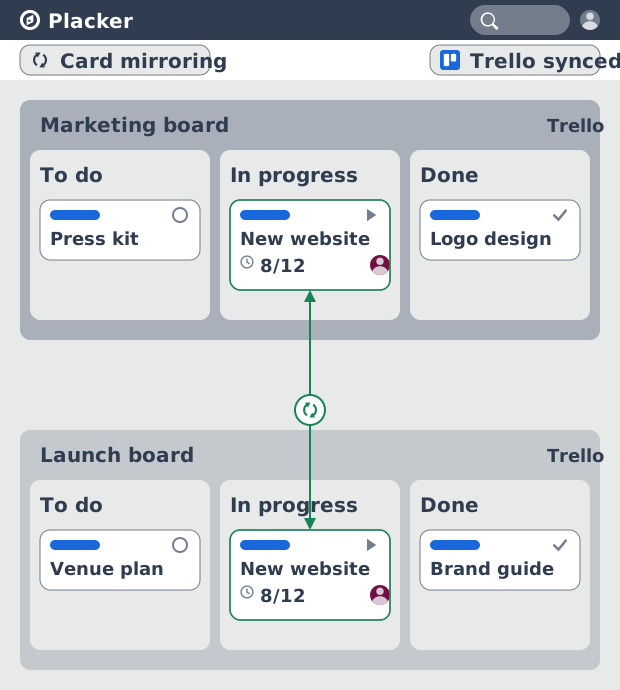
Card Mirror for Trello: 2-way sync, all fields
Mirror Trello cards across boards with 2-way sync. Placker syncs checklists, attachments, members, and dates where native mirrors stop. See how it works.
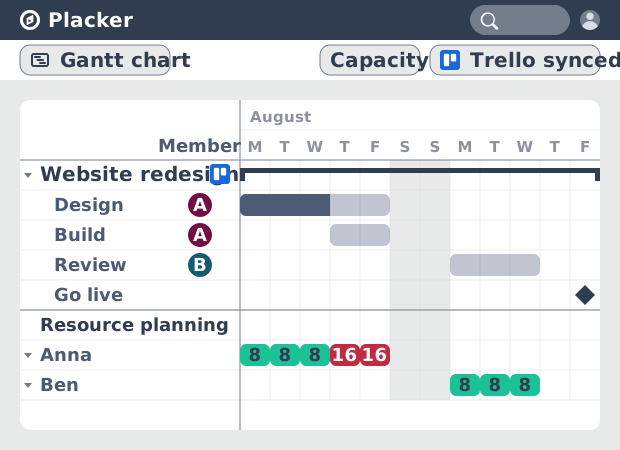
Resource Planner for Trello: Workload Management
See committed hours per Trello member, not just card counts. Placker adds overallocation alerts, cross-board FTE reports, and capacity templates.
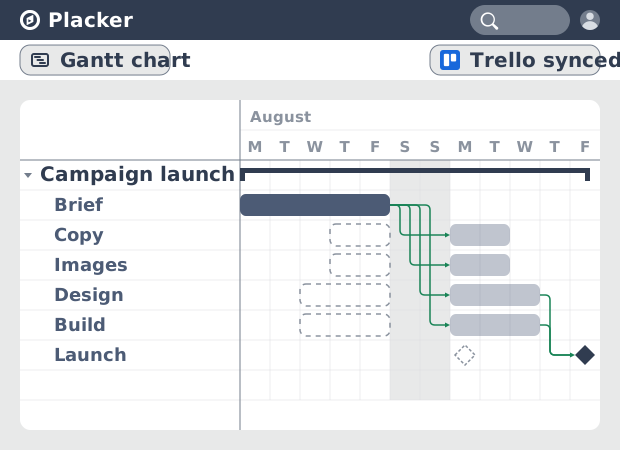
Auto-scheduling for Trello
Trello boards have no native dependency system. The Placker Power-Up adds auto-scheduling so dates propagate when cards slip. See how it works.
Ready to supercharge your Trello boards?
Start your 15-day free trial today. No credit card required.