Critical path, recalculated every time a date changes
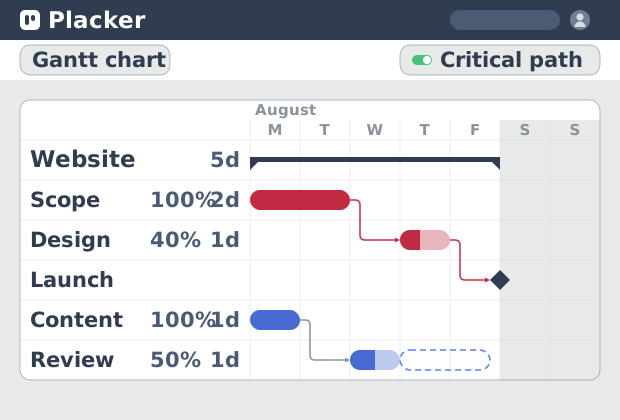
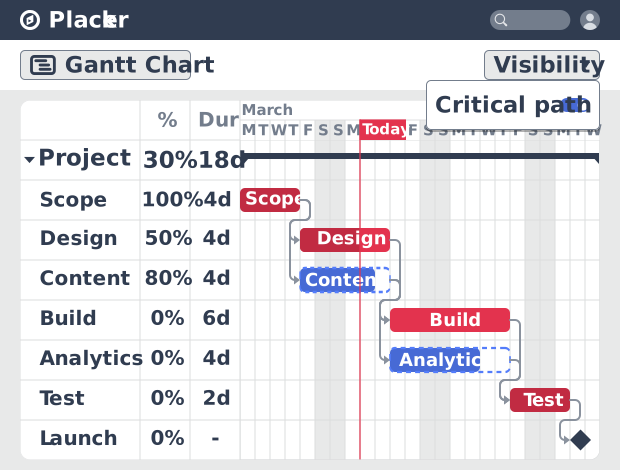
Placker calculates your project's critical path from task dependencies and marks every zero-float task in red on the Gantt timeline. You see at a glance which tasks cannot slip without delaying your end date.
Quick facts
Critical Path in Placker
See the exact sequence that sets your finish date, right on the Gantt:
- See what controls your finish date. Placker calculates total float from your task dates and dependency links and highlights the zero-float tasks in red on the Gantt, so the sequence that sets your earliest finish is visible without a separate tool.
- One toggle, no rebuild. Turn it on from the Gantt Visibility menu with Show critical path, no rebuilding of the plan required.
- Always current. The critical path recalculates in real time as you change any date or dependency, so it always reflects the plan in front of you.
- Real constraints, not just the shortest route. Adding minimum dependency durations for approval windows, shipping times, or waiting periods folds those lags into the float, so the path reflects what the schedule actually requires.
Critical path visibility
Know exactly which tasks determine your deadline
Enable the critical path toggle and every zero-float task is marked in red directly on the Gantt timeline. You see which tasks have no buffer and which have room to slip. There is no separate analysis to run and no spreadsheet to maintain alongside your plan. Focus supervision and risk management on the tasks that actually control when the project finishes, and let the rest have room to flex.
Integrated scheduling
Auto-scheduling that stays in sync with your critical path
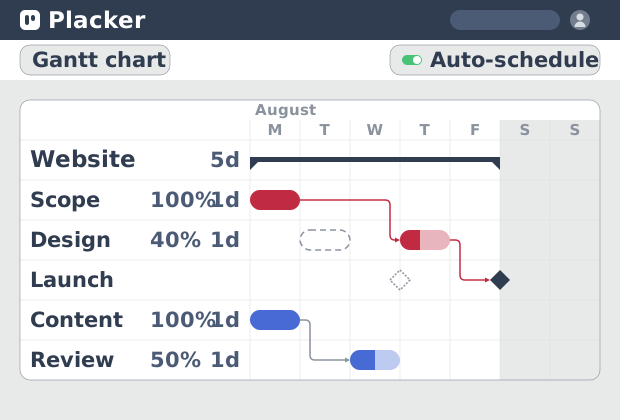
That set of critical tasks is not fixed: Placker's auto-scheduling and critical path work together, so when a task date shifts or a dependency changes, dependent tasks reschedule and the critical path updates in the same step. Choose loose mode to reschedule only when a dependency is violated, or strict mode to cascade changes across all linked tasks whenever any one of them moves. You see the current state of your schedule and your delivery risk at the same time, without running a separate recalculation.
Dependency precision
Dependency depth that reflects how projects actually run
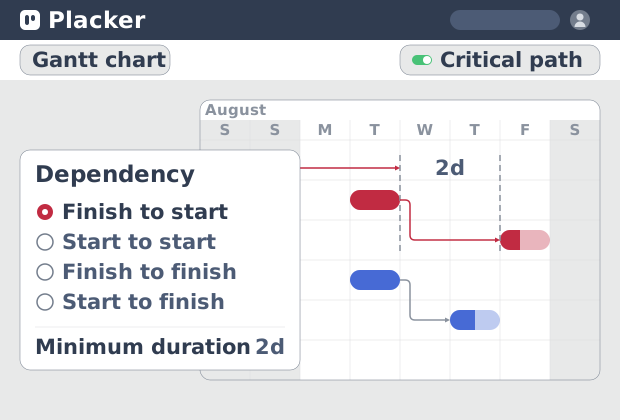
Because both the rescheduling and the critical path follow your dependencies, how precisely you can model them matters. All four dependency types are supported: finish-to-start, finish-to-finish, start-to-start, and start-to-finish. Set a minimum duration on any dependency to add required buffer between tasks, or allow two tasks to overlap. Both are factored into the critical path calculation. On complex projects where two or more independent task sequences have equal total duration, every critical path is highlighted simultaneously, so no high-risk sequence goes unnoticed.
How It Works
See the critical path on your Gantt timeline in four steps.
- 1
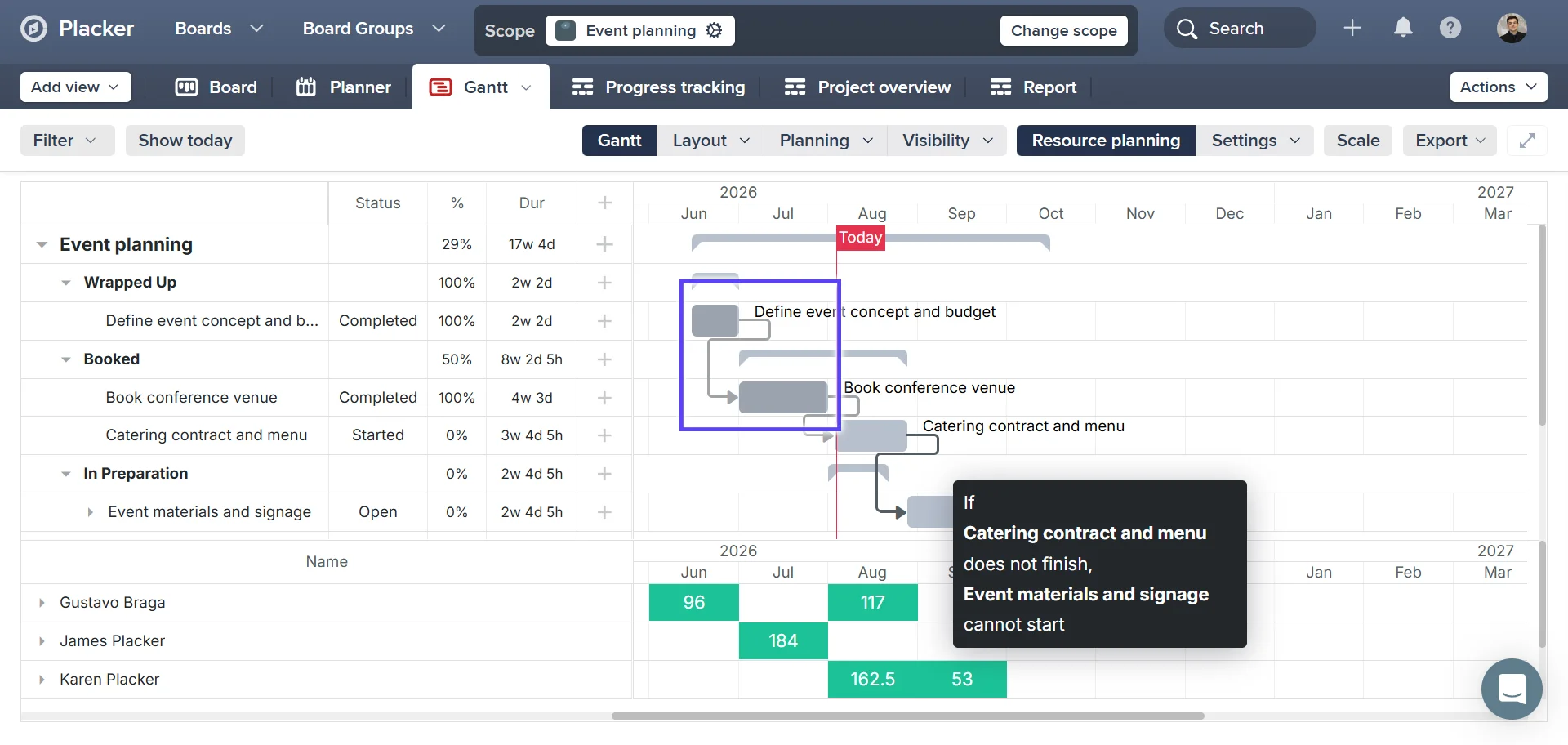
Open your project in Placker's Gantt view
Switch any project to the Gantt view. Your tasks appear on a timeline with their dates and dependency links.
- 2
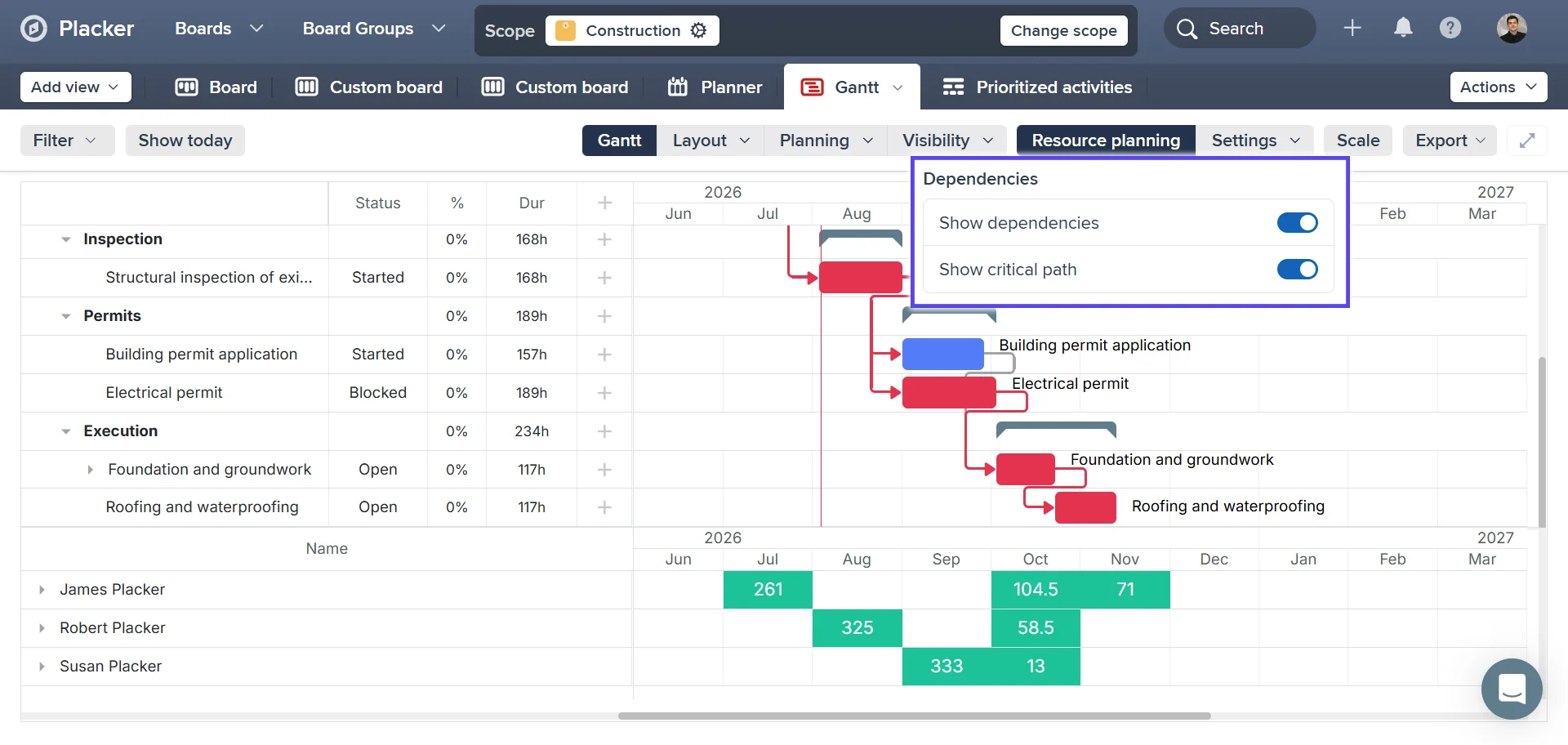
Enable Show critical path from the Visibility menu
In the Gantt toolbar, open Visibility and toggle on Show critical path. Placker calculates each task's float from its dates and dependencies.
- 3
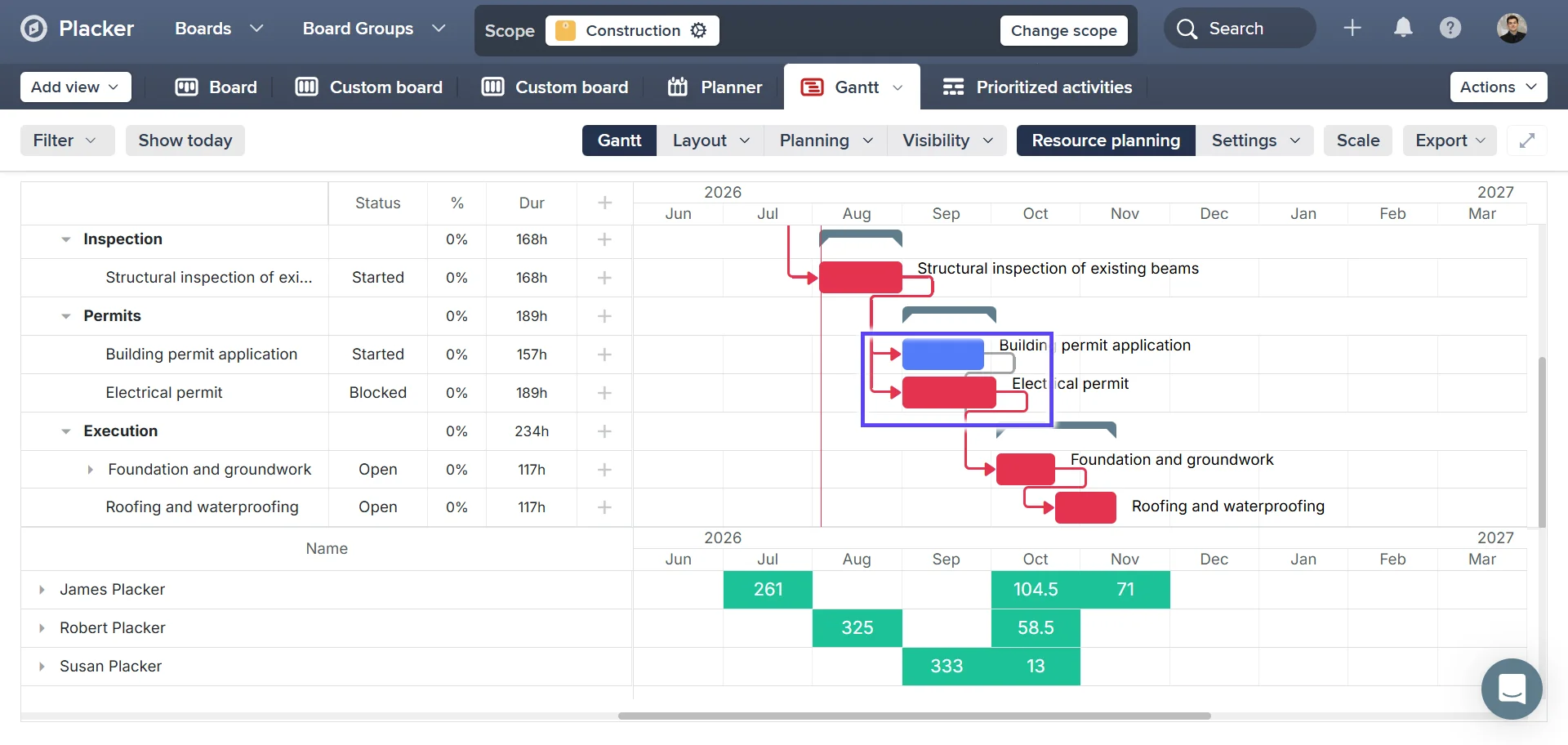
Critical tasks highlight in red
Zero-float tasks (the ones that control your end date) turn red. Tasks with float keep their default color.
- 4
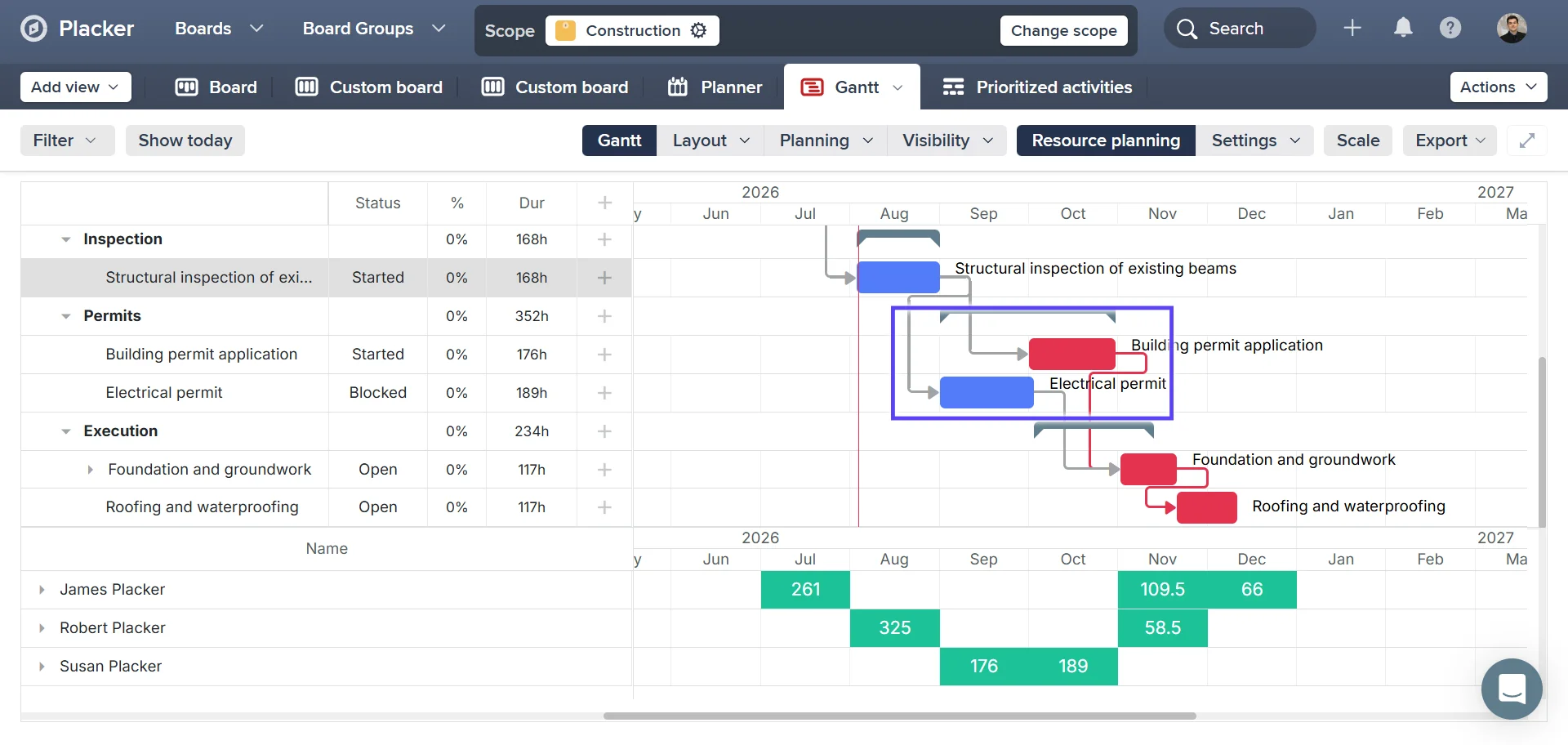
Change a date: the path recalculates automatically
Update any task date or dependency and the critical path recomputes instantly, so the red chain always reflects the current plan.
Use cases
Where teams rely on the critical path to protect their deadline.
Protecting a product launch date
A product manager running a multi-team launch can't tell which delays actually threaten the ship date. With critical path on, the tasks that control the end date show in red, so when one slips, they see immediately whether the launch is at risk and can reallocate before it's too late.
Focusing the team on what can't slip
A project lead managing dozens of dependent tasks needs to know where to concentrate effort. Critical path highlights the zero-float tasks, so the team protects the work that controls the deadline and stops over-managing tasks that have slack.
Answering 'will we still hit the date?'
A delivery manager is asked whether the deadline still holds. Because Placker recalculates the critical path live as dates and dependencies change, they can answer with confidence and show exactly which tasks would move the date.
Tips & Best Practices
Practical advice to get the most out of your workflow
Keep dates and dependencies current for the sharpest critical path
Placker recalculates the critical path from your dates and dependencies, so it is only as accurate as they are. Set real start and due dates and link every genuine dependency, and the red critical tasks you see are the ones truly driving your deadline.
Make sure the people on your red tasks aren't overloaded
A slip on a zero-float task moves your end date, so pair the critical path with Reports to check that whoever owns those red tasks has the capacity to deliver them on time.
Shorten the critical path to pull your deadline in
Only changes to critical tasks move your finish date, so to deliver earlier, focus there first: overlap sequential red tasks or split a long one into parallel work, and watch the end date come forward.
Drill into a long red task with child cards
When one critical task is really several steps, break it into child cards with Parent-Child Cards and link them, so the critical path runs through the exact sub-step driving the delay.
Related pages
Placker integrations: sync your project tools
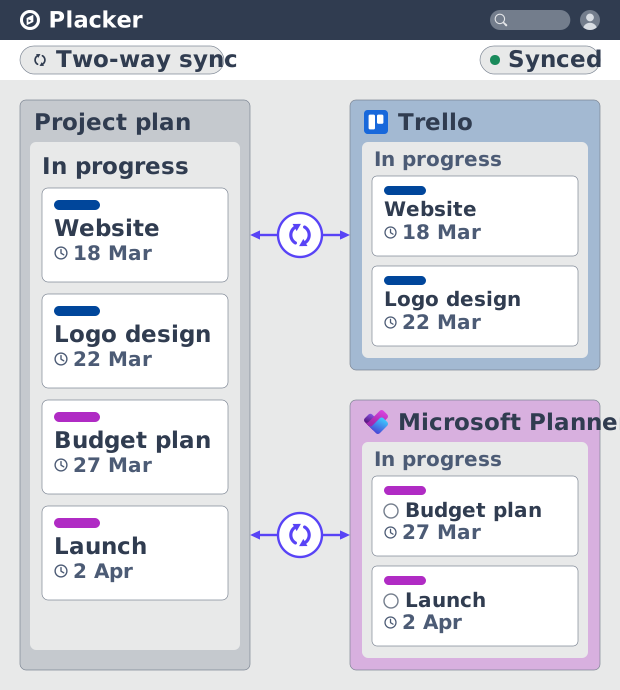
Placker integrations sync Trello, Microsoft Planner, Google Calendar, Clockify, and Zapier two ways, keeping one plan across every tool. See how it works.
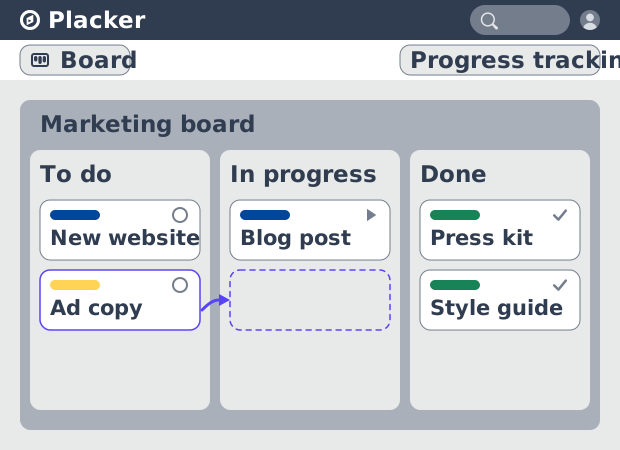
Board views: one board, any view
See all your work as cards moving across lists in Placker. Group by member, swimlane, or due date, and track flow with Kanban reports. See how it works.
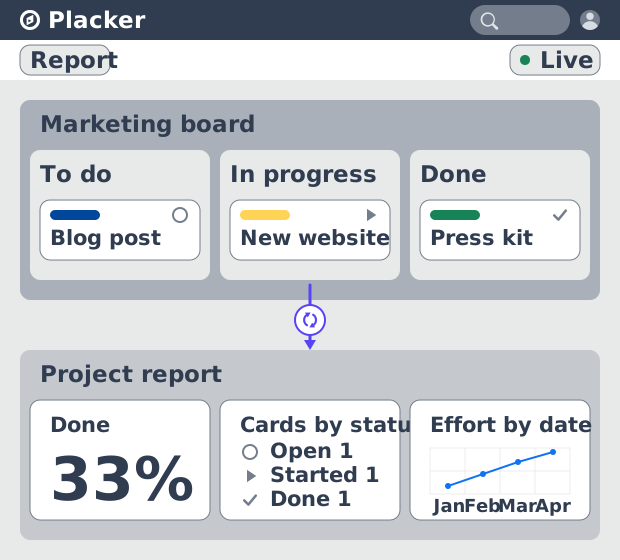
Project dashboards and reports
Build live project dashboards from your tasks. KPI widgets, pivot tables, portfolio roll-ups, and scheduled PDF reports. Start a free Placker trial.
Gantt chart software with auto-scheduling
Plan projects on a visual timeline with Placker's Gantt chart software. Set dependencies, auto-schedule dates, and track the critical path.
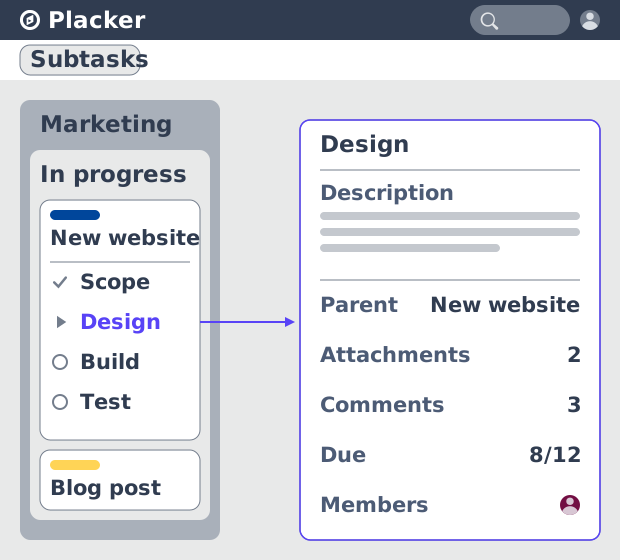
Parent-Child Cards in Placker | Subtasks that roll up
Parent-child cards in Placker give every subtask a full card and roll effort, dates and members up to the parent. Read the total on top.
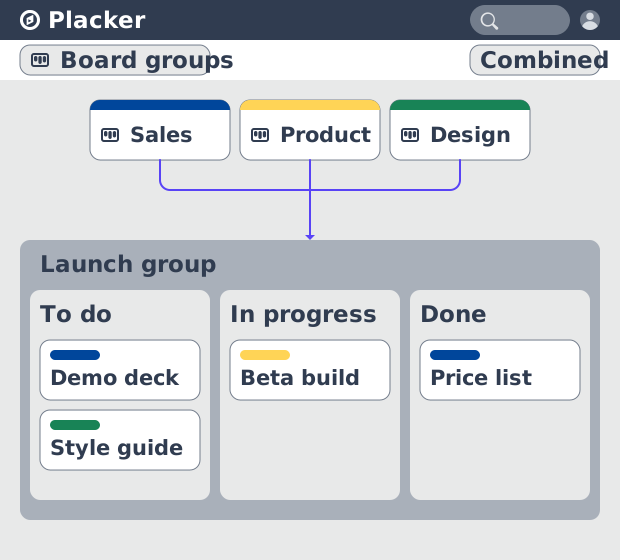
Board Groups: many boards, managed as one
Board Groups let you manage many boards as one workspace: plan, filter, and report across all of them, and save reusable groups. Start a free trial.
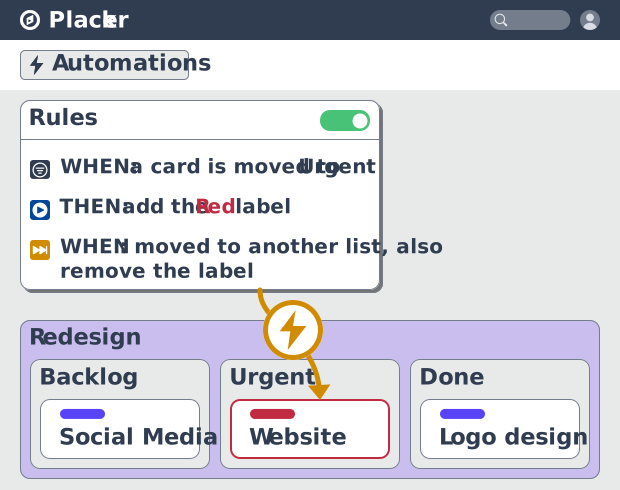
Project board automation rules, no-code
Automate project boards with condition-based rules. Placker mirrors, moves, assigns, and updates cards when work changes. See how it works.
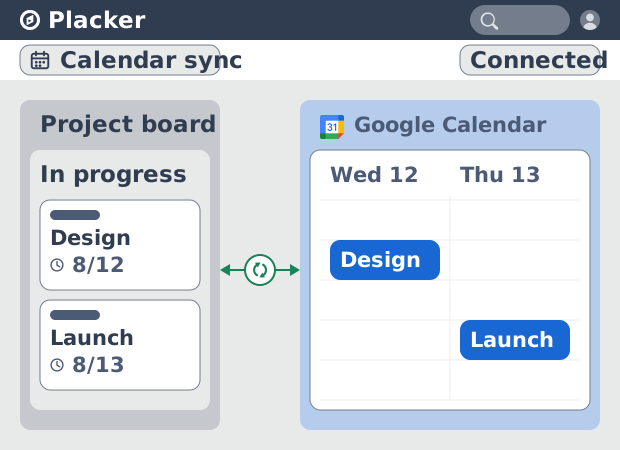
Placker Google Calendar sync: two-way, real-time
Placker syncs every dated card on your boards to Google Calendar, two-way, in under a minute. Edit either tool; both stay aligned. Start free.
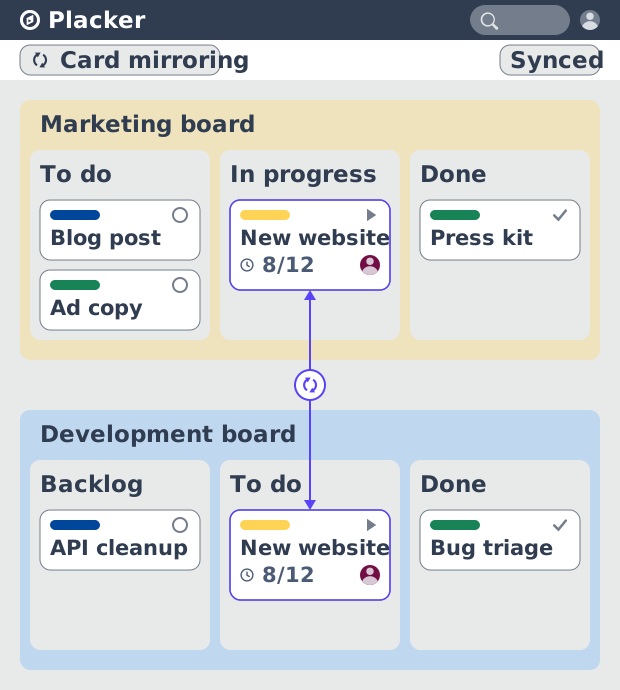
Card Mirror & sync in Placker: 2-way card sync
Card Mirror and sync keeps one task live across every Placker board. Edit a card once and status, dates and members update in seconds. Start a free trial.
Ready to get started?
Easy to setup, no credit card required, start your trial today!