Microsoft Planner Google Calendar sync in minutes
Placker brings your Microsoft Planner tasks into Google Calendar. Planner's native calendar story is an Outlook-only, one-way iCal feed, so there's no built-in way to see your plan in Google Calendar. Placker imports your plan and syncs every task that has a due date, both directions.
Quick facts
How Microsoft Planner Google Calendar sync works
Placker keeps Microsoft Planner and Google Calendar in two-way sync. Here's what that means for you:
- Two-way, every direction. Planner tasks with a due date appear in Google Calendar and date changes flow both ways.
- Fresh every few minutes. A poll runs about every 5 minutes instead of the up-to-a-day lag of a native iCal feed.
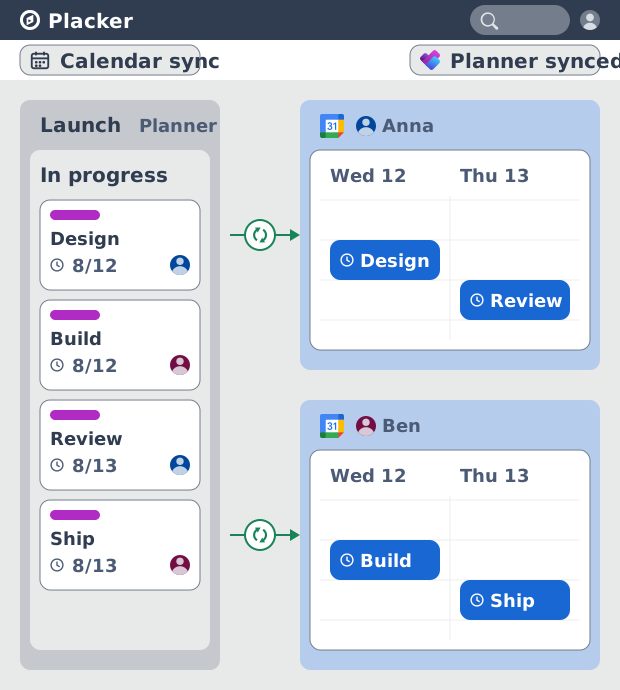
- Everyone sees their own work. Each team member connects their own calendar, and you can scope a board to every task or only specific people's.
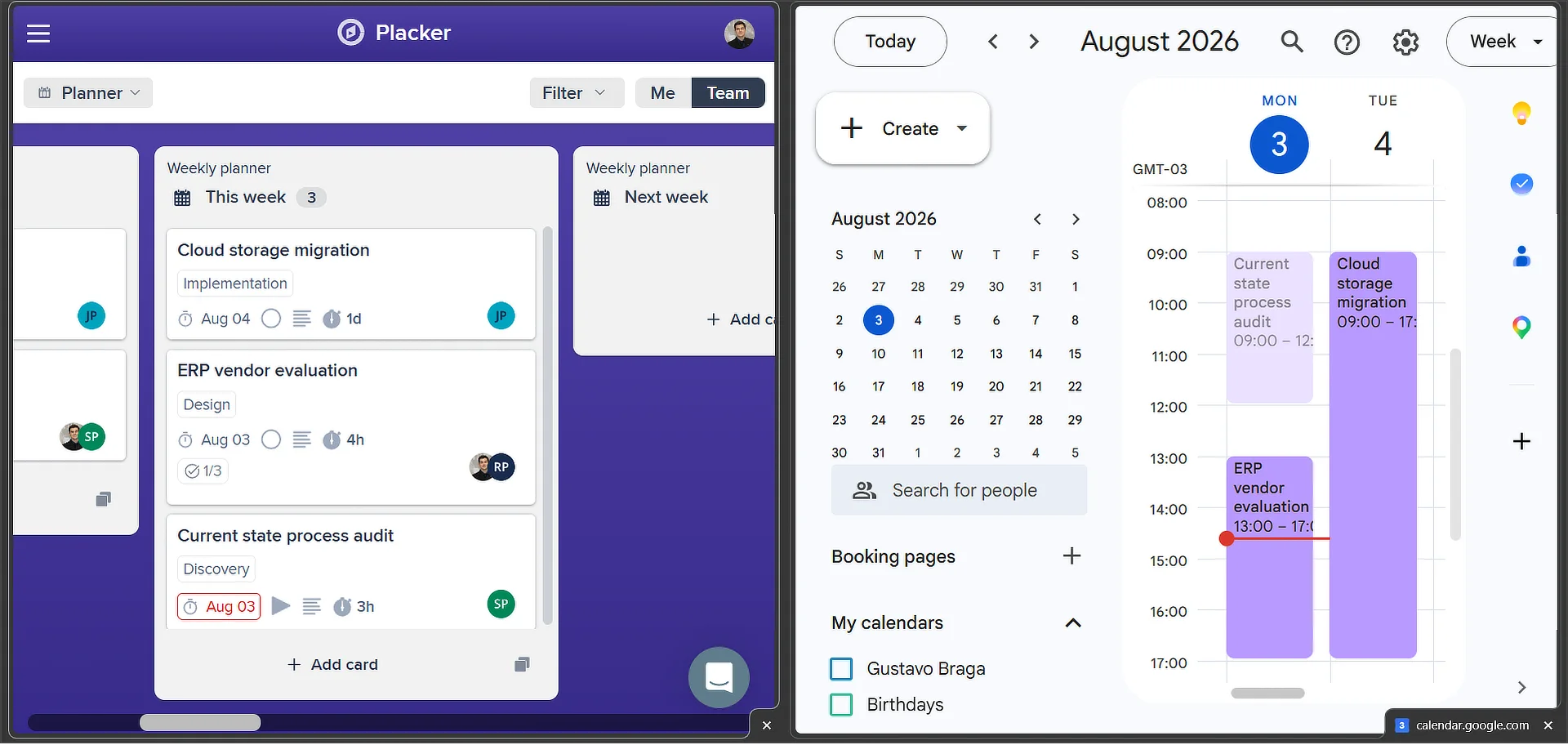
- Due dates and time blocks. Tasks with only a due date show as full-day events, while adding a start date makes them timed blocks.
- Stays clean on its own. Finished or archived tasks are cleaned up automatically.
Two-way sync
Edit in either tool, no double entry
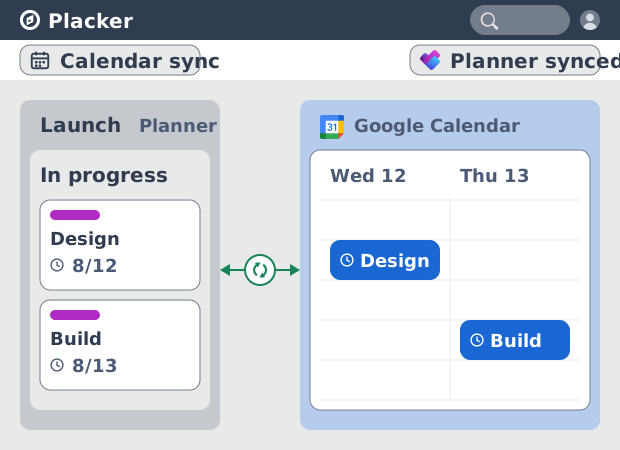
Your Planner tasks and Google Calendar events stay in sync in both directions. Drag an event to a new day in Google Calendar and the task's due date updates in your plan; change the date in Planner and the calendar event moves to match. Planner's native Outlook feed is read-only, so a change there never travels back. With two-way sync you reschedule once, in whichever tool you are working in, and both stay correct.
Deadlines beside meetings
See plan deadlines next to your meetings
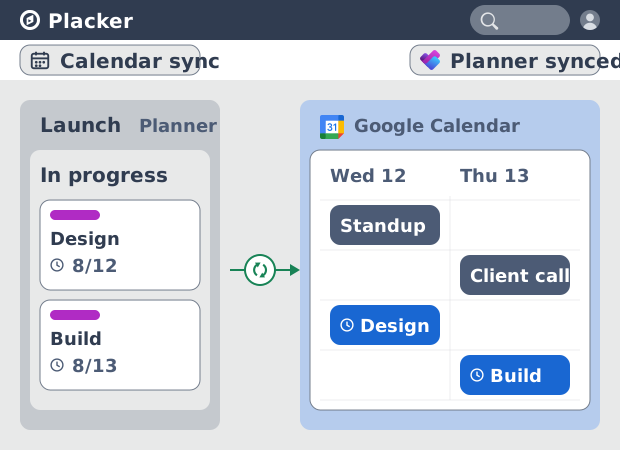
Because those tasks stay in sync, every Planner deadline lands on the Google Calendar you already check between meetings. The sync polls Planner about every 5 minutes, so a date you reschedule in your plan reaches the calendar within a few minutes, not the next day. You then see task work and appointments against the same hours, and can commit to a deadline knowing what else is already booked that day.
Per-assignee scope
Give each person a calendar of their tasks
You decide who gets that view. Sync a whole plan, or limit it to the tasks assigned to one person so each team member sees only their own deadlines beside their meetings. Completed, archived, and unassigned tasks drop off automatically, which keeps each calendar showing what is still open instead of a backlog of finished items. Buckets and assignments from your plan carry through, so the calendar reflects how the work is actually divided.
How It Works
You set up sync once. After that, work in Planner or Google Calendar and let Placker keep them aligned.
- 1
Import your Planner plan into Placker
In Placker, connect your Microsoft account and import the plan you want to track. The plan must belong to a Microsoft 365 group. Placker keeps the plan in two-way sync, so tasks, buckets, and assignments stay current in both places.
- 2
Connect your Google account
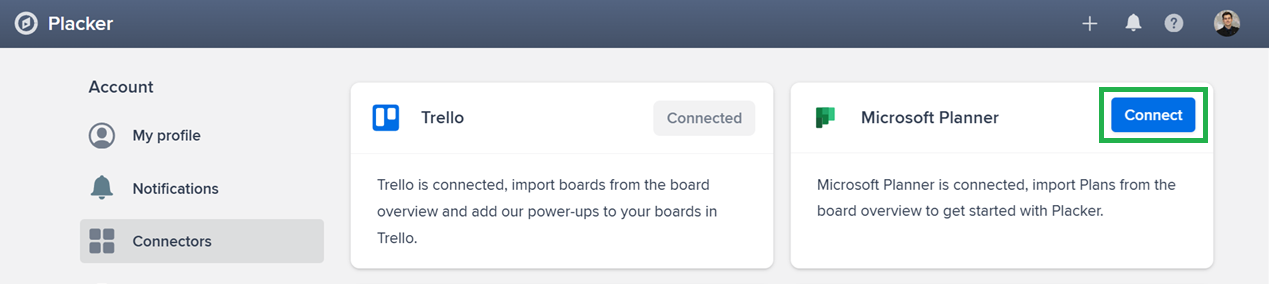
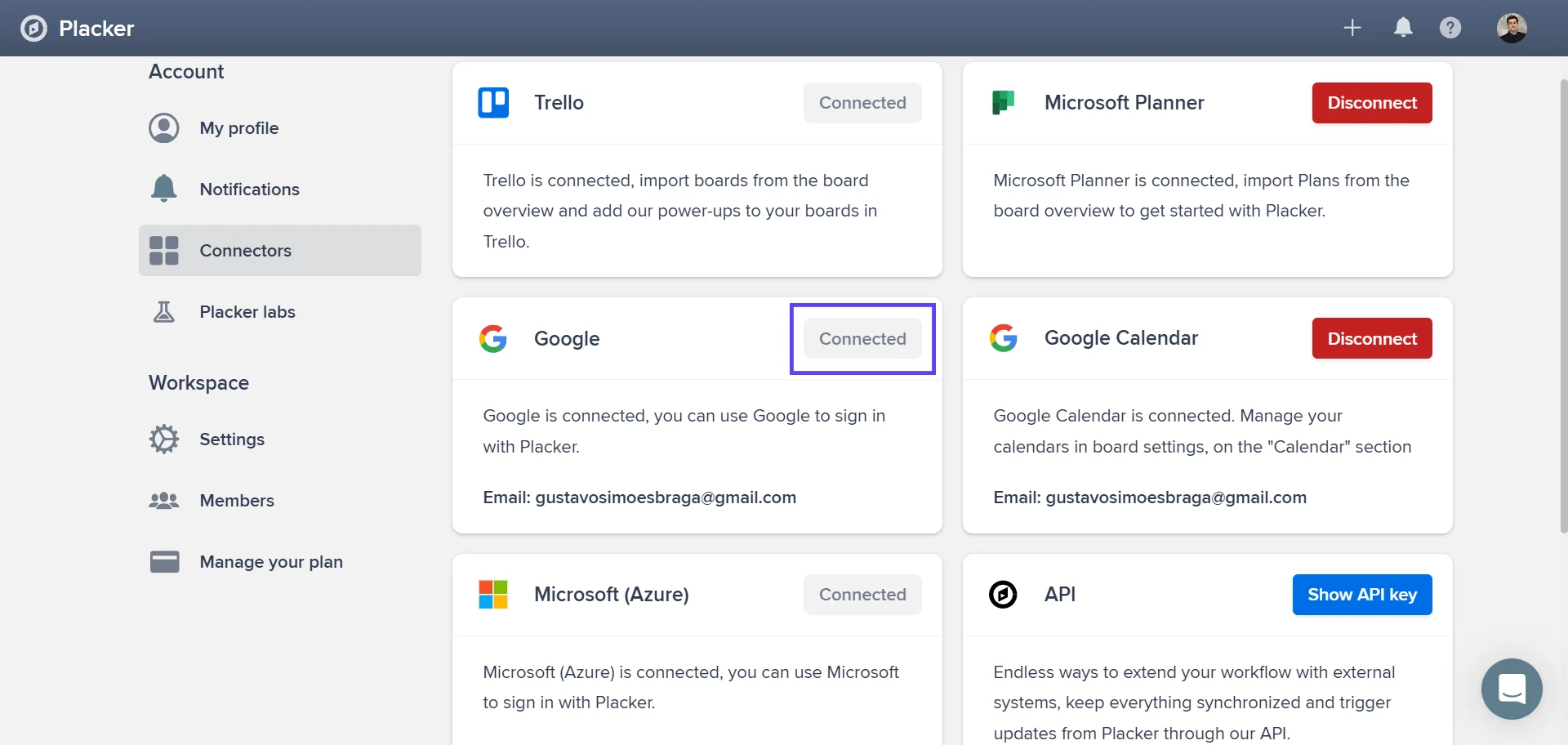
Open your Placker profile and go to Connectors, then connect the Google account that holds the calendar you want to use. This is a one-time step that links Placker to Google Calendar.
- 3
Turn on calendar sync for the board
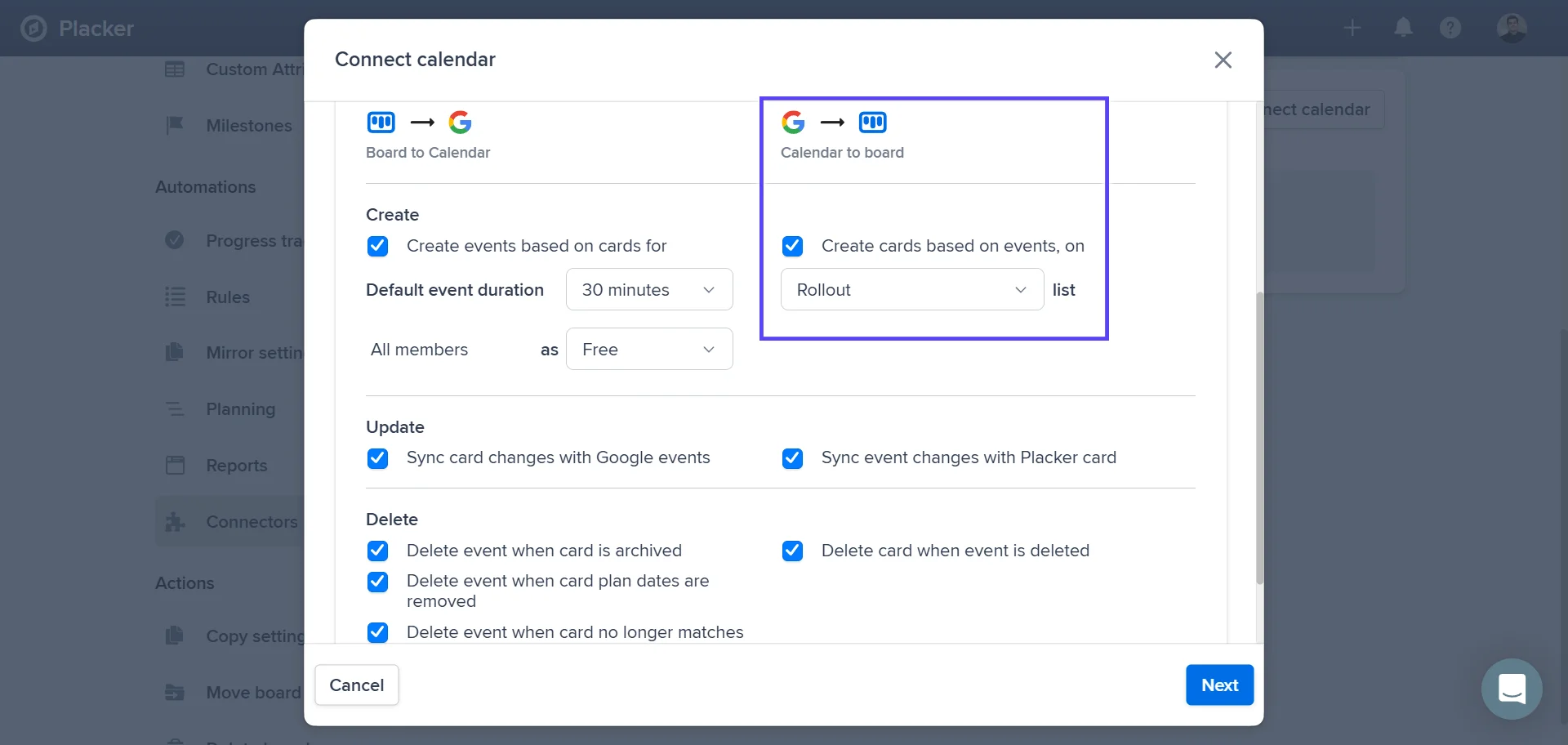
Open the imported plan's board settings, select the Connectors tab, and choose Connect calendar. Pick the Google Calendar to link, set the direction (one-way or two-way), and choose whether to sync all tasks or only specific assignees.
- 4
Watch tasks appear in Google Calendar
Any task with a due date now shows up in Google Calendar within a few minutes. A task with only a due date appears as a full-day event; add a start date to see it as a timed block. Recurring events are not supported.
Use cases
Where teams use Google Calendar sync to see Planner deadlines alongside the rest of their day.
PM with deadline overlay
A project manager syncs Microsoft Planner task due dates to Google Calendar so project milestones appear alongside client meetings in the same view. When a Planner task is rescheduled, the calendar event updates automatically, preventing missed handoffs.
Consultant with client scheduling
A consultant running multiple engagements connects Planner tasks to Google Calendar to see all client deliverables in a unified weekly view. The sync eliminates the need to check Planner separately and means the calendar always reflects current commitments.
Team lead with sprint cadence
A team lead syncs sprint milestones from Planner to a team Google Calendar shared with stakeholders. Executives can see upcoming release dates and review points directly in their calendar without asking for a status update.
Tips & Best Practices
Practical advice to get the most out of your workflow
Add a due date so the task reaches your calendar
Only Microsoft Planner tasks that carry a due date sync across, so make setting a due date part of creating the task. Undated tasks stay off the calendar, which also keeps it free of clutter you don't need to see.
Sync into a dedicated calendar you can toggle
Point the sync at a separate 'Planner' calendar in Google Calendar rather than your primary one. Then you can color-code project deadlines and switch them on or off with one click, without hiding your meetings.
Let Google Calendar remind you on your phone
Because each deadline becomes a normal Google Calendar event, it appears on your phone's calendar app automatically. Turn on notifications for the synced calendar to get a reminder before a Microsoft Planner task is due, with no extra app to install.
Switch to the Gantt view for the bigger picture
The calendar is ideal for day-to-day deadlines; when you need to see how those dates depend on each other and where the critical path runs, open the same plan on the Gantt chart.
Related pages
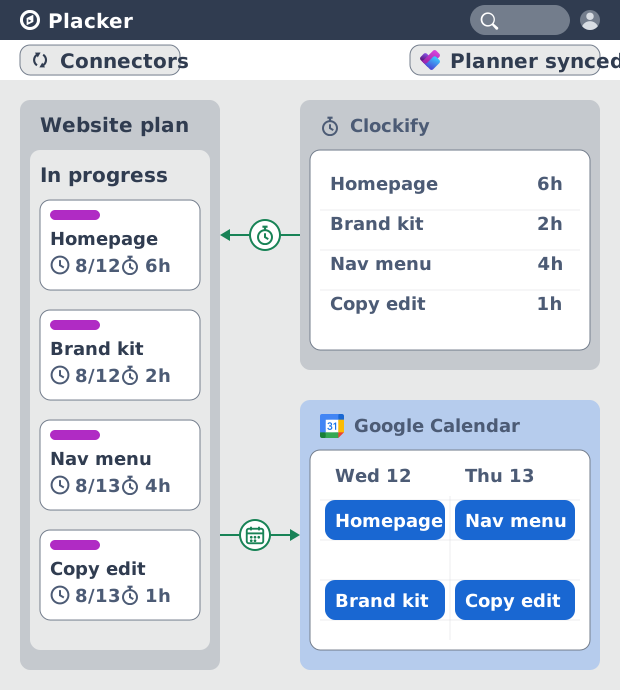
Microsoft Planner integrations: two-way sync
Sync Microsoft Planner plans two ways with Placker and add the calendar, time tracking, and automation Planner lacks. See how it works.
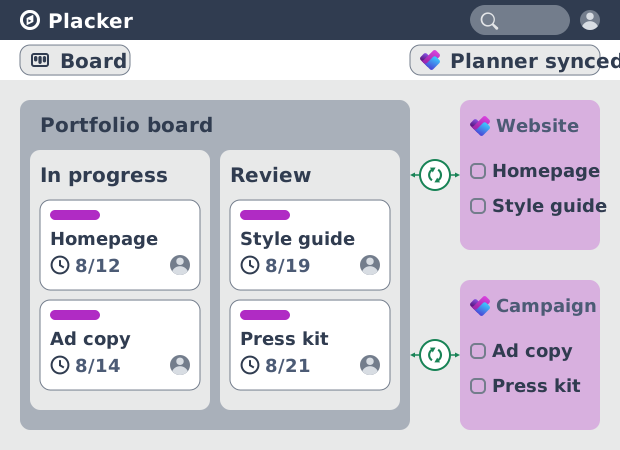
Microsoft Planner board view: layouts and reports
Add custom grouping, swimlanes, and Kanban reports to your Microsoft Planner board view. Placker reads your plans, no rebuild. Start a free trial.
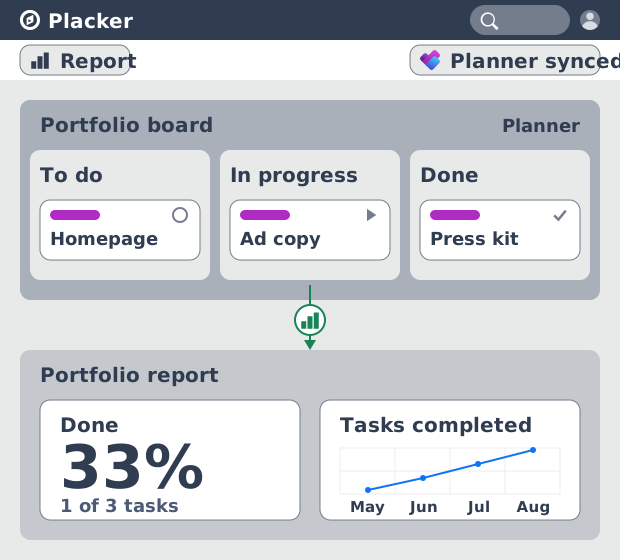
Microsoft Planner dashboards & reports
Report across Microsoft Planner plans without Power BI. KPI widgets, pivot tables, portfolio dashboards, and scheduled PDF reports. Start a free trial.
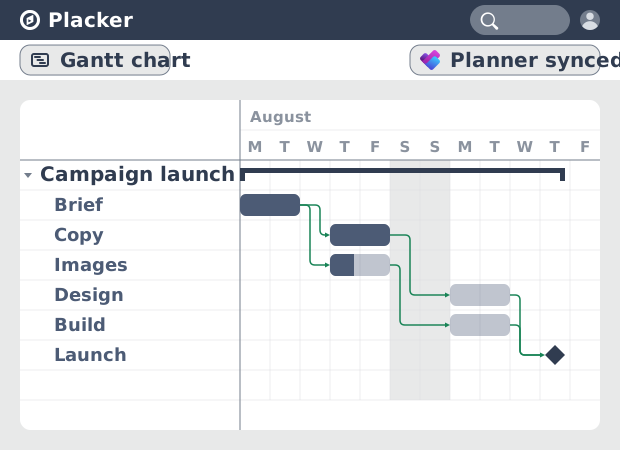
Microsoft Planner Gantt Chart: Add Dependencies
Microsoft Planner has no true Gantt chart. Placker turns Planner tasks into a timeline with dependencies and a critical path. Start free.
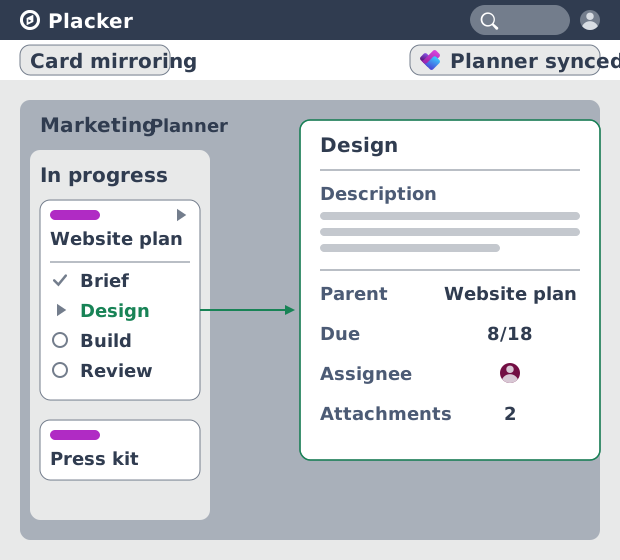
Subtasks in Microsoft Planner: Parent-Child Tasks
Add real subtasks to Microsoft Planner without premium. Parent-child tasks give each subtask an assignee and dates, and roll effort up.
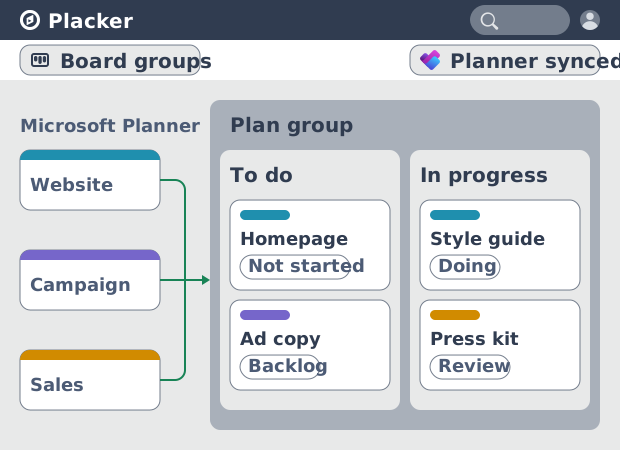
Microsoft Planner: see many plans in one view
See tasks from several Microsoft Planner plans in one board view, no Project Plan 3 or 5 license needed. Placker works on every tier. See how it works.
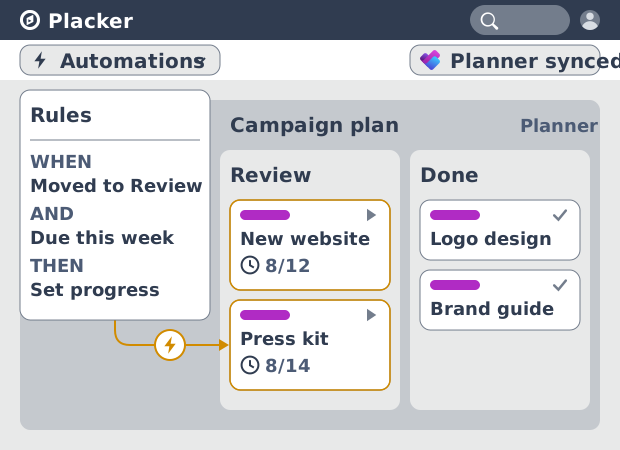
Microsoft Planner automation, no Power Automate
Add conditional automation to Microsoft Planner without Power Automate. Placker runs visual rules on your plans and tasks, plus recurring cards. See how.
Ready to get started?
Easy to setup, no credit card required, start your trial today!