Keep your boards current with project board automation rules
Boards drift for ordinary reasons: a moved card keeps a stale status, an owner change doesn't update the attribute, or a card gets copied to another board by hand. Placker rules catch these events and run the update for you, so the board reflects the work without anyone maintaining it.
Quick facts
Automation & workflow rules in Placker
Rules that keep your boards up to date on their own. Here is what they do for you:
- No limits, ever. Create as many rules as you want with no cap on how often they run, and they keep firing as boards get busier.
- Applies instantly. Save a new rule and it runs against the cards already on your board that moment, with no waiting for the next trigger.
- Recurring work, on schedule. Repeat rules create recurring work cards on a fixed weekly, sprint, or monthly schedule, each with its own destination board, list, and due-date calculation.
- Acts both ways. A single rule can take one action when conditions are met and the opposite when they stop: assigning a member as a card enters a list and removing them when it leaves.
Event-driven updates
Let project board automation rules keep the board current
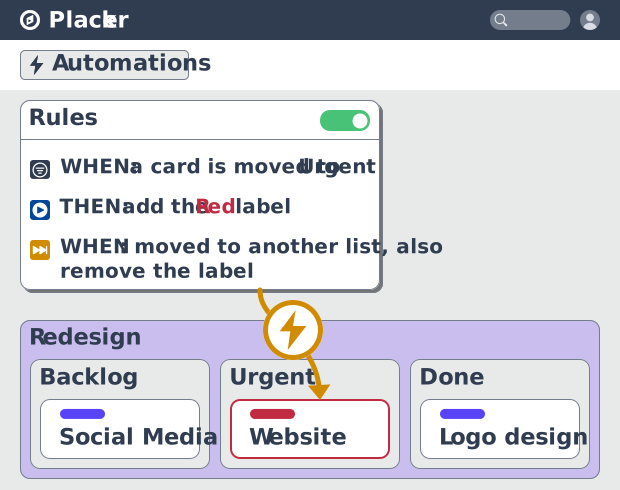
Placker rules act on the events that already happen on your boards: a card moves to a list, a member is assigned, a label is added, a checklist item changes status, or a plan date is set. When the event matches your conditions, the rule sets the card's progress, assigns an owner, sets or clears a custom attribute, or archives the card. Work that used to depend on someone remembering now happens the moment the trigger fires. The board shows the real state of the work, not the last time someone tidied it.
Mirror, copy, move
Move work across boards without copying it
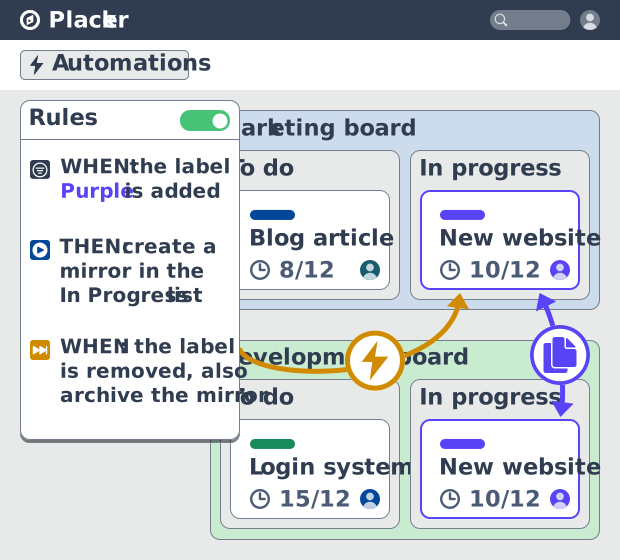
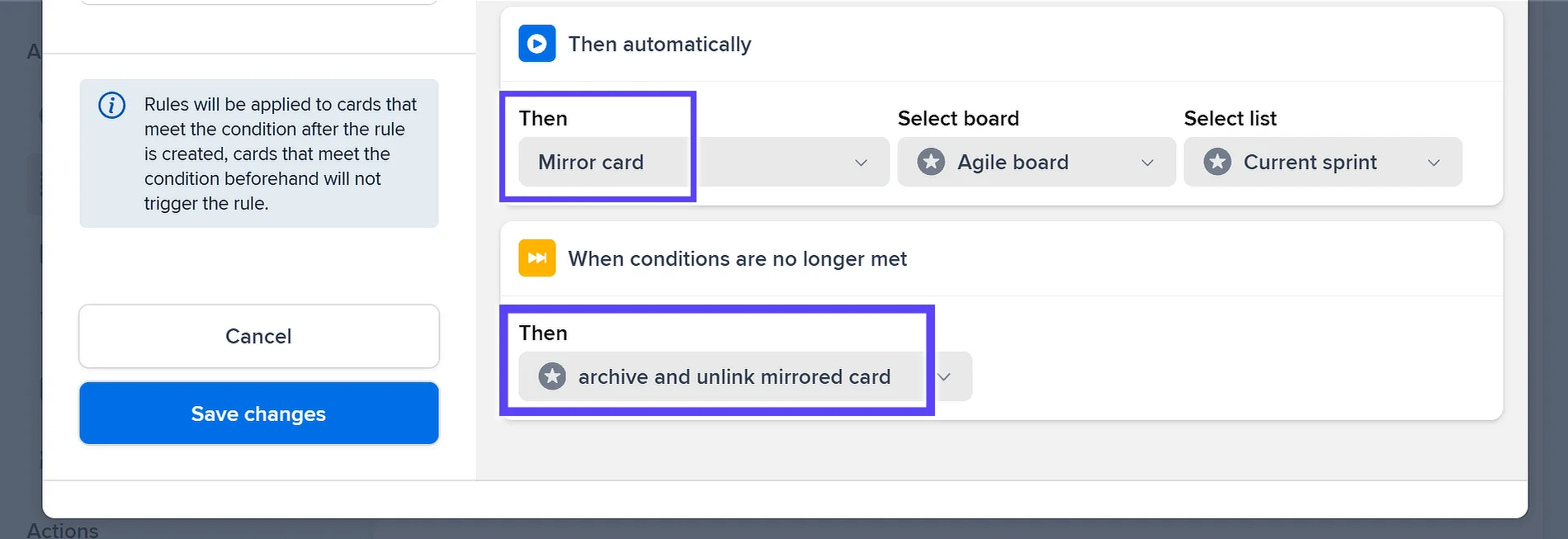
The same rules that update a card can also send it beyond the board: a rule can mirror, copy, or move a card to another board when a condition is met. Mirroring keeps the two cards in sync, so an edit on one shows on the other. A delivery card assigned to a person can appear on their own board, and a card marked Contract signed can move to the production board on its own. Most platforms keep their rules inside a single project, so this cross-board handover is one of the reasons teams choose Placker. Reverse actions clean up after themselves: once the condition no longer holds, the rule can unlink or archive the mirror it created.
Reusable rules
Roll one proven workflow out to every board
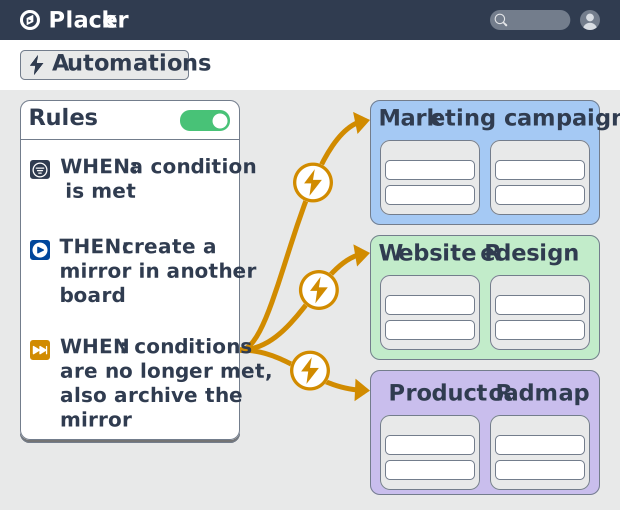
A cross-board rule like that, with its conditions and reverse cleanup, is worth building only once. Copy it to another board and the rest of that board's settings come too, as long as both boards are imported in Placker: custom attributes set on list entry, progress statuses, and mirror logic all travel with it. Card history then records which rule created or changed a card and when, and it keeps the rule's name even after you remove the rule, so you can always trace why a card looks the way it does.
How It Works
Build your first rule in four steps from Board settings.
- 1
Open the Rules tab
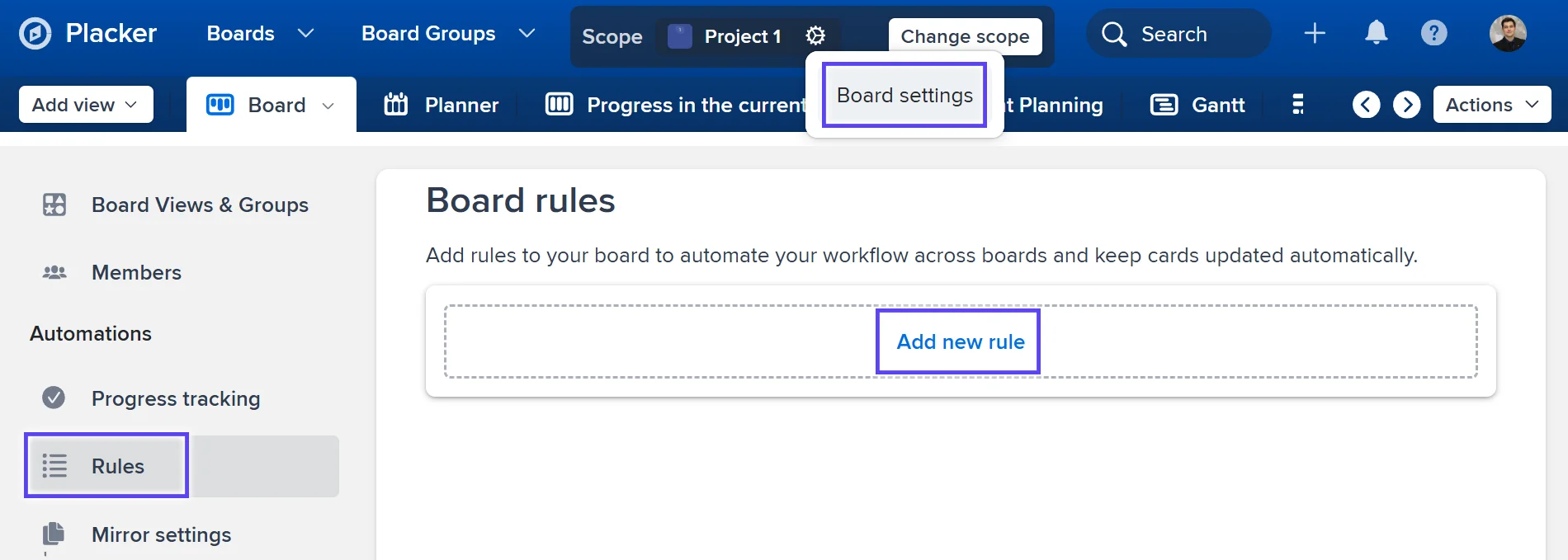
In any board view, click the gear next to the board title to open Board settings, then open the Rules tab. Every rule for the board lives here, and this is where you edit, disable, or delete them later.
- 2
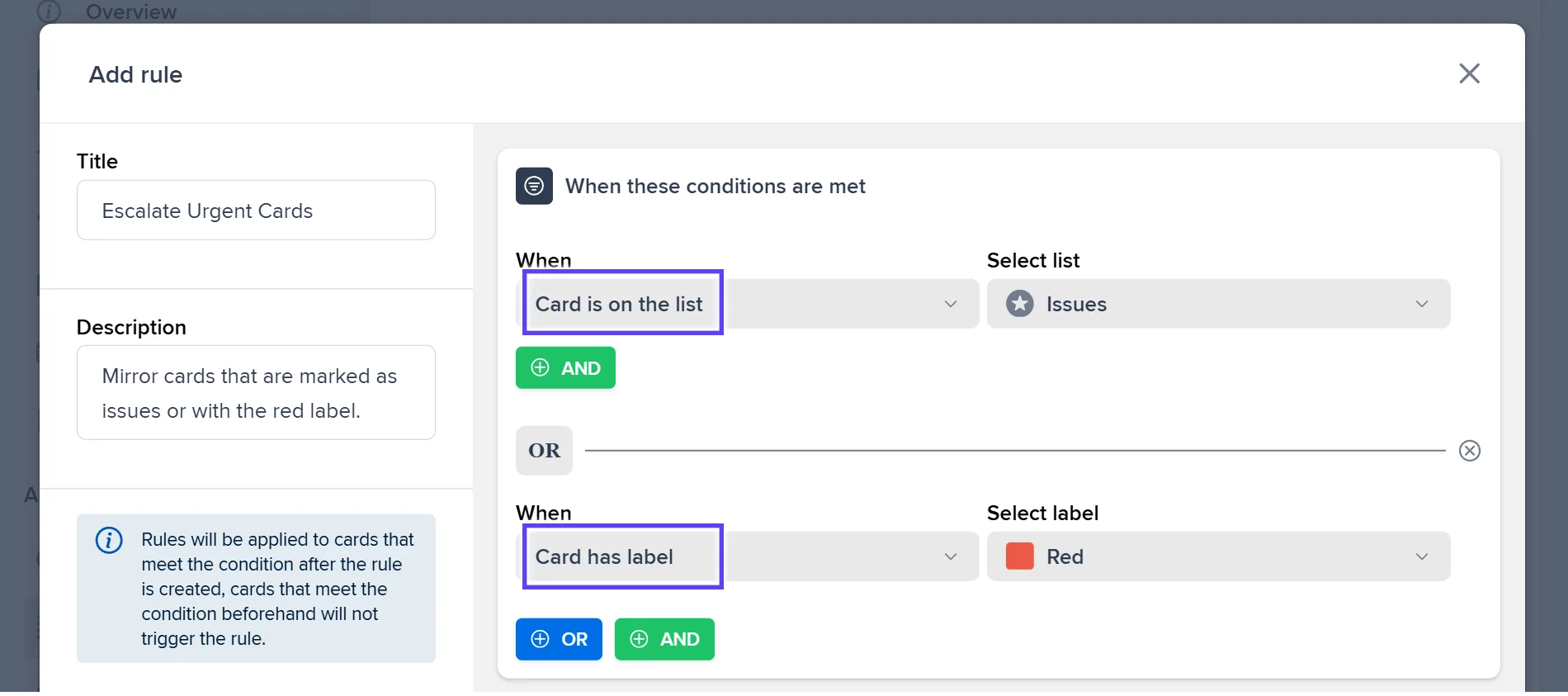
Set the trigger and conditions
Choose the event that starts the rule, such as a card moving to a list or a member being assigned. Add conditions and combine them with AND or OR to control exactly when the rule runs.
- 3
Choose the actions
Pick what the rule does when conditions are met: set progress, assign a member or label, set or clear a custom attribute, mirror or move the card, or archive it. Add reverse actions for when the conditions stop being met.
- 4
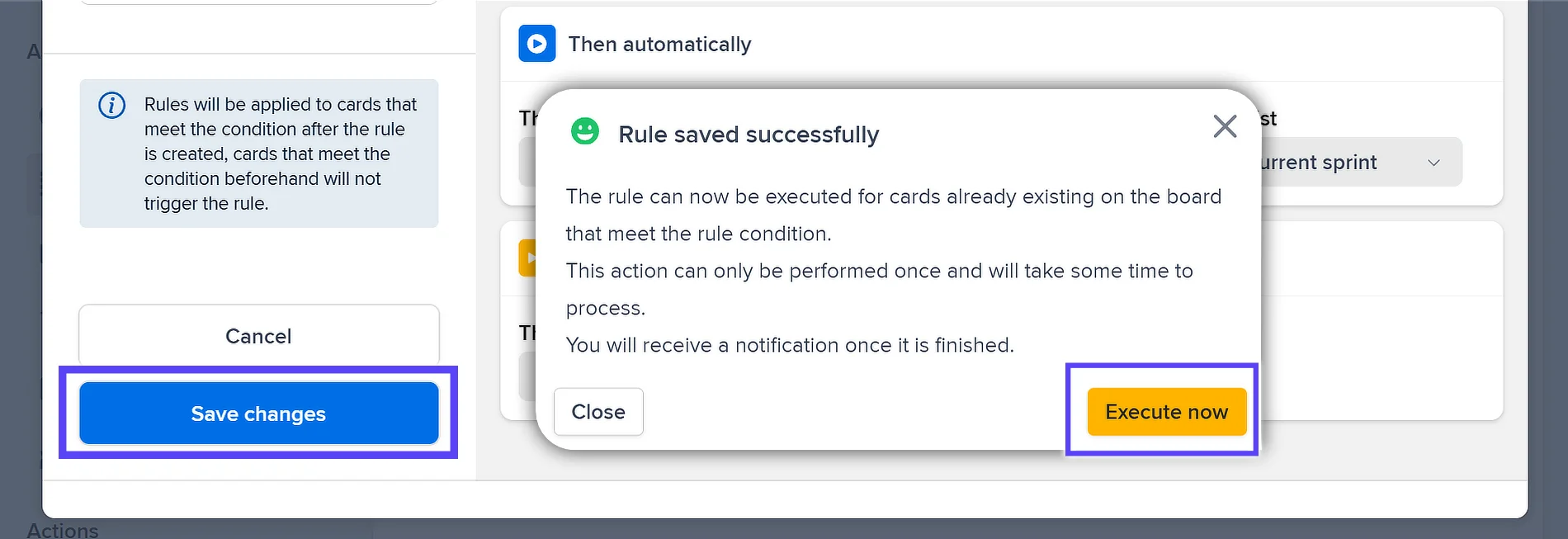
Save and apply
Save the rule and click Execute now to apply it to the cards already on the board. From then on the rule runs on its own whenever the trigger fires.
Use cases
Where teams use automation and workflow rules to take repetitive work off their plate.
Team with sprint automation
An agile team sets up Placker automation to archive completed tasks from last sprint and create a fresh set of template tasks for the new sprint each Monday. Planning sessions start with a clean board, not last week's clutter.
Project lead with escalation rules
A project lead creates a rule that flags any task stuck in 'In review' for more than three days by moving it to a 'Needs attention' group and notifying them in Slack. Stalled work surfaces automatically before it becomes a delivery risk.
Manager with deadline automation
A programme manager uses Placker to automatically set dependent task due dates when a milestone date changes. One adjustment to the milestone propagates through the schedule rather than requiring manual updates to each downstream task.
Tips & Best Practices
Practical advice to get the most out of your workflow
Start with one automation to see the impact before adding more
Pick one repetitive action your team does every week, such as moving a card to Done when all checklists are complete, and automate it first. Seeing the immediate time saving makes it easy to build from there.
Use date-based triggers to keep tasks moving automatically
Set up automations that fire when a due date approaches or a start date arrives. Automatically assign the card, add a checklist, or move it to the next list so work progresses without manual nudging.
Automate card assignments to make ownership clear from the start
Create a rule that automatically assigns a card to the right person when it moves to a specific list. No more wondering who’s responsible. Ownership is set the moment a task enters each stage.
Standardize your automations so reports stay trustworthy
When every card follows the same automated steps, the status data behind your dashboards stays clean. Pair automation with Reports and your progress and workload numbers reflect the real state of the work, not who remembered to update a card.
Related pages
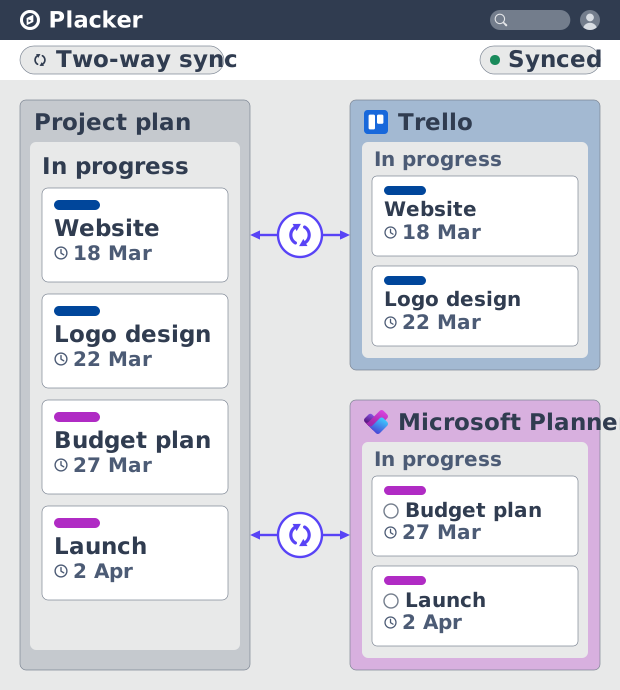
Placker integrations: sync your project tools
Placker integrations sync Trello, Microsoft Planner, Google Calendar, Clockify, and Zapier two ways, keeping one plan across every tool. See how it works.
Board views: one board, any view
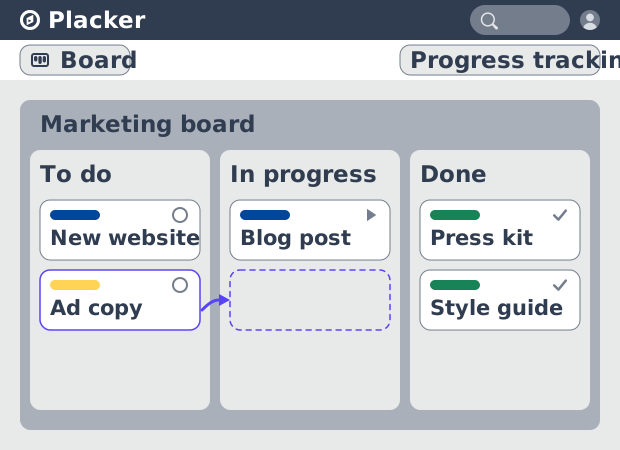
See all your work as cards moving across lists in Placker. Group by member, swimlane, or due date, and track flow with Kanban reports. See how it works.
Project dashboards and reports
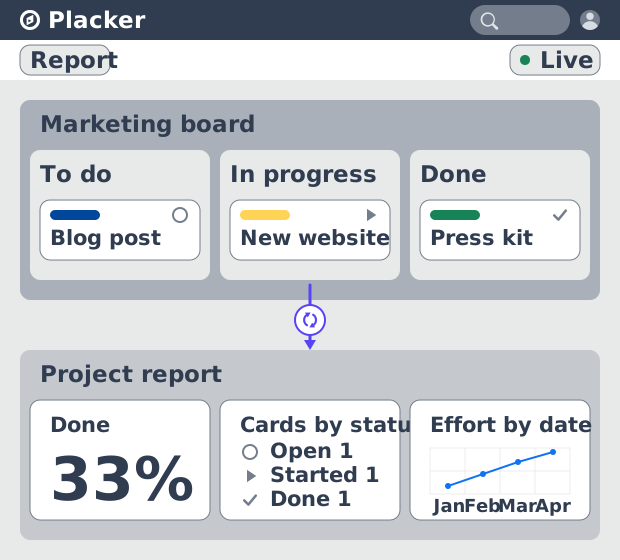
Build live project dashboards from your tasks. KPI widgets, pivot tables, portfolio roll-ups, and scheduled PDF reports. Start a free Placker trial.
Gantt chart software with auto-scheduling
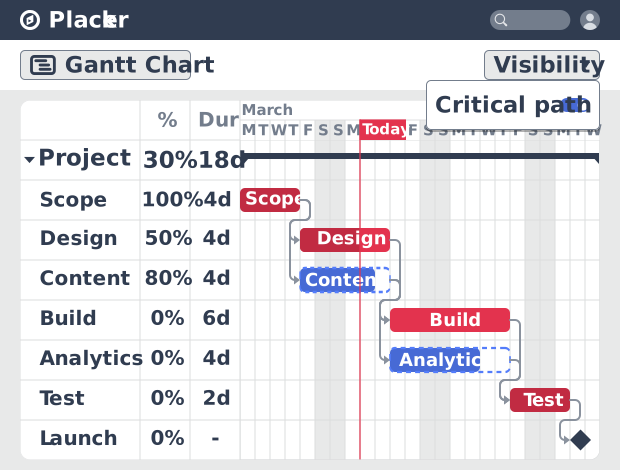
Plan projects on a visual timeline with Placker's Gantt chart software. Set dependencies, auto-schedule dates, and track the critical path.
Parent-Child Cards in Placker | Subtasks that roll up
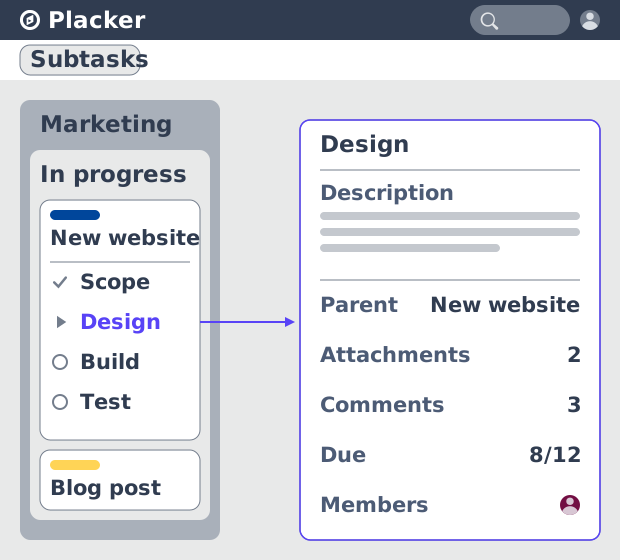
Parent-child cards in Placker give every subtask a full card and roll effort, dates and members up to the parent. Read the total on top.
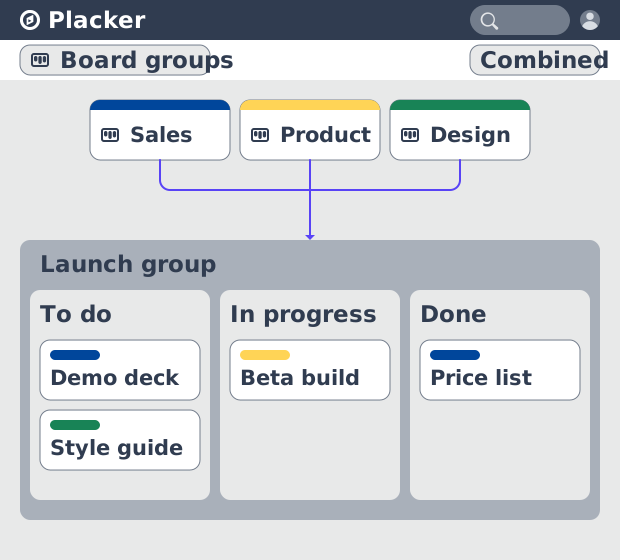
Board Groups: many boards, managed as one
Board Groups let you manage many boards as one workspace: plan, filter, and report across all of them, and save reusable groups. Start a free trial.
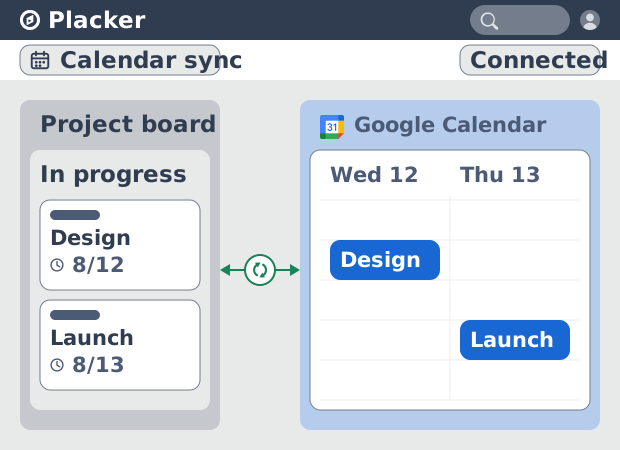
Placker Google Calendar sync: two-way, real-time
Placker syncs every dated card on your boards to Google Calendar, two-way, in under a minute. Edit either tool; both stay aligned. Start free.
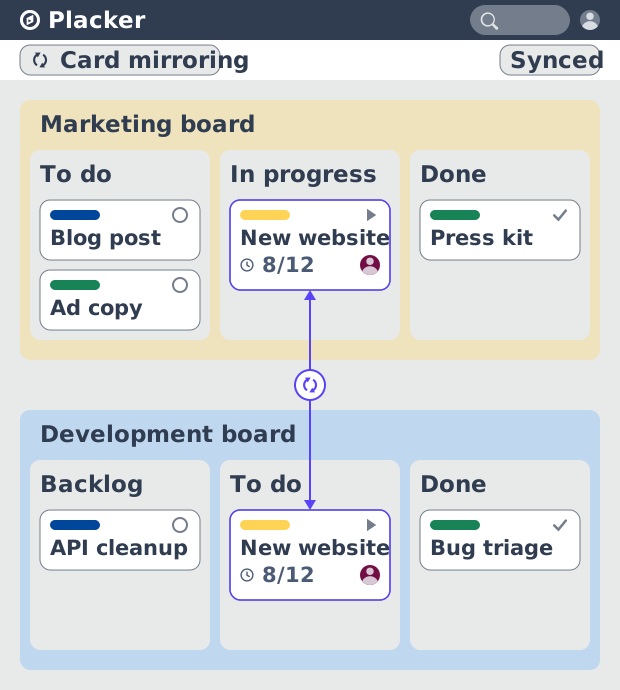
Card Mirror & sync in Placker: 2-way card sync
Card Mirror and sync keeps one task live across every Placker board. Edit a card once and status, dates and members update in seconds. Start a free trial.
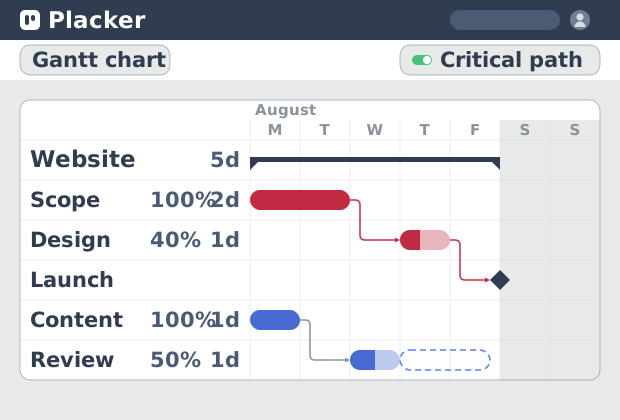
Critical path Placker: Gantt chart CPM analysis
Critical path in Placker finds the tasks that control your deadline and flags them on the Gantt, updating live as dependencies shift. Start a free trial.
Ready to get started?
Easy to setup, no credit card required, start your trial today!