Combina tus tableros en Grupos de Tableros (Board Groups) que administras como uno solo
Carga los tableros que elijas en un solo Grupo de Tableros y luego planea, filtra y genera reportes en todos ellos.
Resumen rápido
Grupos de Tableros
Todos los tableros que elijas, funcionando juntos en un solo lugar. Esto es lo que te da:
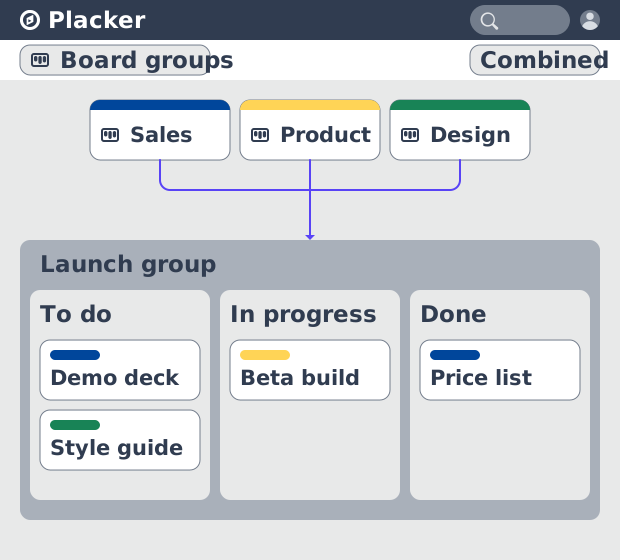
- Muchos tableros, un espacio de trabajo. Carga los tableros que elijas en un solo espacio de trabajo, donde cada tarjeta mantiene una etiqueta del tablero de donde vino.
- Combina o mantén por separado. Combina las listas que comparten nombre en una sola columna o mantén cada tablero por separado, lo que le venga mejor al trabajo.
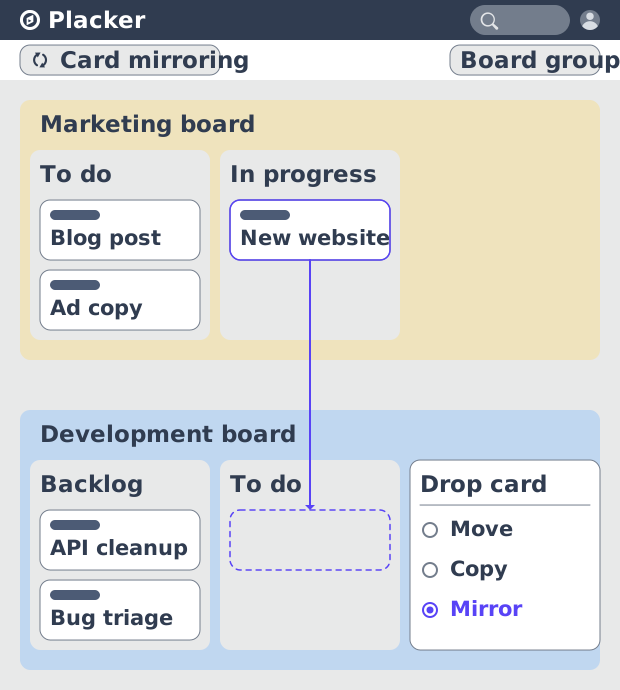
- Arrastra para mover o crear espejos. Arrastra tarjetas entre tableros para moverlas, copiarlas o crear un espejo con una copia sincronizada que se mantiene igual en ambos lugares.
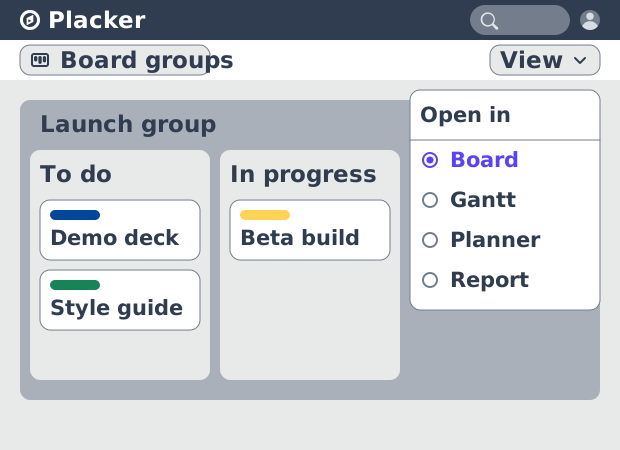
- Cuatro vistas en todos los tableros. Abre el grupo en la vista de Tablero, Gantt, Planificador o Reporte para planear, filtrar y generar reportes en todos los tableros a la vez.
Grupos de Tableros
Combina cualquier tablero en Grupos de Tableros
Elige los tableros que quieras y cárgalos en un solo grupo. Cada tarjeta conserva una etiqueta del tablero del que vino, así nada pierde su origen, y un grupo admite todos los tableros que necesites.
Elige cómo se organizan los tableros. La vista combinada une las listas que comparten el mismo nombre, así una etapa en común como En revisión aparece como una sola columna; la vista dividida mantiene cada tablero como su propia columna. Obtienes un solo espacio de trabajo para planear todo, en lugar de abrir un tablero a la vez.
Espejo de tarjetas (Card mirroring)
Mueve y crea espejos del trabajo sin salir del grupo
Con los tableros alineados en un solo espacio de trabajo, puedes mover tarjetas entre ellos. Arrastra una tarjeta de un tablero a otro dentro del grupo y eliges si quieres moverla, copiarla o mantener un espejo sincronizado que sigue igual en ambos lugares. Cambia una tarjeta espejo en un tablero y la copia del otro se actualiza con ella.
Reorganizas dónde vive el trabajo a medida que cambian las prioridades, sin exportar tarjetas ni volver a crearlas en otro tablero.
Vistas de grupo
Ve el grupo en cualquier vista de tablero
Mover tarjetas una por una es una cosa; ver todo el grupo de una vez es otra. Abre un grupo en Tablero, Gantt, Planificador o Reporte, y el mismo conjunto de tableros se convierte en un kanban, un cronograma, un calendario o un panel de métricas. Las vistas que ya usas en un solo tablero ahora se ejecutan en todos los tableros del grupo.
Los plazos de todos los proyectos aparecen en un solo cronograma, y los mismos tableros alimentan un calendario compartido y reúnen sus métricas en un solo lugar. Un líder de departamento ve dónde se traslapan los proyectos y cuáles se están retrasando desde una sola pantalla, en lugar de abrir cada tablero y armar el panorama a mano.
Filtros personales
Solo tu trabajo, en todos los tableros
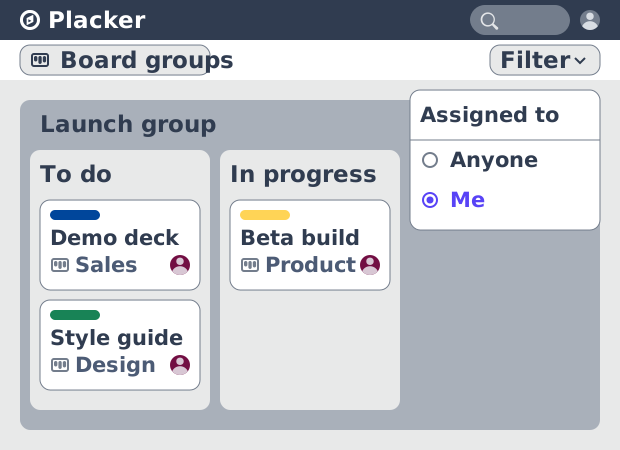
Esa pantalla es la vista del gerente; cada persona puede armar la suya. Las tarjetas viven en el tablero donde está el trabajo, así que las tareas de una persona se reparten entre muchos tableros. Filtra un grupo por asignadas a mí y se reduce solo a tus tarjetas, reunidas de todos los tableros del grupo y actualizadas a medida que el trabajo se asigna y se termina.
Nadie guarda una copia personal, y los tableros de origen quedan intactos. Cada miembro puede configurar Mi alcance por tablero para mostrar todas las tarjetas, ninguna o solo las suyas, así el mismo grupo le da a cada quien su propia porción.
Grupos guardados
Guarda la configuración una vez y reábrela por su nombre
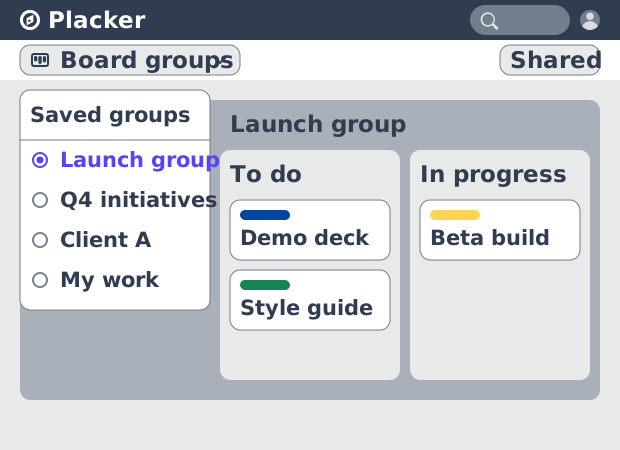
Ese alcance, y todo lo demás que organizas, queda guardado con el grupo. Un grupo guarda más que una lista de tableros: el nombre, el orden de los tableros y el alcance que definiste se mantienen juntos, así que un grupo como Mi Trabajo, Iniciativas del Q4 o Cliente A conserva todo el contexto que armaste, no solo qué tableros contiene.
Mantén todos los grupos que el trabajo necesite, personales o compartidos con tu equipo, y vuelve a abrir cualquiera desde la vista general con un clic. Algo a lo que regresas seguido, como una revisión semanal o un programa que llevas cada trimestre, se convierte en una vista guardada a la que entras, en lugar de armarla otra vez cada vez.
Cómo funciona
Crea un Grupo de tableros desde la vista general, define su alcance y orden, cambia de vista y filtra entre tableros, luego guarda el grupo para reutilizarlo.
- 1
Agrega un grupo desde la vista general de tableros
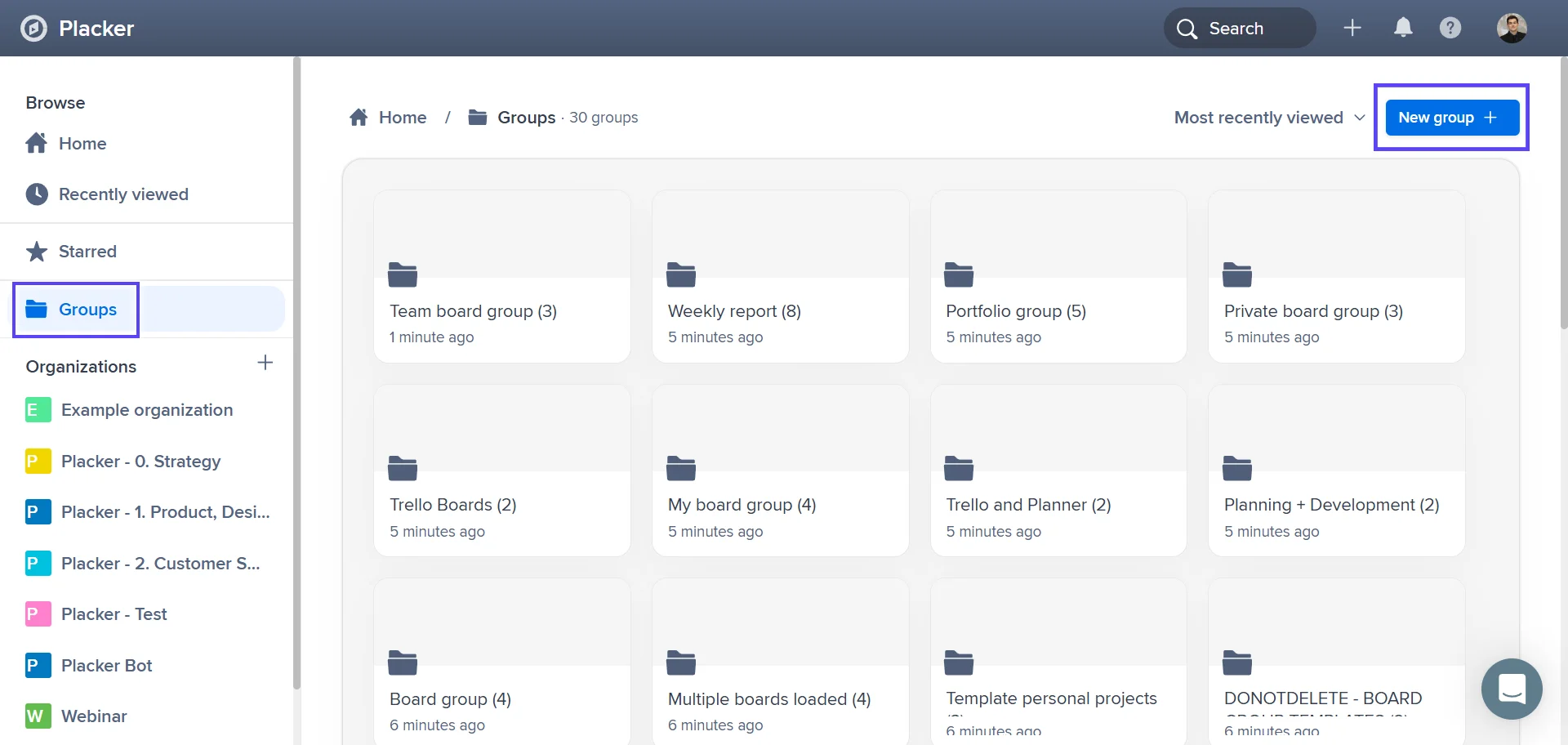
En la vista general, elige Nuevo grupo, selecciona los tableros a incluir, ponle nombre al grupo y elige Agregar grupo. Los tableros se cargan juntos en un solo espacio de trabajo.
- 2
Define el alcance y el orden
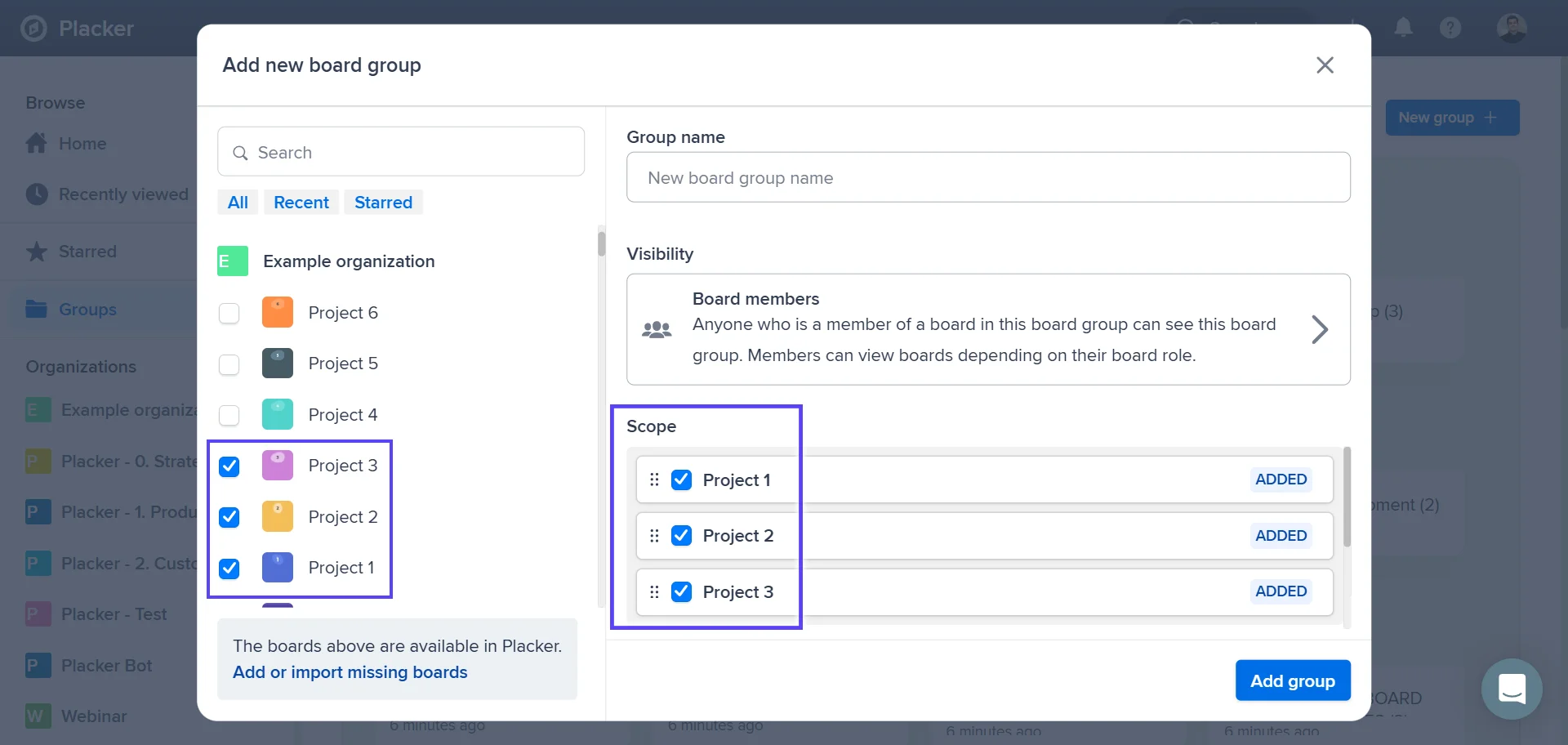
Agrega o quita tableros desde la barra de alcance, y arrastra los tableros para definir su orden en el grupo. Cada miembro puede configurar Mi alcance por tablero en todas las tarjetas, ninguna o solo las suyas.
- 3
Cambia de vista y filtra
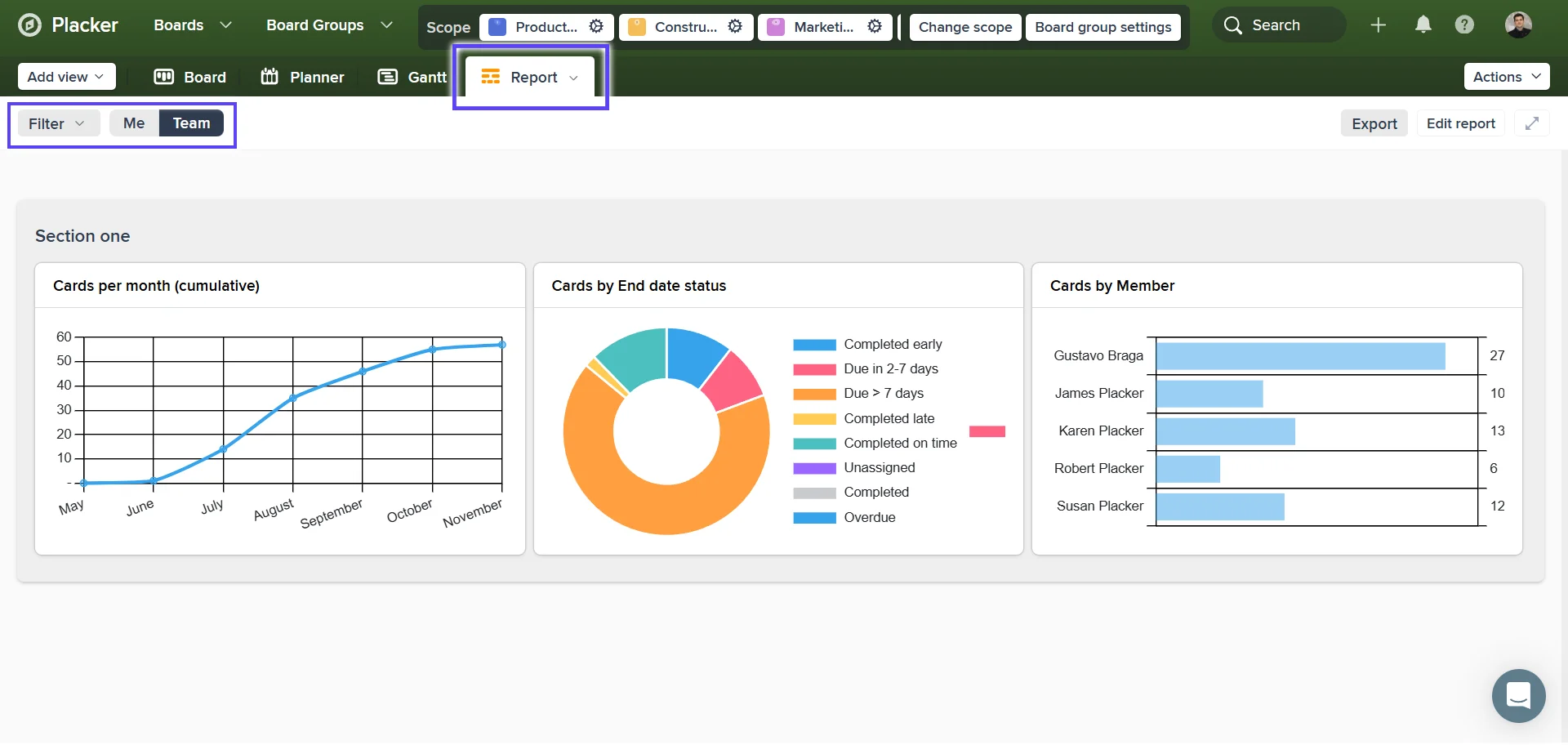
Abre el grupo en Tablero, Gantt, Planificador o Reporte, luego aplica un filtro entre tableros como asignadas a mí, una etiqueta, una fecha de vencimiento o un miembro. El filtro se ejecuta en todos los tableros del grupo.
Casos de uso
Donde los equipos usan los Grupos de tableros (Board Groups) para planear y reportar en varios tableros a la vez.
Agencia de marketing
Ocho cuentas de clientes, cada una en su propio tablero, así que revisar el estado significa abrir ocho tableros. Cárgalos en un solo grupo y revisa a cada cliente desde un único tablero.
Empresa de construcción
Un gerente de portafolio maneja tres tableros de proyecto y junta el progreso a mano para la revisión semanal. Agrupa los tres y ábrelo en Reporte para consolidar el progreso y los plazos de todos los sitios de una sola vez.
Equipo de software
El trabajo de un equipo vive entre los tableros de sprint, backlog y bugs, así que ningún lugar lo muestra todo. Mantenlos como un grupo base filtrado por las tarjetas del propio equipo, y empieza cada reunión diaria desde una sola vista.
Una persona entre varios proyectos
Trabajas en los tableros de varios equipos, y tus tareas se dispersan por todos ellos. Crea un grupo con tus tableros, filtra por 'asignadas a mí' y todo lo que tienes pendiente aparece en un solo lugar.
Consejos y buenas prácticas
Recomendaciones prácticas para aprovechar al máximo tu flujo de trabajo
Dales a los tableros agrupados nombres de lista iguales para que la vista combinada se una sin problemas
La vista combinada agrupa en una sola columna las listas que comparten el mismo nombre. Usa los mismos nombres de etapa en los tableros que agrupas, como En revisión en cada tablero, y la vista combinada se ve como columnas compartidas y ordenadas, en lugar de una fila de casi duplicados.
Elige la vista combinada o dividida según qué tan parecidos sean los tableros
Usa la vista combinada cuando los tableros siguen las mismas etapas y quieres un solo flujo unificado. Cambia a la vista dividida cuando cada tablero tiene su propio proceso y prefieres verlos lado a lado. Ajustar la vista a los tableros mantiene legible un grupo grande.
Coloca el grupo en un Gantt para encontrar la ruta crítica del programa
Abre un Grupo de tableros en el Gantt para reunir los plazos de todos los proyectos en un solo cronograma, luego revisa la Ruta crítica (Critical path) para ver qué tareas de todo el programa no pueden retrasarse sin mover la fecha de término.
Apóyate en la etiqueta del tablero para mantener legible un grupo combinado
Cada tarjeta en un grupo conserva una etiqueta del tablero del que vino. Usa esa etiqueta para filtrar la vista combinada hasta un solo proyecto, o para colorear las tarjetas por tablero, así una vista combinada llena sigue siendo fácil de leer.
Páginas relacionadas
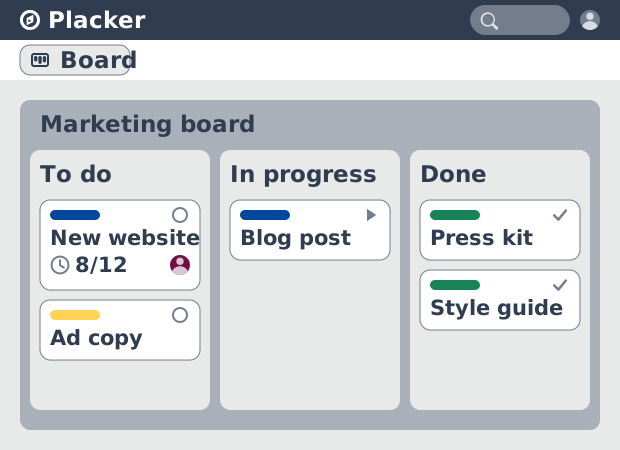
Tableros que se adaptan a cualquier tipo de trabajo
Planea tu proyecto en un tablero donde cada tarea es una tarjeta. Filtra por fecha de entrega y enfócate en tu trabajo en Placker. Empieza gratis.
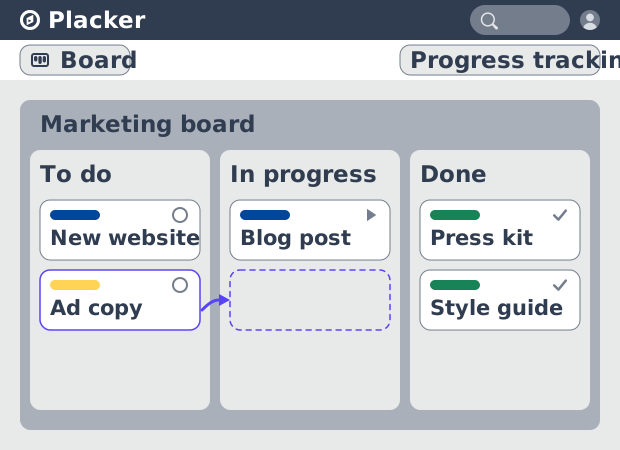
Vistas de tablero: un tablero, cualquier vista
Ve tu trabajo como tarjetas que avanzan por listas en Placker. Agrupa por miembro, carril o fecha de entrega y sigue el flujo con reportes Kanban.
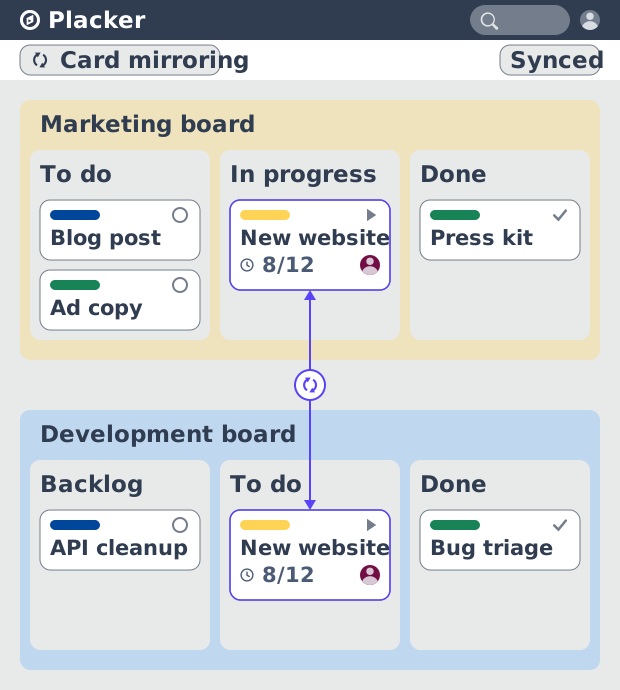
Espejo de tarjetas en Placker: sincronización bidireccional
El Espejo de tarjetas mantiene una tarea viva en cada tablero de Placker. Edita una tarjeta una vez y estado, fechas y miembros se actualizan en segundos.
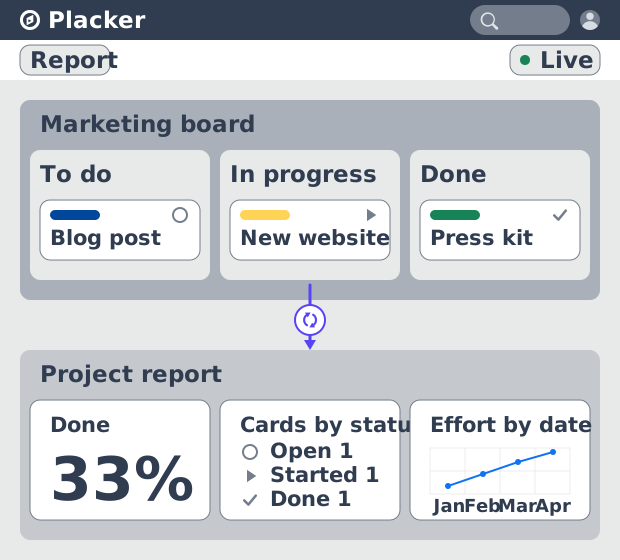
Dashboards y reportes de proyecto
Crea dashboards de proyecto en vivo: widgets KPI, tablas dinámicas, resúmenes de cartera y reportes PDF programados. Prueba Placker gratis.
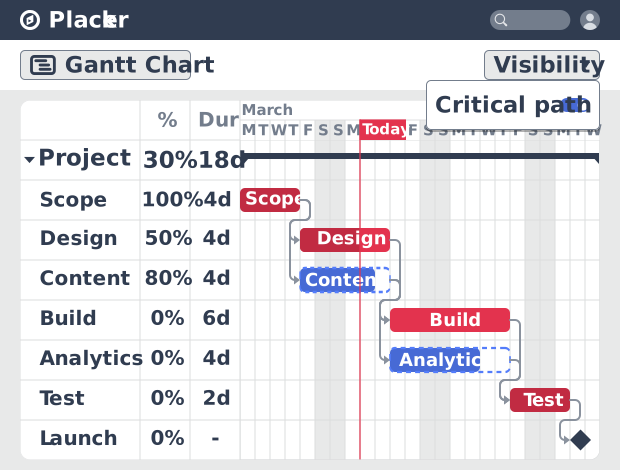
Software de Diagrama de Gantt con programación automática
Planea proyectos en un cronograma visual con el software de Diagrama de Gantt de Placker. Define dependencias, programa las fechas y sigue la ruta crítica.
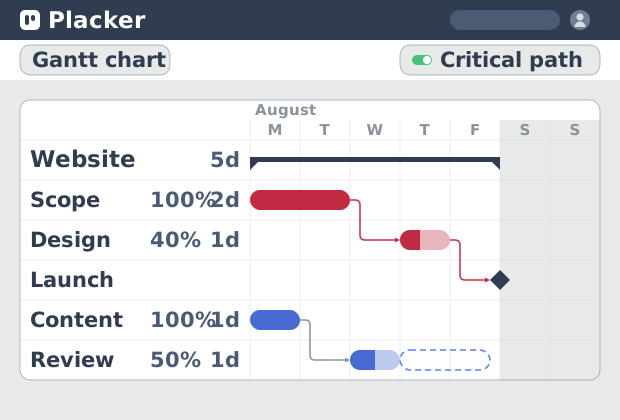
Ruta crítica en Placker: análisis CPM en diagrama de Gantt
La ruta crítica en Placker encuentra las tareas que controlan tu fecha límite y las marca en el Gantt, con actualización en vivo. Prueba gratis.
¿Todo listo para comenzar?
Fácil de configurar, sin tarjeta de crédito. ¡Comienza tu prueba hoy mismo!